> ## Documentation Index
> Fetch the complete documentation index at: https://help.teable.ai/llms.txt
> Use this file to discover all available pages before exploring further.
# Overview
> Set access scopes for different teams in the same base, so members only see, edit, or export the data they need.
Available for Business plan and above
When sales, finance, operations, and leadership share the same base,
permissions decide who can enter the base, which data they can see or edit,
and whether they can import or export data. The Authority Matrix helps teams
keep data in one place while separating access by responsibility.
You can assign custom roles to members or departments, then let each role
access only the tables, apps, and workflows it needs. For tables, you can also
limit visible views, visible records, editable fields, and import or export
permissions. For example, sales can maintain their own customers, finance can
view billing fields, and leadership can view the full dataset.
## When to Use It
| Scenario | Good for |
| --------------------------------- | -------------------------------------------------------------------------------- |
| Department-level access | Sales can maintain customer records, while finance only sees billing fields. |
| Assignee-based records | Sales reps can view and update only records assigned to them. |
| Restricted data entry | Members can create new records without editing or deleting existing records. |
| Sensitive fields in a shared base | Members can view order records without seeing payment or cost fields. |
| Controlled apps and workflows | Roles can open selected apps or workflows, while unauthorized nodes stay hidden. |
## How Permissions Work
The Authority Matrix assigns access by role. Users can receive permissions
from roles assigned directly to them or from department roles. When multiple
roles apply, Teable combines the permissions allowed by those roles.
Space users with the **Manager** permission and Authority Matrix administrators can manage the Authority Matrix and are not restricted by it.
The role list includes an `Administrators` section and a `Custom roles`
section:
 Use `Add role` to create a custom role. In the role detail page, assign
collaborators, write a short description, and configure access for each node in
the base:
Use `Add role` to create a custom role. In the role detail page, assign
collaborators, write a short description, and configure access for each node in
the base:
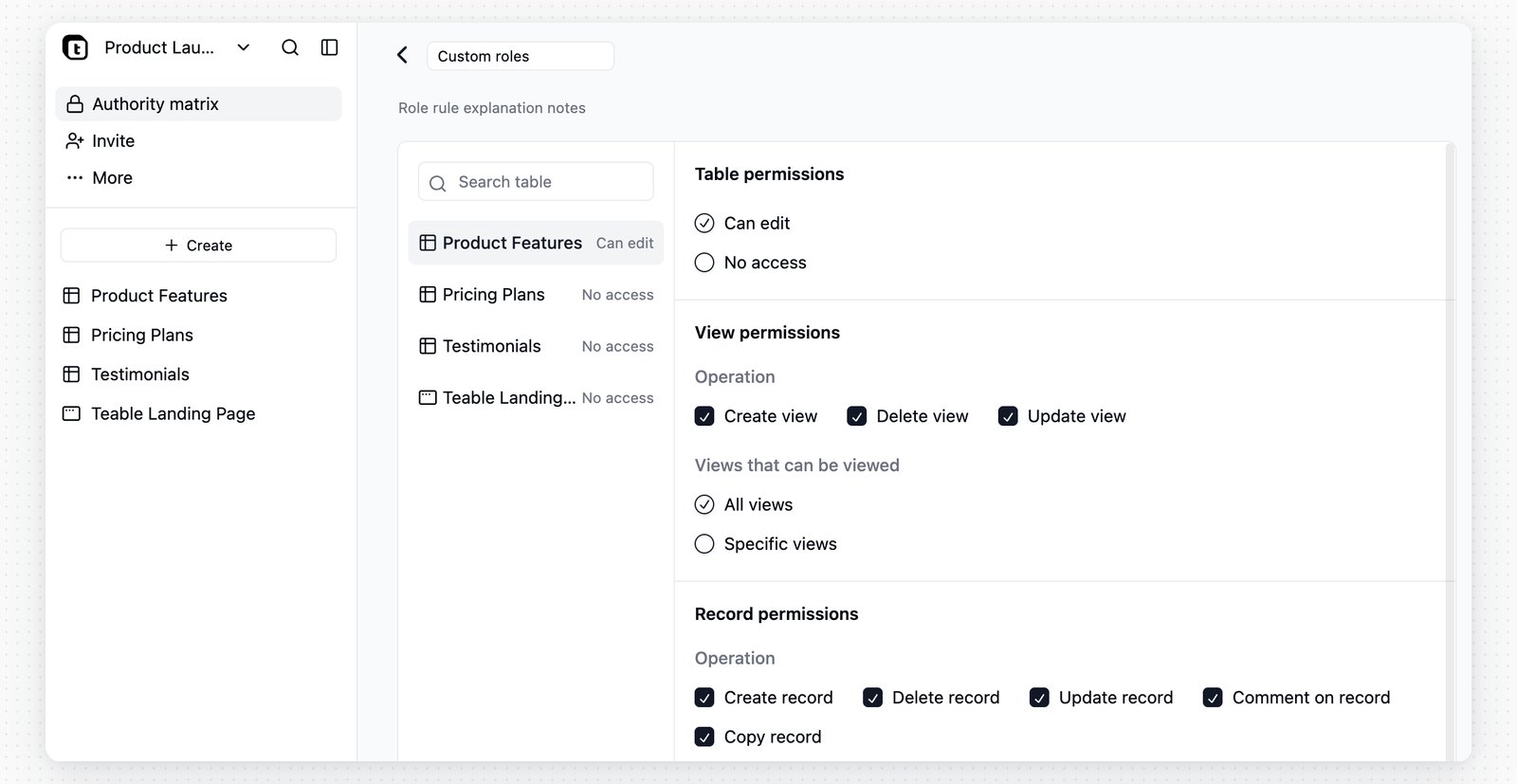 ## Configure Role Access
Each table, app, and workflow has its own access setting.
| Node type | Available setting |
| --------- | --------------------------------------------------------------------------------------------------------------- |
| Table | Choose `Can edit` or `No access`. After a table is set to `Can edit`, configure its detailed permissions. |
| App | Choose `Can access` or `No access`. This controls whether the role can open the app. |
| Workflow | Choose `Can access` or `No access`. This controls whether the role can open the workflow. |
| Folder | Folders are shown for navigation. If none of the child nodes are accessible, the folder is hidden for the role. |
To configure view, record, field, and other detailed table permissions, set the
table to `Can edit` first. A table with `No access` is hidden from members in
that role.
## Table Permissions
When a table is set to `Can edit`, configure these permission areas:
| Permission area | What it controls |
| ----------------------------- | ------------------------------------------------------------------------------------------------------------------------------------------------------- |
| View permissions | Whether the role can create, update, or delete views, and whether it can view `All views` or only `Specific views`. |
| Record permissions | Whether the role can create, update, delete, comment on, or copy records. Visible records can be `All records` or records that match filter conditions. |
| Field permissions | Whether the role can view, update, or create values in specific fields. The primary field must remain visible. |
| Import and export permissions | Whether the role can import data into the table or export table data. |
## Configure Role Access
Each table, app, and workflow has its own access setting.
| Node type | Available setting |
| --------- | --------------------------------------------------------------------------------------------------------------- |
| Table | Choose `Can edit` or `No access`. After a table is set to `Can edit`, configure its detailed permissions. |
| App | Choose `Can access` or `No access`. This controls whether the role can open the app. |
| Workflow | Choose `Can access` or `No access`. This controls whether the role can open the workflow. |
| Folder | Folders are shown for navigation. If none of the child nodes are accessible, the folder is hidden for the role. |
To configure view, record, field, and other detailed table permissions, set the
table to `Can edit` first. A table with `No access` is hidden from members in
that role.
## Table Permissions
When a table is set to `Can edit`, configure these permission areas:
| Permission area | What it controls |
| ----------------------------- | ------------------------------------------------------------------------------------------------------------------------------------------------------- |
| View permissions | Whether the role can create, update, or delete views, and whether it can view `All views` or only `Specific views`. |
| Record permissions | Whether the role can create, update, delete, comment on, or copy records. Visible records can be `All records` or records that match filter conditions. |
| Field permissions | Whether the role can view, update, or create values in specific fields. The primary field must remain visible. |
| Import and export permissions | Whether the role can import data into the table or export table data. |
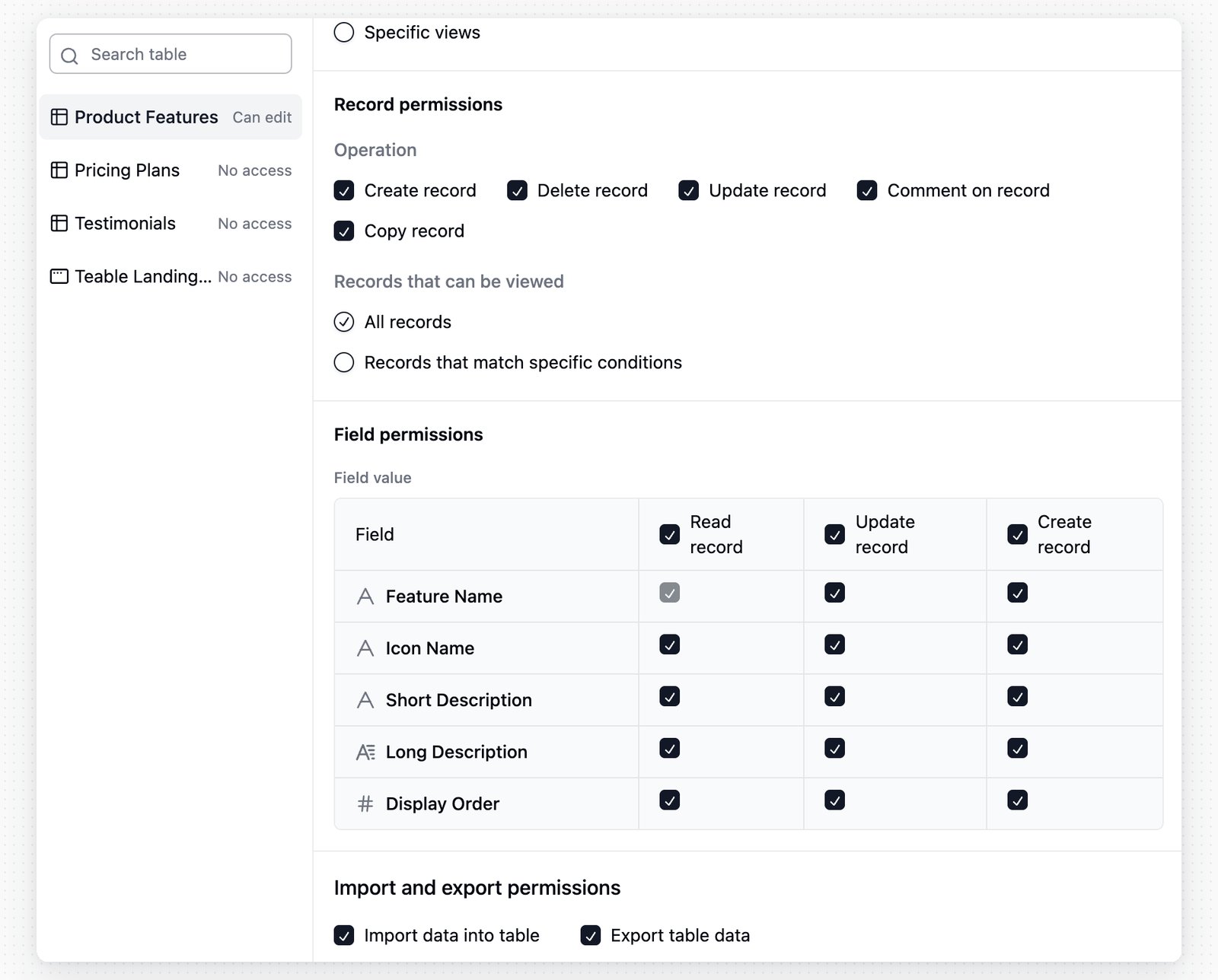 Record filters work well for access scopes that change by owner, department,
or similar fields. For example, a condition such as `Sales owner` `is`
`current user` lets each salesperson see only their own records. Field
permissions can further hide or lock sensitive field values in records the
role can access.
## Default Role
Record filters work well for access scopes that change by owner, department,
or similar fields. For example, a condition such as `Sales owner` `is`
`current user` lets each salesperson see only their own records. Field
permissions can further hide or lock sensitive field values in records the
role can access.
## Default Role
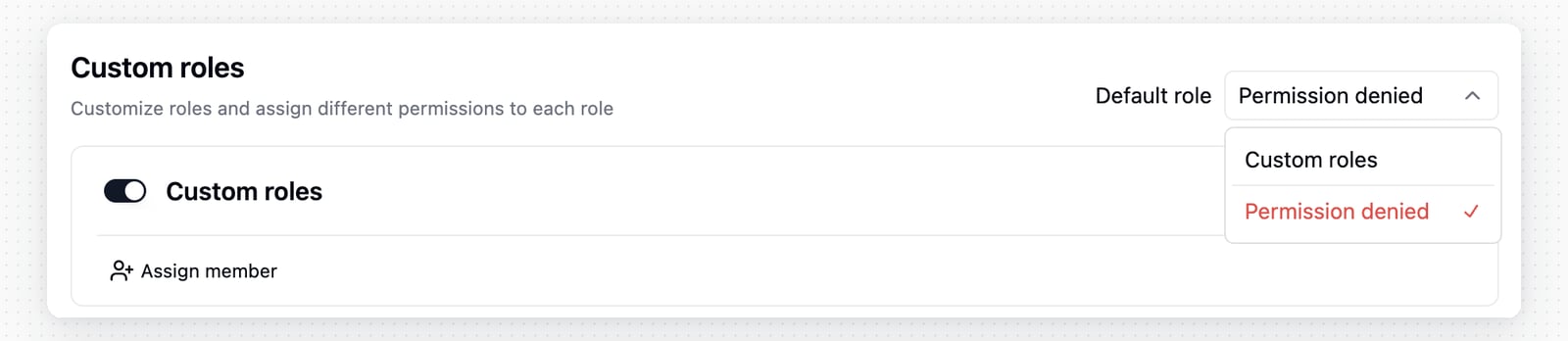 Use `Default role` for members who have not been assigned any custom role. You
can select an enabled custom role, or choose `Permission denied` so these
members cannot access content controlled by the Authority Matrix.
## Notes
* After the Authority Matrix is enabled, users whose Space permission is below
`Manager` are restricted by it unless they are added as Authority Matrix
administrators.
* The user who enables the Authority Matrix is automatically added to
`Administrators`.
* New custom roles are enabled when they are created from `Add role`, but each
table, app, and workflow still needs its own access setting.
* A table set to `No access` for a role is hidden from that role, even if its
detailed permission options were edited earlier.
* Assigning a role from `Add user` or `Add from organization` can add selected
members or departments as base collaborators. The Authority Matrix then
narrows what they can access inside the base.
To learn about basic Space and base permission levels, see [Collaboration Permissions](/en/basic/space/space-permission).
Use `Default role` for members who have not been assigned any custom role. You
can select an enabled custom role, or choose `Permission denied` so these
members cannot access content controlled by the Authority Matrix.
## Notes
* After the Authority Matrix is enabled, users whose Space permission is below
`Manager` are restricted by it unless they are added as Authority Matrix
administrators.
* The user who enables the Authority Matrix is automatically added to
`Administrators`.
* New custom roles are enabled when they are created from `Add role`, but each
table, app, and workflow still needs its own access setting.
* A table set to `No access` for a role is hidden from that role, even if its
detailed permission options were edited earlier.
* Assigning a role from `Add user` or `Add from organization` can add selected
members or departments as base collaborators. The Authority Matrix then
narrows what they can access inside the base.
To learn about basic Space and base permission levels, see [Collaboration Permissions](/en/basic/space/space-permission).