> ## Documentation Index
> Fetch the complete documentation index at: https://help.teable.ai/llms.txt
> Use this file to discover all available pages before exploring further.
# Authority Matrix Guidelines
> Configure Authority Matrix roles for a sales team that needs shared data, ownership-based record access, and restricted data entry.
This guide uses a sales base with three tables: `Customers`, `Sales Orders`,
and `Products`. The goal is to let each role work with the data it needs
without exposing the whole base.
| Role | Access goal |
| ---------------- | --------------------------------------------------------------------------------------------------------------- |
| Sales Director | View customer and sales data, comment on products, and avoid changing product prices. |
| Sales Rep | View and update only their own customers and orders, create new customers, and avoid deleting completed orders. |
| Data Entry Clerk | Add new products without seeing existing products, customers, or orders. |
Turn on the Authority Matrix before relying on role permissions.
 ## Create the Roles
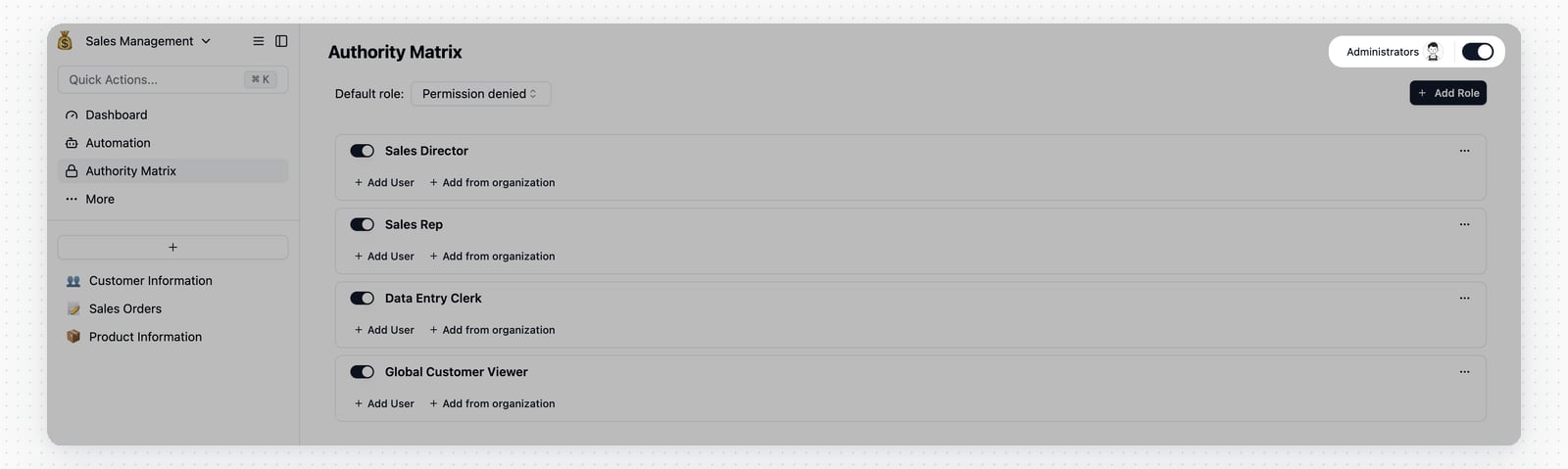
Open the Authority Matrix page in the base and turn on the main switch. The
user who enables it is added as an administrator.
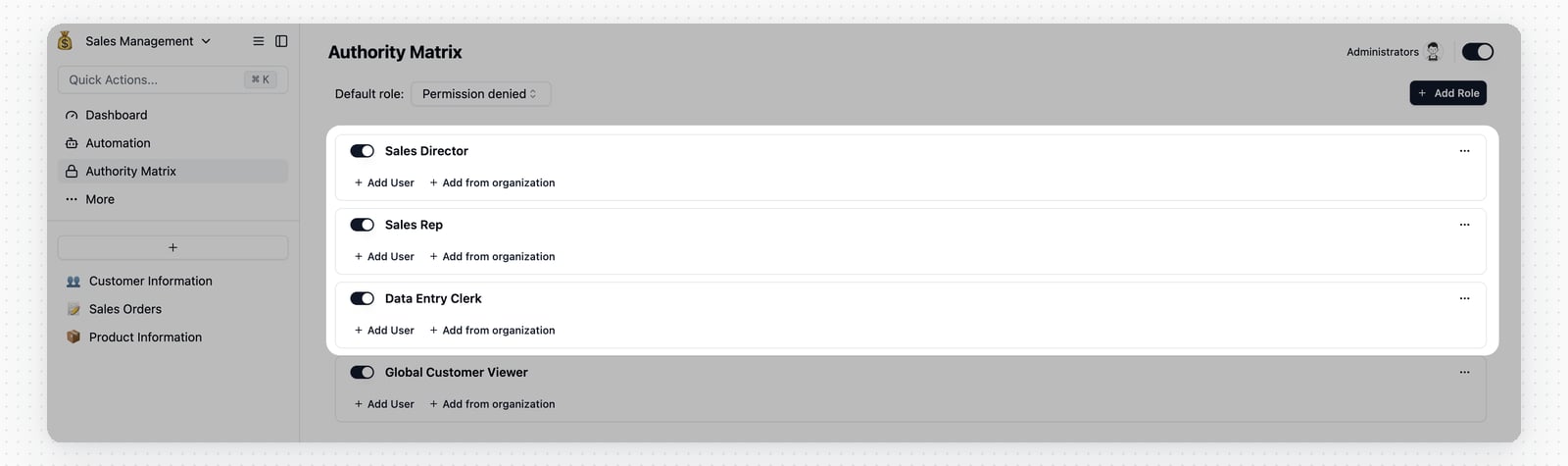
Click `Add role` and create `Sales Director`, `Sales Rep`, and `Data Entry
Clerk`.
## Create the Roles
Open the Authority Matrix page in the base and turn on the main switch. The
user who enables it is added as an administrator.
Click `Add role` and create `Sales Director`, `Sales Rep`, and `Data Entry
Clerk`.
 ## Configure Sales Director
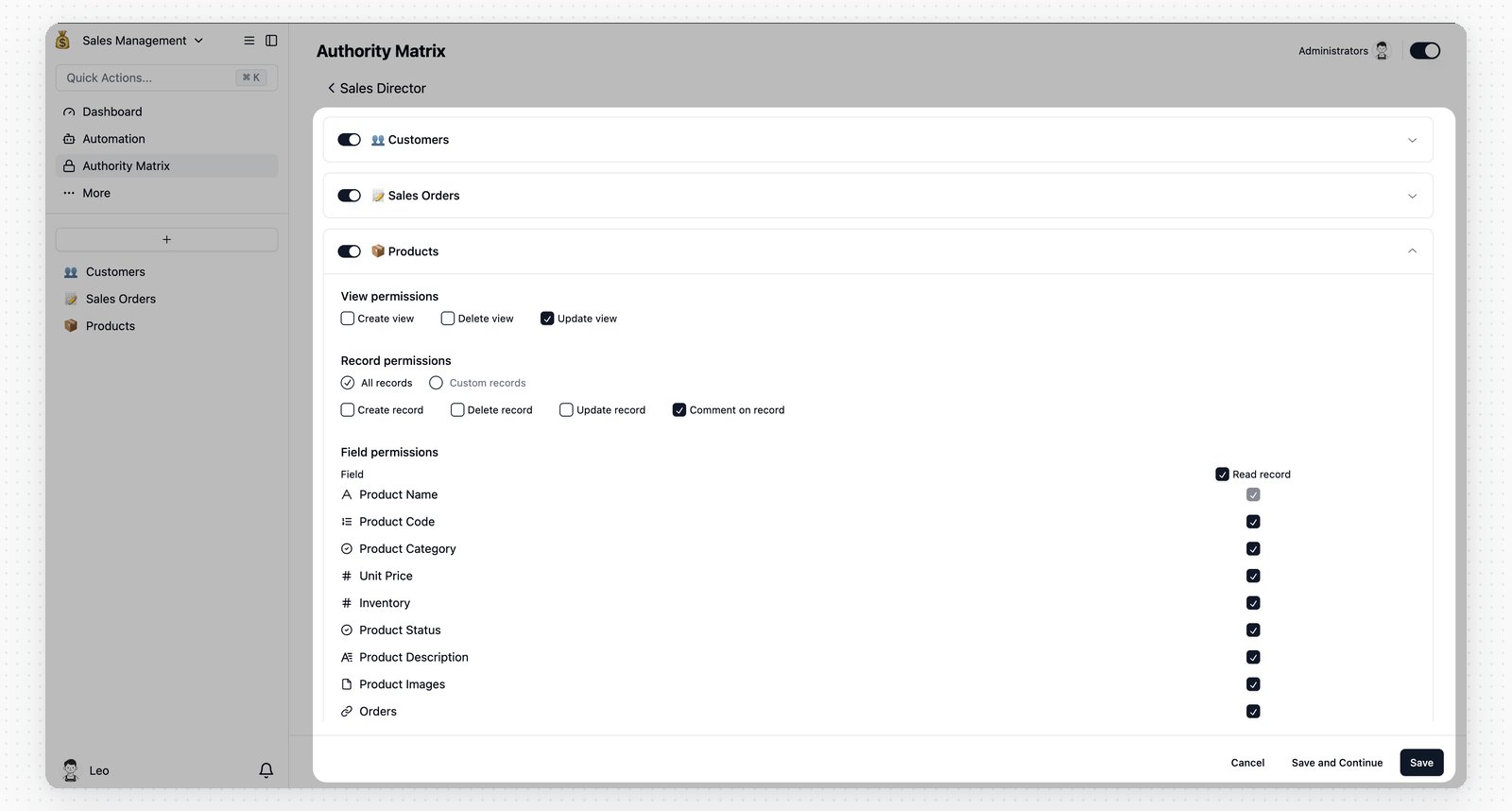
The Sales Director needs broad visibility, but product prices should stay
protected from accidental edits.
| Node | Setting |
| ------------ | ---------------------------------------------------------------------------------------------------------- |
| Customers | Set the table to `Can edit`. Keep record and field permissions open so the role can view customer data. |
| Sales Orders | Set the table to `Can edit`. Keep record and field permissions open so the role can review sales activity. |
| Products | Set the table to `Can edit`, then allow only `Read record` and `Comment on record` in record permissions. |
## Configure Sales Director
The Sales Director needs broad visibility, but product prices should stay
protected from accidental edits.
| Node | Setting |
| ------------ | ---------------------------------------------------------------------------------------------------------- |
| Customers | Set the table to `Can edit`. Keep record and field permissions open so the role can view customer data. |
| Sales Orders | Set the table to `Can edit`. Keep record and field permissions open so the role can review sales activity. |
| Products | Set the table to `Can edit`, then allow only `Read record` and `Comment on record` in record permissions. |
 Assign members from the role list with `Add user` or `Add from organization`,
then make sure the role switch is enabled.
Assign members from the role list with `Add user` or `Add from organization`,
then make sure the role switch is enabled.
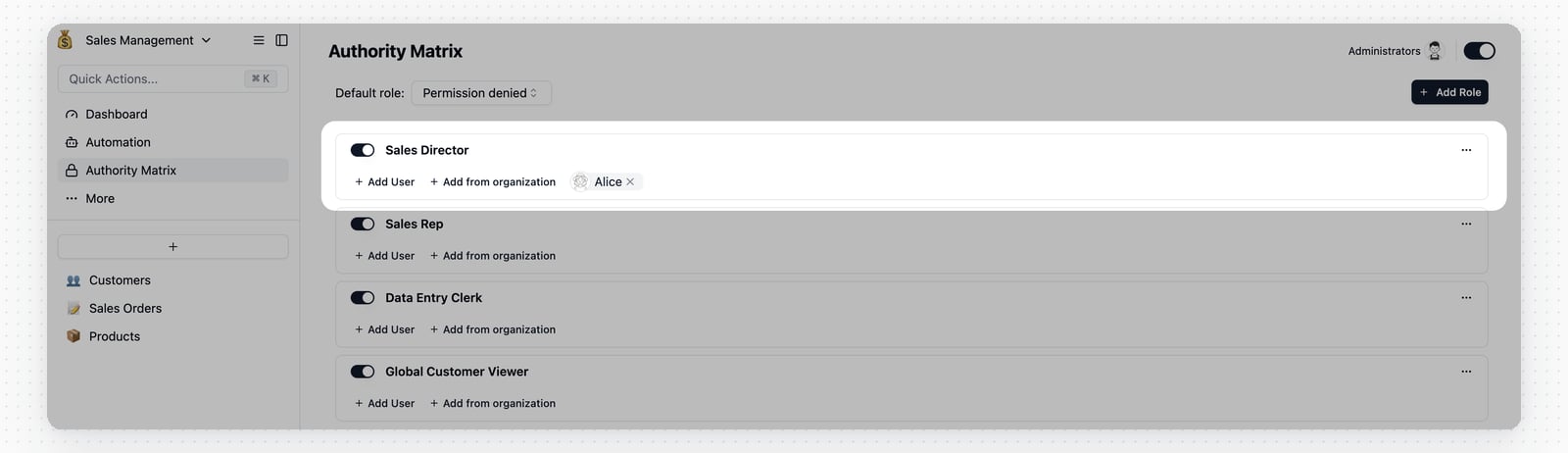 After setup, a Sales Director can review customer and order data, comment on
products, and avoid changing product records.
After setup, a Sales Director can review customer and order data, comment on
products, and avoid changing product records.
 ## Configure Sales Rep

The Sales Rep role uses record filters so each rep works only with records
where they are the owner.
### Customers
Set `Customers` to `Can edit`.
| Permission area | Setting |
| ------------------ | -------------------------------------------------------------------------------------------------------------------------------- |

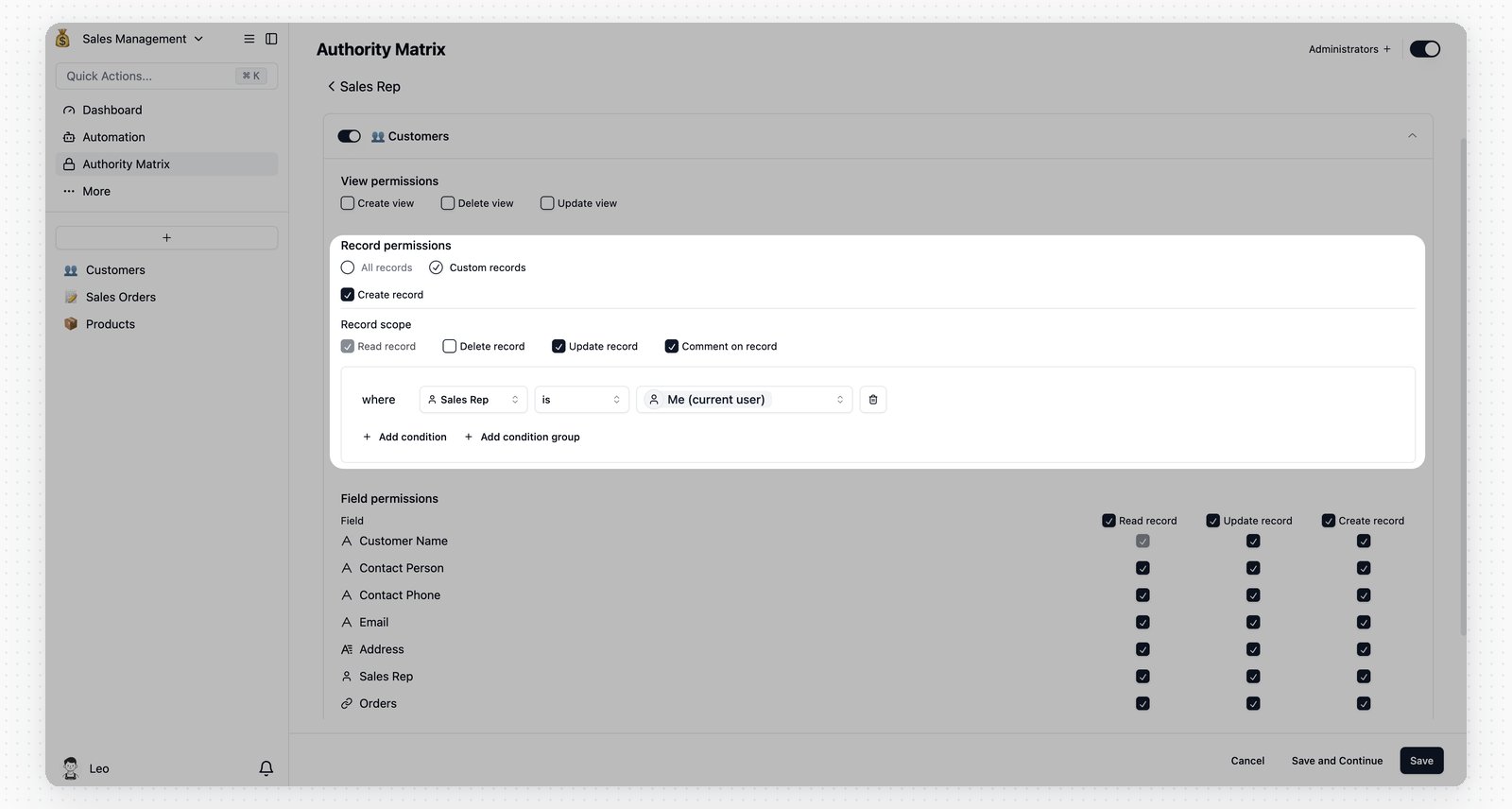
| Record permissions | Choose records that match specific conditions. Add a filter such as `Sales Rep` `is` `Me (current user)`. |
| Record operations | Allow `Read record`, `Update record`, and `Create record`. Leave `Delete record` off if reps should not delete customer records. |
## Configure Sales Rep
The Sales Rep role uses record filters so each rep works only with records
where they are the owner.
### Customers
Set `Customers` to `Can edit`.
| Permission area | Setting |
| ------------------ | -------------------------------------------------------------------------------------------------------------------------------- |
| Record permissions | Choose records that match specific conditions. Add a filter such as `Sales Rep` `is` `Me (current user)`. |
| Record operations | Allow `Read record`, `Update record`, and `Create record`. Leave `Delete record` off if reps should not delete customer records. |
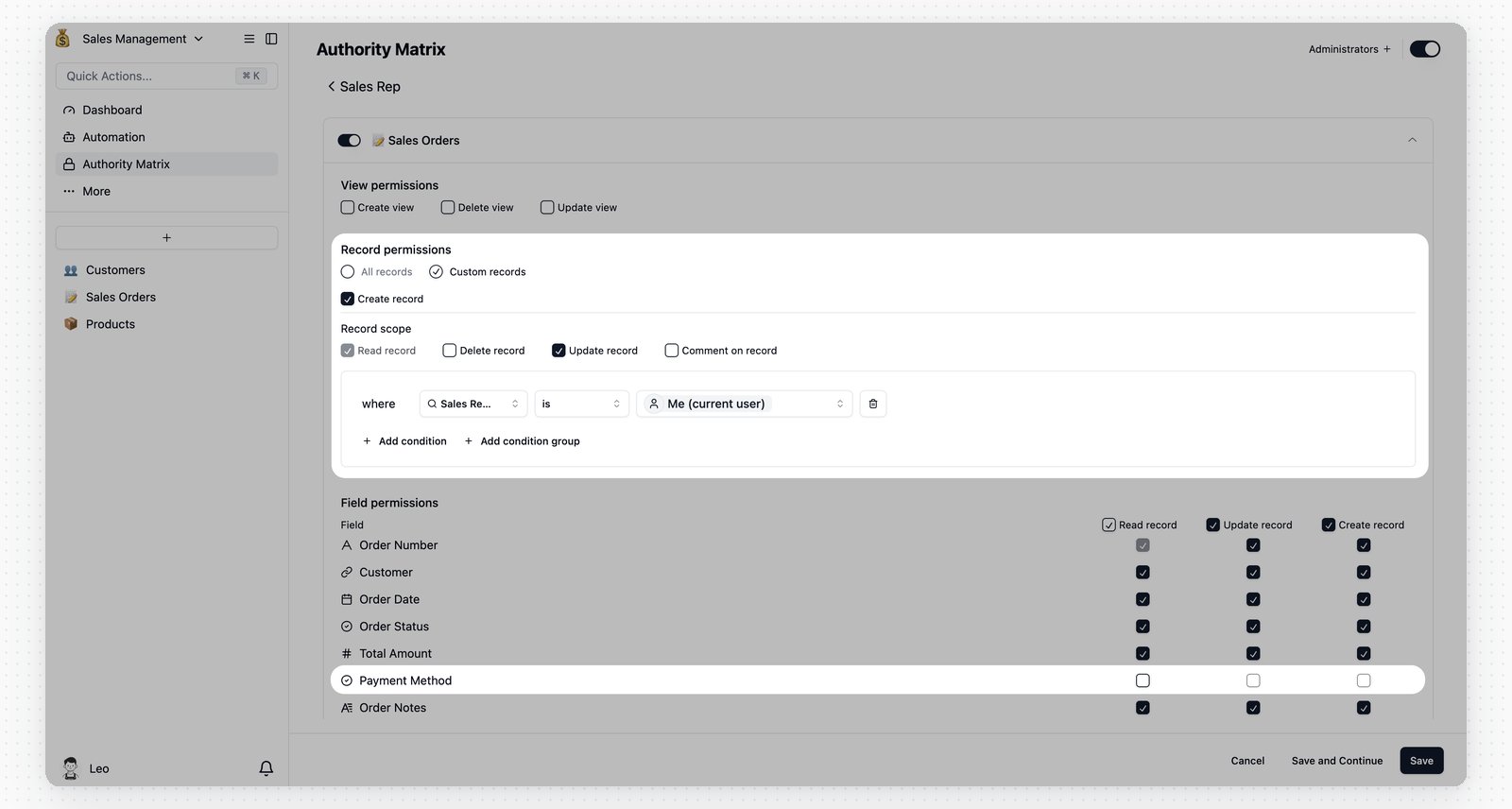
 ### Sales Orders
Set `Sales Orders` to `Can edit`.
| Permission area | Setting |
| ------------------ | --------------------------------------------------------------------------------------------------------------------------------- |
| Record permissions | Use the same owner-based filter, such as `Sales Rep` `is` `Me (current user)`. |
| Record operations | Allow `Read record` and `Create record`. Leave `Update record` and `Delete record` off if completed orders should stay unchanged. |
| Field permissions | Hide sensitive fields such as `Payment Method` by turning off `Read record` for that field. |
### Sales Orders
Set `Sales Orders` to `Can edit`.
| Permission area | Setting |
| ------------------ | --------------------------------------------------------------------------------------------------------------------------------- |
| Record permissions | Use the same owner-based filter, such as `Sales Rep` `is` `Me (current user)`. |
| Record operations | Allow `Read record` and `Create record`. Leave `Update record` and `Delete record` off if completed orders should stay unchanged. |
| Field permissions | Hide sensitive fields such as `Payment Method` by turning off `Read record` for that field. |
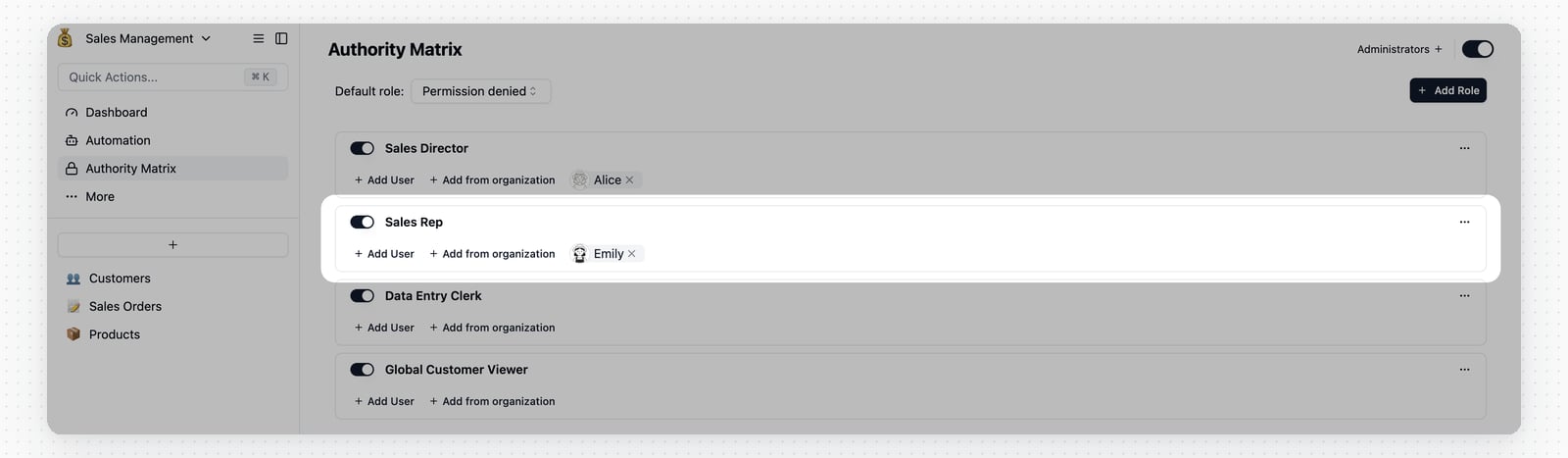
 Assign sales reps to the role and keep the role enabled.
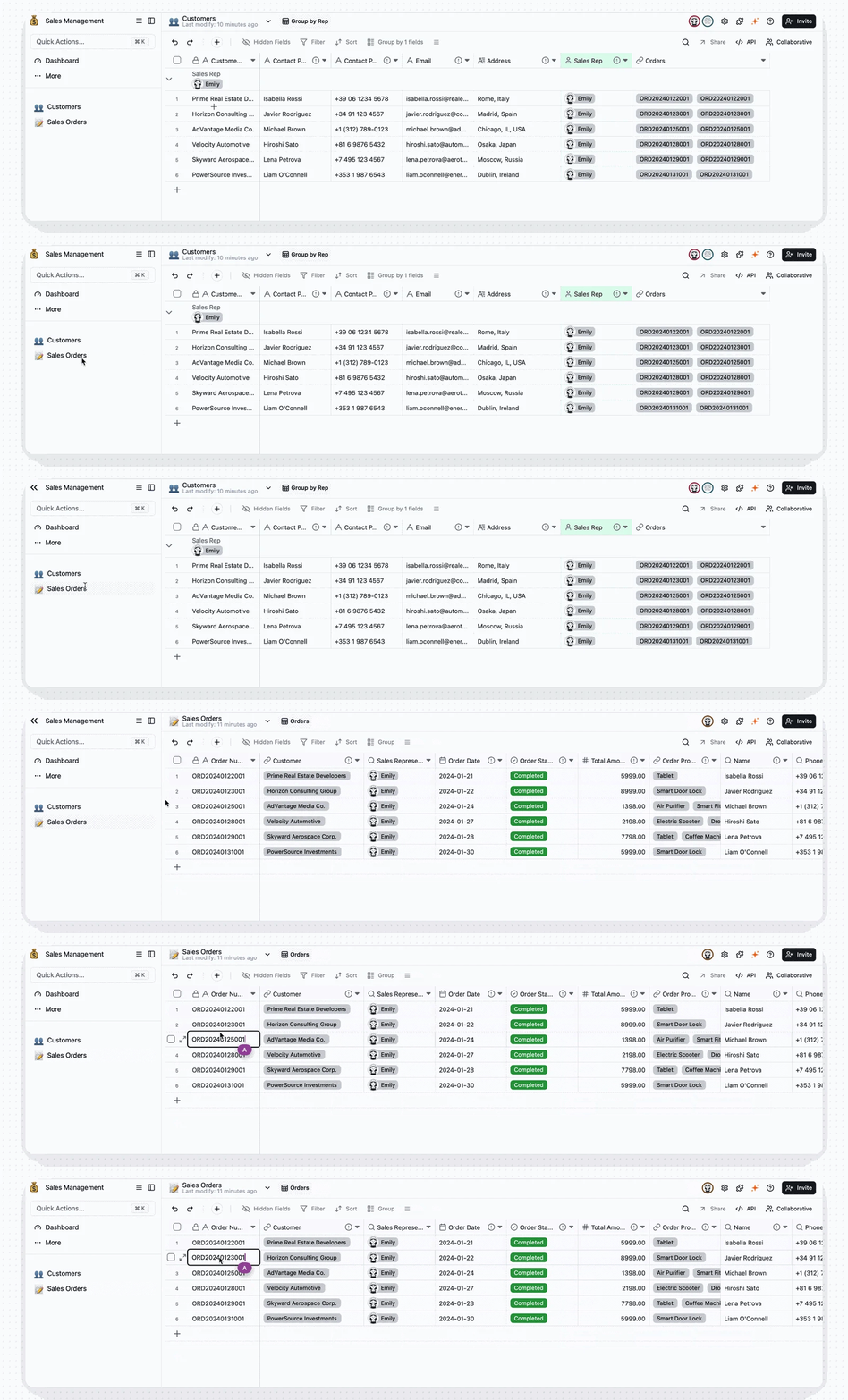
 Each sales rep now sees only the customer and order records that match the
owner filter.
Each sales rep now sees only the customer and order records that match the
owner filter.
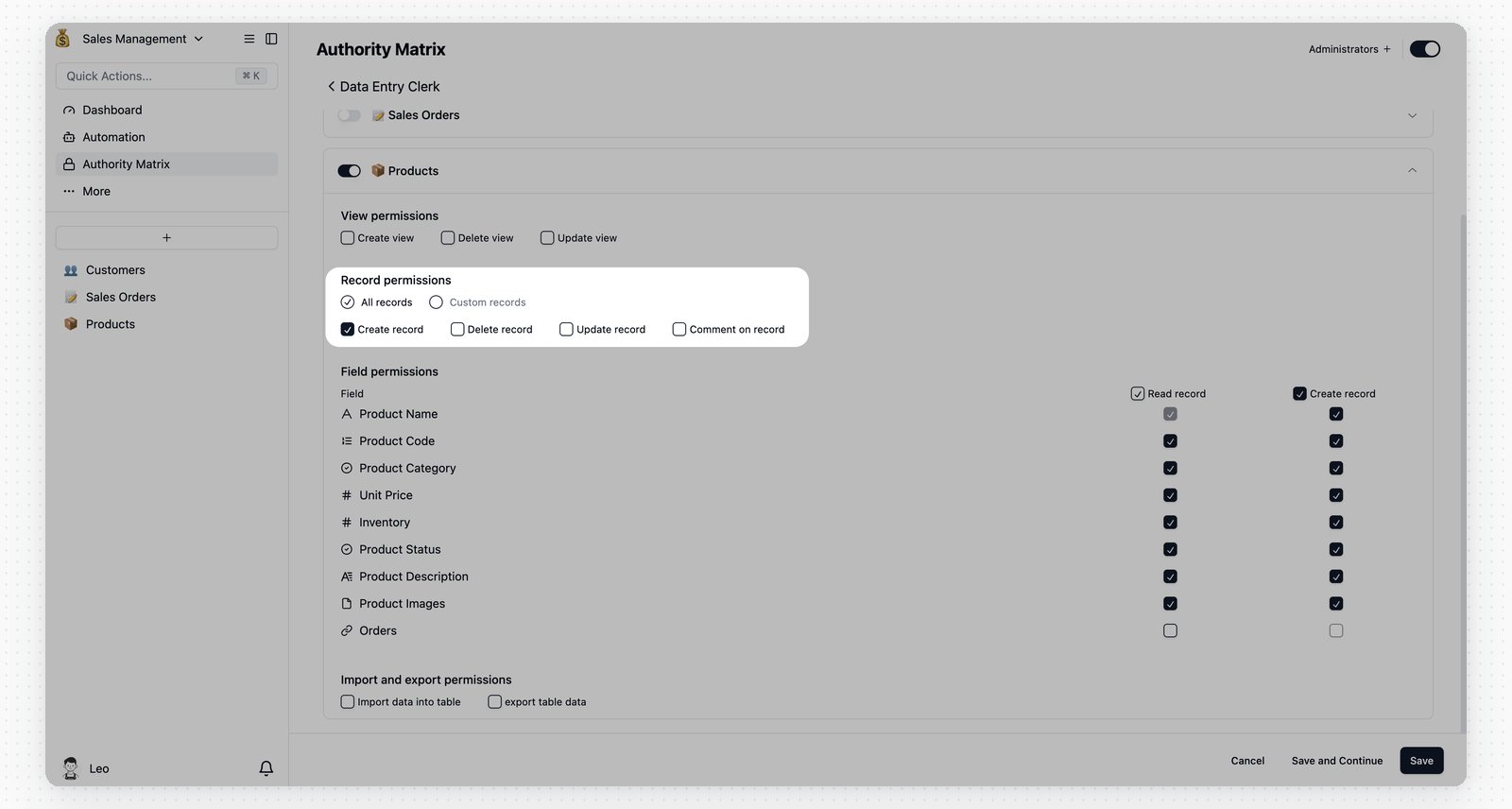
 ## Configure Data Entry Clerk
The Data Entry Clerk only needs to add products.
| Node | Setting |
| -------------------------- | ---------------------------------------------------------------------------------------------- |
| Products | Set the table to `Can edit`. In record permissions, allow only `Create record`. |
| Product fields | If linked order data should stay hidden, turn off `Read record` for the `Orders` linked field. |
| Customers and Sales Orders | Keep these tables as `No access`. |
## Configure Data Entry Clerk
The Data Entry Clerk only needs to add products.
| Node | Setting |
| -------------------------- | ---------------------------------------------------------------------------------------------- |
| Products | Set the table to `Can edit`. In record permissions, allow only `Create record`. |
| Product fields | If linked order data should stay hidden, turn off `Read record` for the `Orders` linked field. |
| Customers and Sales Orders | Keep these tables as `No access`. |
 Assign clerks to the role and keep the role enabled.

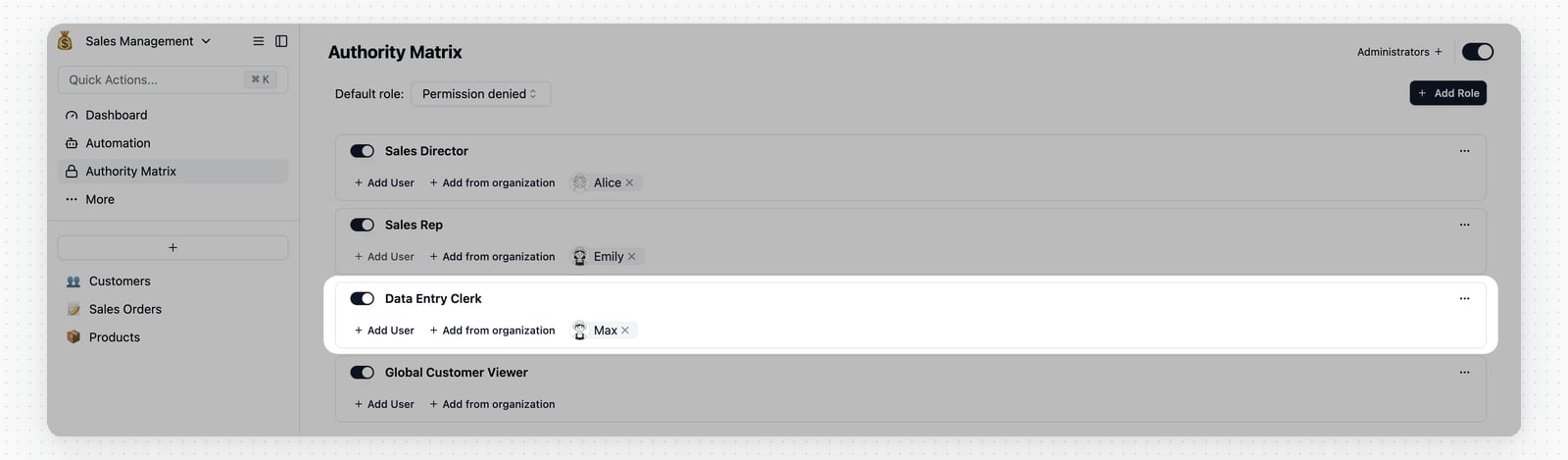 After setup, the Data Entry Clerk can add new product records but cannot browse
existing product, customer, or order data.
After setup, the Data Entry Clerk can add new product records but cannot browse
existing product, customer, or order data.
 ## Sales Review View

Use this setup for sales reviews: reps can see the full customer list, but can only edit customers they own.
During a review, reps may need to see every customer record to compare follow-up
patterns and customer status. Day-to-day editing should still stay limited to
the customers they own, so they do not change another rep's records by mistake.
Keep the existing `Sales Rep` role, then add a read-only role for company-wide
customer visibility. A rep can use the read-only role to view all customers and
use the `Sales Rep` role to update only the customers they own.
### Create a Read-Only Role
Click `Add role` and create a read-only role, such as `Global Customer Viewer`.
### Configure Customer Access
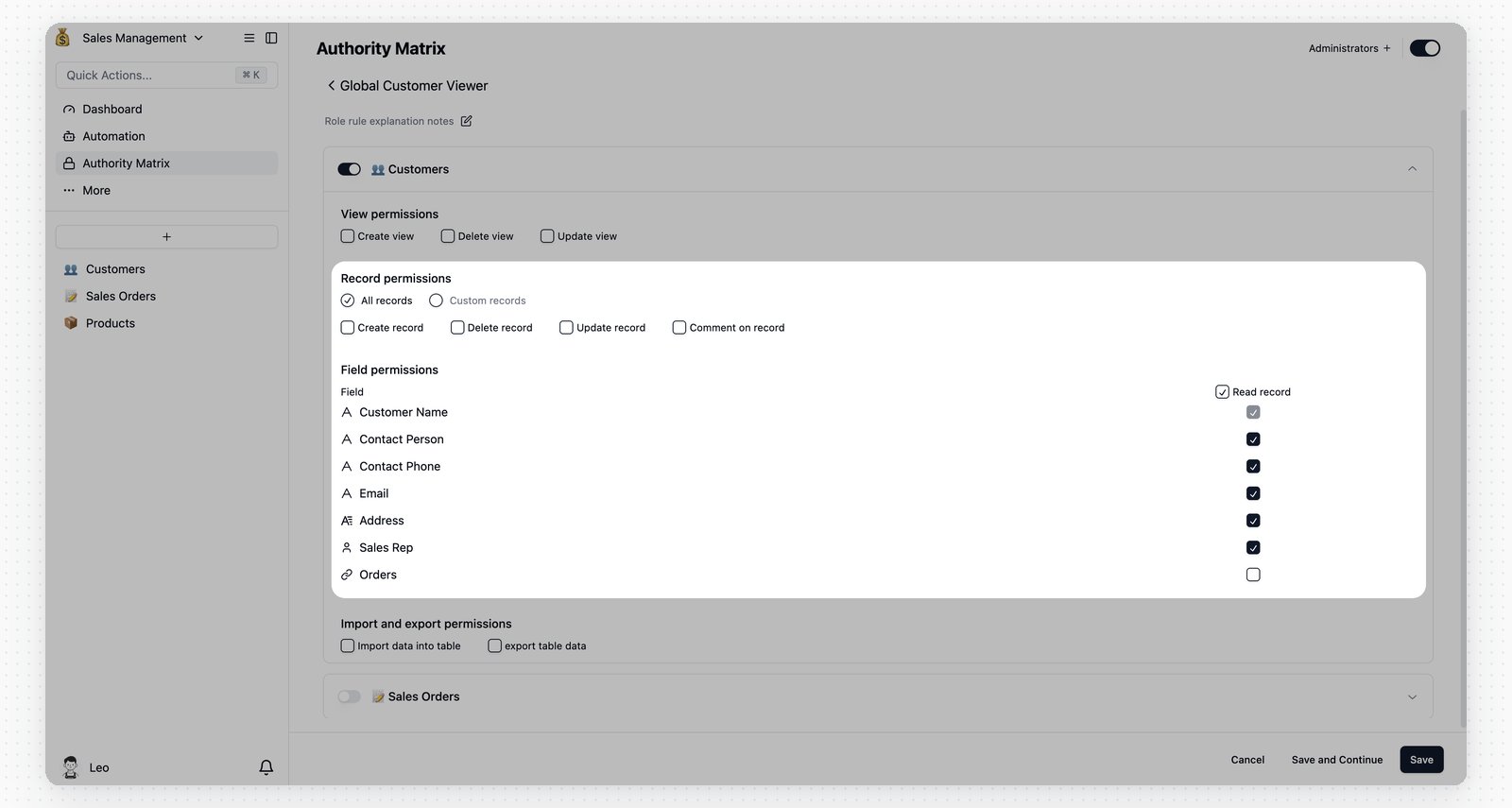
Set `Customers` to `Can edit`. In record permissions, allow only `Read record`.
Do not enable `Update record`, `Delete record`, or `Create record`. Leave the
record filter empty so this role can view all customer records.
## Sales Review View
Use this setup for sales reviews: reps can see the full customer list, but can only edit customers they own.
During a review, reps may need to see every customer record to compare follow-up
patterns and customer status. Day-to-day editing should still stay limited to
the customers they own, so they do not change another rep's records by mistake.
Keep the existing `Sales Rep` role, then add a read-only role for company-wide
customer visibility. A rep can use the read-only role to view all customers and
use the `Sales Rep` role to update only the customers they own.
### Create a Read-Only Role
Click `Add role` and create a read-only role, such as `Global Customer Viewer`.
### Configure Customer Access
Set `Customers` to `Can edit`. In record permissions, allow only `Read record`.
Do not enable `Update record`, `Delete record`, or `Create record`. Leave the
record filter empty so this role can view all customer records.
 ### Assign Sales Reps
Return to the role list and add the sales reps who need review access to
`Global Customer Viewer`.
### Assign Sales Reps
Return to the role list and add the sales reps who need review access to
`Global Customer Viewer`.
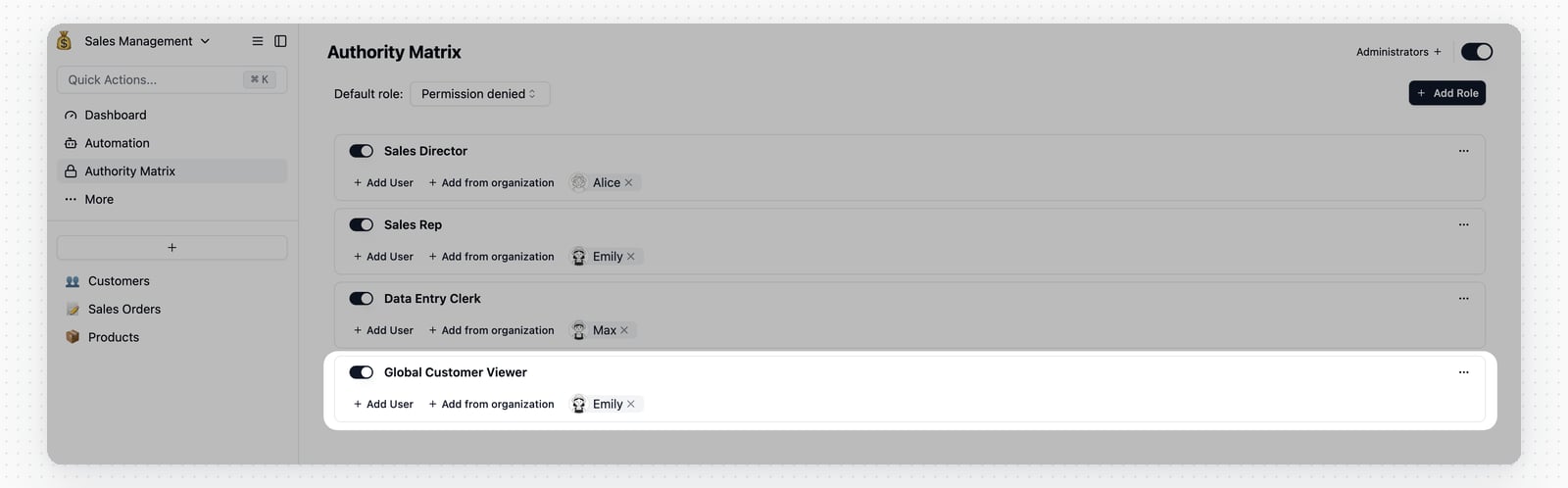 When a user has both `Sales Rep` and `Global Customer Viewer`, Teable combines
the permissions. The user can view all customer records, but can update only
records allowed by the owner-based `Sales Rep` role.
When a user has both `Sales Rep` and `Global Customer Viewer`, Teable combines
the permissions. The user can view all customer records, but can update only
records allowed by the owner-based `Sales Rep` role.