> ## Documentation Index
> Fetch the complete documentation index at: https://help.teable.ai/llms.txt
> Use this file to discover all available pages before exploring further.
# Overview
> Create, manage, import and export bases. Move data between Teable Cloud spaces or migrate between Cloud and Self-Hosted instances using .tea files.
A base is a tool for storing and processing all information for a specific project. Each space can have multiple bases, and each base can work independently, providing a clear information structure for specific projects or table collections.
For users unfamiliar with bases, you can think of them as workbooks in Excel, where each workbook can contain multiple sheets.
## Create and Manage Bases
### Adding a Base
1. Enter a space
2. Click "Create Base" in the upper right corner
 ### Renaming/Deleting a Base
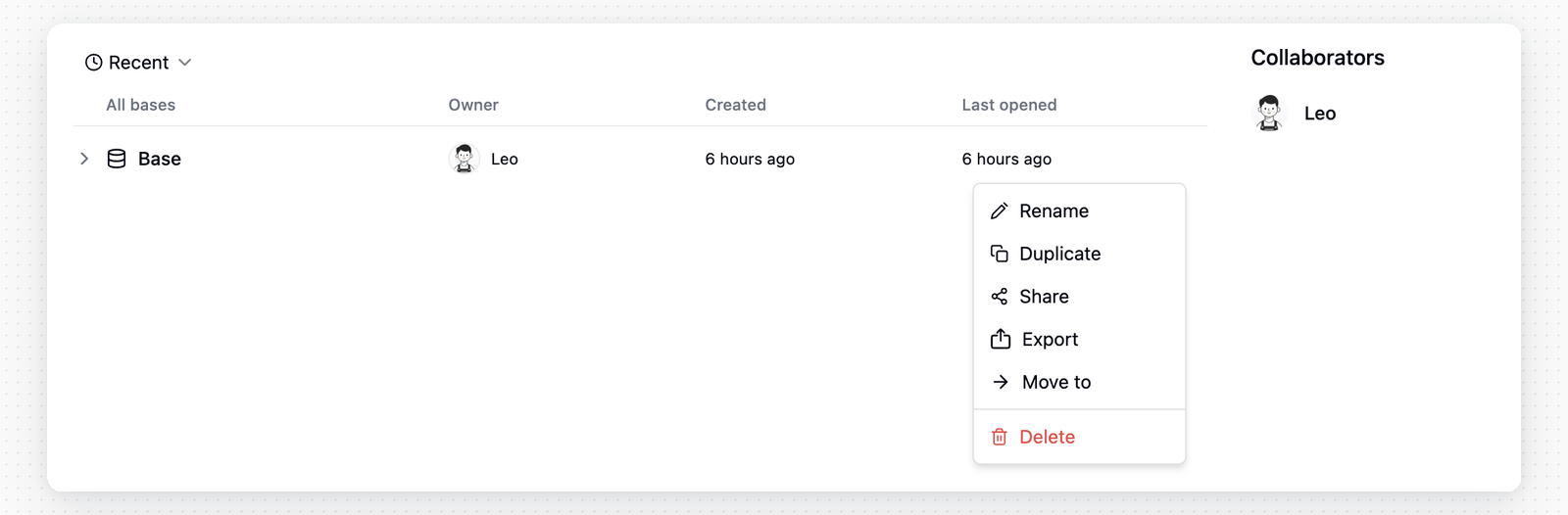
1. Enter a space
2. Hover over a base
3. Click the "···" button to open the menu
4. Click "Rename" or "Delete"
### Renaming/Deleting a Base
1. Enter a space
2. Hover over a base
3. Click the "···" button to open the menu
4. Click "Rename" or "Delete"
 ### Organize Resources in a Base
After entering a base, the left sidebar shows the resources in the current base, such as tables, apps, and automations. You can use folders to organize these resources and make large bases easier to browse.
Common operations include:
* **Create folders**: Create folders in the left sidebar to group related resources.
* **Move resources**: Drag tables, apps, or automations into folders, or drag them to reorder.
* **Organize hierarchy**: Folders can contain child nodes. Keep the hierarchy shallow enough for easy navigation.
* **Add descriptions**: For tables, apps, and automations, click **Add description** under the resource name in the header. Use descriptions to record purpose, owner, handoff notes, or usage rules. Teable opens a description the first time you open its resource, and once more after it changes.
* **Check node info**: Open a resource's `...` menu and choose **Node info** to view the folder, table, automation, or app ID, plus created and modified information.
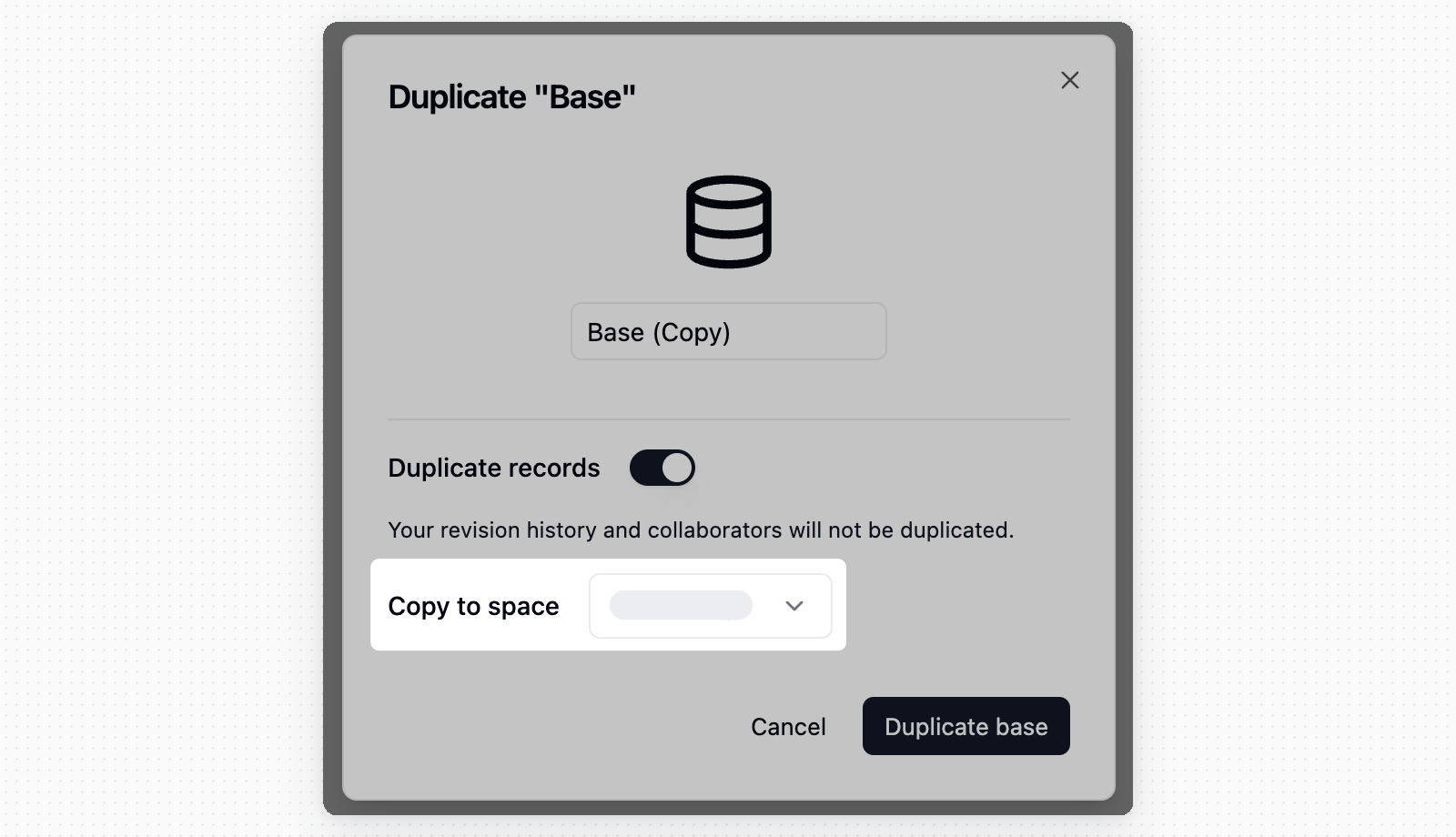
### Duplicate a Base to Another Space
Step 1: In the space, select the base you want to duplicate;
Step 2: Click the menu icon and select the Copy Base option;
Step 3: In the popup, choose the target space. You need Creator permissions in that space.
For larger bases, Teable shows progress in the duplicate dialog while it copies the base structure, records, and attachments. Keep the dialog open until the copy finishes. Revision history and collaborators are not copied.
If the base contains Link, Lookup, Rollup, Conditional Lookup, or Conditional Rollup fields that point to another Space, Teable shows the affected fields before duplication. If you continue, Teable converts those fields to **Single line text** in the duplicated base.
### Organize Resources in a Base
After entering a base, the left sidebar shows the resources in the current base, such as tables, apps, and automations. You can use folders to organize these resources and make large bases easier to browse.
Common operations include:
* **Create folders**: Create folders in the left sidebar to group related resources.
* **Move resources**: Drag tables, apps, or automations into folders, or drag them to reorder.
* **Organize hierarchy**: Folders can contain child nodes. Keep the hierarchy shallow enough for easy navigation.
* **Add descriptions**: For tables, apps, and automations, click **Add description** under the resource name in the header. Use descriptions to record purpose, owner, handoff notes, or usage rules. Teable opens a description the first time you open its resource, and once more after it changes.
* **Check node info**: Open a resource's `...` menu and choose **Node info** to view the folder, table, automation, or app ID, plus created and modified information.
### Duplicate a Base to Another Space
Step 1: In the space, select the base you want to duplicate;
Step 2: Click the menu icon and select the Copy Base option;
Step 3: In the popup, choose the target space. You need Creator permissions in that space.
For larger bases, Teable shows progress in the duplicate dialog while it copies the base structure, records, and attachments. Keep the dialog open until the copy finishes. Revision history and collaborators are not copied.
If the base contains Link, Lookup, Rollup, Conditional Lookup, or Conditional Rollup fields that point to another Space, Teable shows the affected fields before duplication. If you continue, Teable converts those fields to **Single line text** in the duplicated base.
 ### Move a Base Between Spaces
If you have the required Space permissions, you can move a base to another Space. If the move would leave relationship-based fields pointing across Spaces, Teable warns you and lists the affected fields. When you confirm, Teable converts those fields to **Single line text** as part of the move.
## Import and Export Bases
Use AI Chat to migrate Airtable, Baserow, NocoDB, SmartSuite, and other systems into Teable.
### Import Base (Data Migration)
The `.tea` file format imports a complete base with all its tables, fields, data, and configurations. This is useful for:
* **Data Migration**: Move bases between different Teable instances (e.g., from Cloud to Self-Hosted)
* **Backup Restoration**: Restore a previously exported base
* **Template Sharing**: Share complete base structures with other teams
**Steps:**
1. Enter the space
2. Click the 「···」 button at the top right corner of the space to open the menu
3. Click 「Import」
4. Choose **Import from file** and upload the `.tea` file.
### Move a Base Between Spaces
If you have the required Space permissions, you can move a base to another Space. If the move would leave relationship-based fields pointing across Spaces, Teable warns you and lists the affected fields. When you confirm, Teable converts those fields to **Single line text** as part of the move.
## Import and Export Bases
Use AI Chat to migrate Airtable, Baserow, NocoDB, SmartSuite, and other systems into Teable.
### Import Base (Data Migration)
The `.tea` file format imports a complete base with all its tables, fields, data, and configurations. This is useful for:
* **Data Migration**: Move bases between different Teable instances (e.g., from Cloud to Self-Hosted)
* **Backup Restoration**: Restore a previously exported base
* **Template Sharing**: Share complete base structures with other teams
**Steps:**
1. Enter the space
2. Click the 「···」 button at the top right corner of the space to open the menu
3. Click 「Import」
4. Choose **Import from file** and upload the `.tea` file.
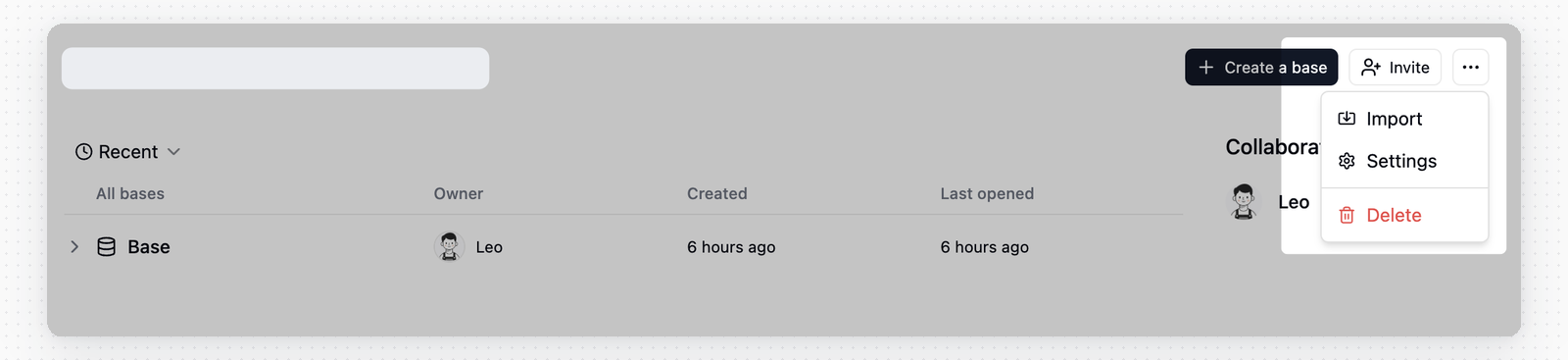 If you want to create a base from Airtable, choose **Import from Airtable** in the same import dialog.
### Export Base (Backup & Migration)
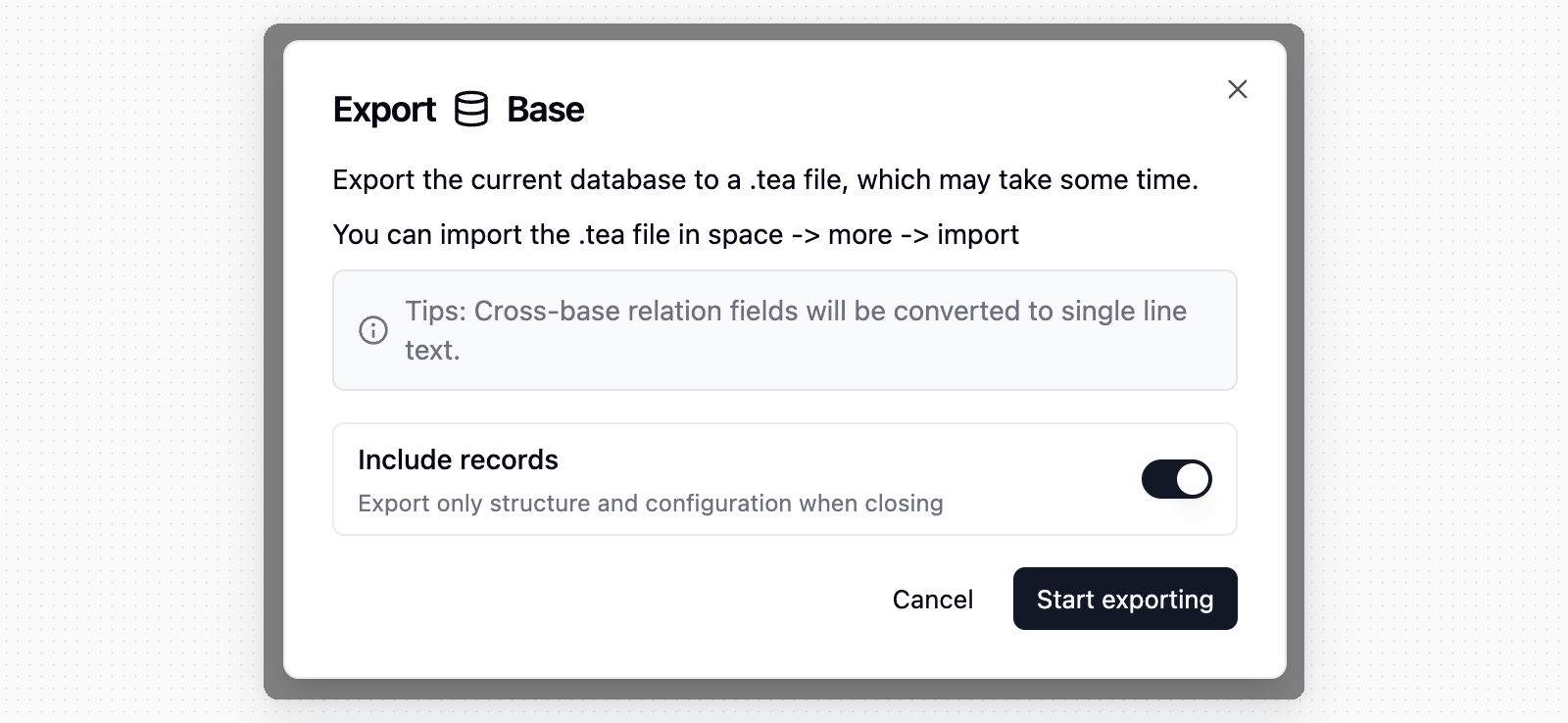
Export your base to a `.tea` file for backup or migration purposes. The exported file contains all tables, fields, data, views, and configurations.
**Steps:**
1. Enter the space
2. Hover your mouse over the base you want to export
3. Click the 「···」 button to open the menu
4. Click 「Export」
5. Keep **Include records** turned on to export record data. Turn it off to export only the structure and configuration.
6. Click **Start exporting** and wait for the export to finish.
7. Click **Download** in the export dialog to save the `.tea` file.
If you want to create a base from Airtable, choose **Import from Airtable** in the same import dialog.
### Export Base (Backup & Migration)
Export your base to a `.tea` file for backup or migration purposes. The exported file contains all tables, fields, data, views, and configurations.
**Steps:**
1. Enter the space
2. Hover your mouse over the base you want to export
3. Click the 「···」 button to open the menu
4. Click 「Export」
5. Keep **Include records** turned on to export record data. Turn it off to export only the structure and configuration.
6. Click **Start exporting** and wait for the export to finish.
7. Click **Download** in the export dialog to save the `.tea` file.
 * To migrate data between Teable instances, export your base from the source instance, then import the `.tea` file to the target instance. All data and configurations will be preserved.
* Teable converts cross-base relation fields to **Single line text** fields in the exported file.
* When you duplicate or move a base across Spaces, cross-Space relationship fields are converted to **Single line text**.
## Share a Base
Bases can be shared through public links. The sharing scope can be the entire base or the currently selected item.
1. Enter the target base
2. Open the share menu for the base or selected item
3. Turn on **Share to web**
4. Copy the share link or QR code
* To migrate data between Teable instances, export your base from the source instance, then import the `.tea` file to the target instance. All data and configurations will be preserved.
* Teable converts cross-base relation fields to **Single line text** fields in the exported file.
* When you duplicate or move a base across Spaces, cross-Space relationship fields are converted to **Single line text**.
## Share a Base
Bases can be shared through public links. The sharing scope can be the entire base or the currently selected item.
1. Enter the target base
2. Open the share menu for the base or selected item
3. Turn on **Share to web**
4. Copy the share link or QR code
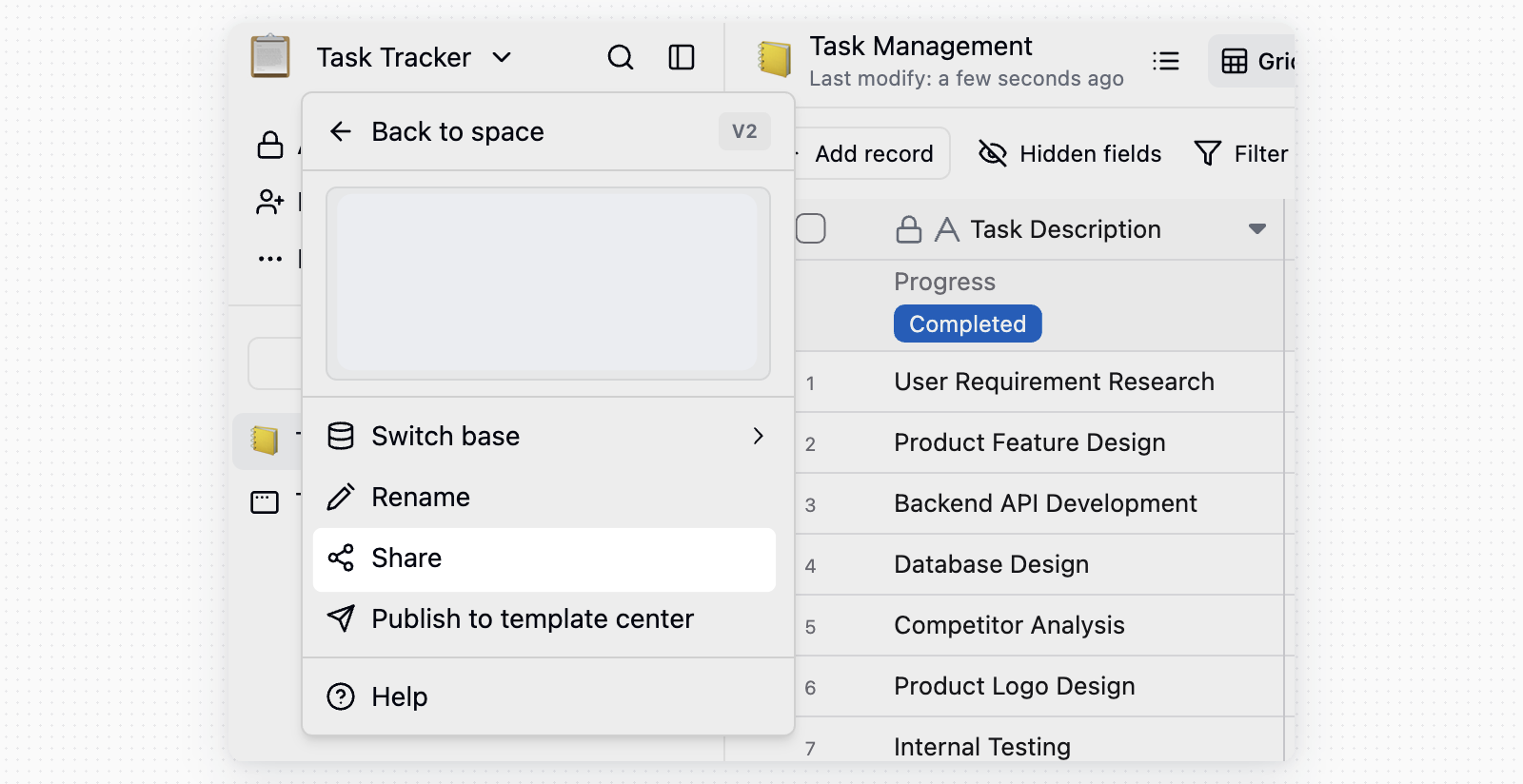 Sharing scopes include:
| Scope | Description |
| ----------------------- | ---------------------------------------------------------------------------------------------------- |
| **Share entire base** | Shares all items in the current base. New tables and folders added later are automatically included. |
| **Share selected item** | Shares the currently selected item. When a folder is shared, its child items are included. |
In the share settings, you can configure link permissions, **Allow viewers to copy data**, password access, regenerate the link, delete the share link, or copy the embed config.
Sharing scopes include:
| Scope | Description |
| ----------------------- | ---------------------------------------------------------------------------------------------------- |
| **Share entire base** | Shares all items in the current base. New tables and folders added later are automatically included. |
| **Share selected item** | Shares the currently selected item. When a folder is shared, its child items are included. |
In the share settings, you can configure link permissions, **Allow viewers to copy data**, password access, regenerate the link, delete the share link, or copy the embed config.
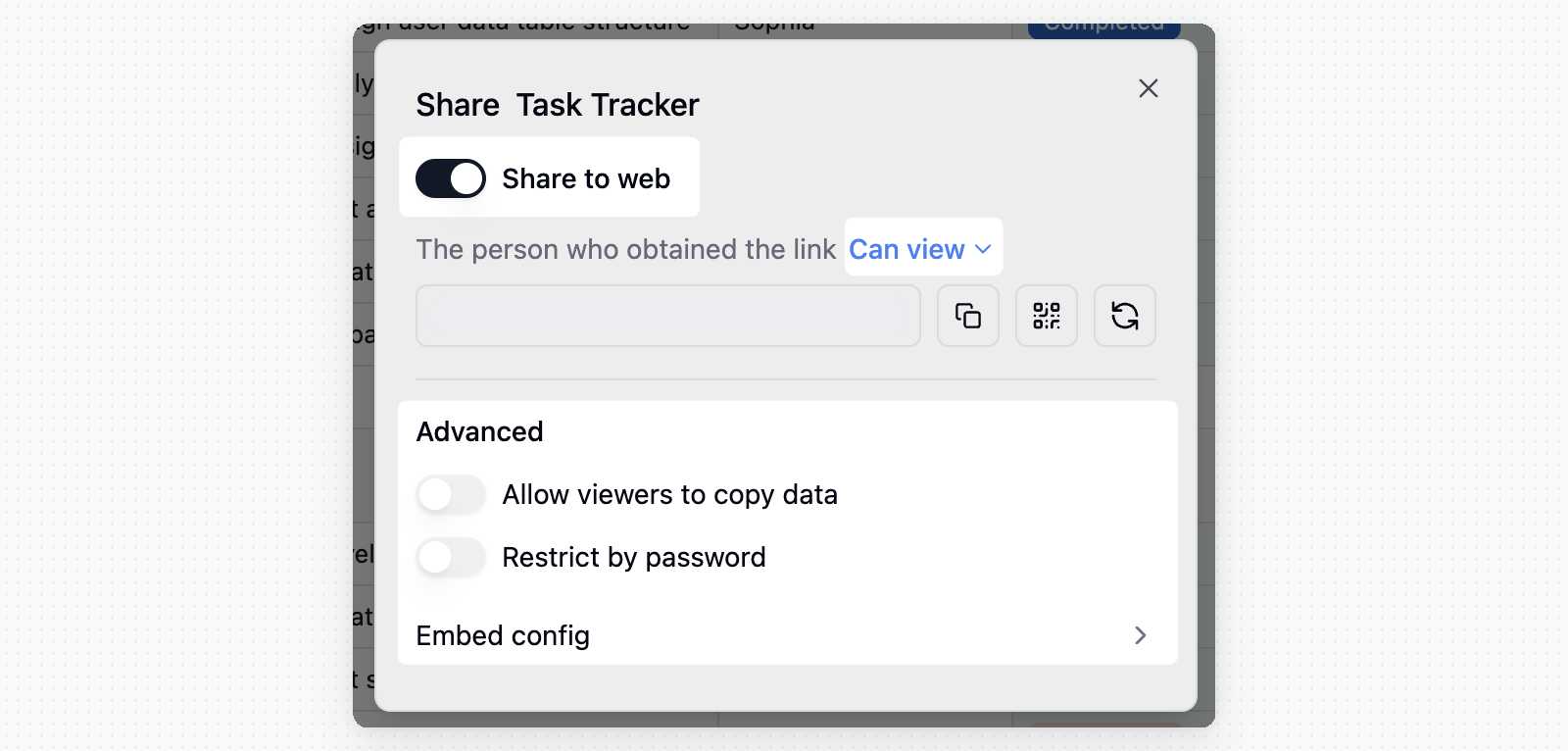 If the sharing scope includes an app, the app must be published before it can be accessed through the public link.
## Features Within a Base
A base can contain multiple tables for recording and organizing work or business-related information.
For example: A customer management base might have separate tables for "Customer Companies," "Customer Contacts," and "Customer Follow-up Records," while a meeting room management base might have separate tables for recording "Meeting Room Management," "Meeting Room Equipment," and "Meeting Room Reservations."
Therefore, most features within a base are related to tables:
* **Creating Tables**: Bases allow users to create new tables based on project-specific needs, where users can define table structure, fields, and data types.
* **Editing Tables**: Users can edit existing tables within the base, including adding, deleting, and modifying records.
* **Exporting and Importing Data**: Bases support exporting data to CSV, and importing data in both CSV and XLSX formats.
Refer to the [Tables section](/en/basic/table) for more information about tables.
If the sharing scope includes an app, the app must be published before it can be accessed through the public link.
## Features Within a Base
A base can contain multiple tables for recording and organizing work or business-related information.
For example: A customer management base might have separate tables for "Customer Companies," "Customer Contacts," and "Customer Follow-up Records," while a meeting room management base might have separate tables for recording "Meeting Room Management," "Meeting Room Equipment," and "Meeting Room Reservations."
Therefore, most features within a base are related to tables:
* **Creating Tables**: Bases allow users to create new tables based on project-specific needs, where users can define table structure, fields, and data types.
* **Editing Tables**: Users can edit existing tables within the base, including adding, deleting, and modifying records.
* **Exporting and Importing Data**: Bases support exporting data to CSV, and importing data in both CSV and XLSX formats.
Refer to the [Tables section](/en/basic/table) for more information about tables.