> ## Documentation Index
> Fetch the complete documentation index at: https://help.teable.ai/llms.txt
> Use this file to discover all available pages before exploring further.
# AI Fields
> AI fields can summarize text, classify tags, generate scores, or turn content into images.
Available on all Cloud plans. Self-hosted deployments require the Business plan or higher.
## Main Use Cases
AI fields generate the current field value from other fields in the same row. Use them to turn raw content into summaries, translations, extracted details, categories, scores, dates, or images.
Summarize, translate, extract information, improve writing, or customize the output. Best for turning longer text into usable copy.
Smart classify or customize the output. Best for matching content to one existing category.
Smart tag or customize the output. Best for matching content to one or more existing tags.
Rate or customize the output. Best for generating scores or numeric results from source content.
Extract information or customize the output. Best for extracting dates or times from content.
Generate images or customize the output. Best for creating images from text or attachments.
If you are not sure which action to use, start here:
* **Summarize**: Creates a summary from the source field.
* **Translate**: Translates the source field into the target language.
* **Extract Information**: Extracts specific information from text. Date fields can also use it to extract dates or times.
* **Improve Writing**: Rewrites content based on your additional requirements.
* **Smart Classify**: Matches a single select field to an existing option.
* **Smart Tag**: Matches a multiple select field to existing options.
* **Rate**: Generates a score or numeric value from the source content.
* **Generate Image**: Creates images in an attachment field. Some models support using an attachment field as a reference image.
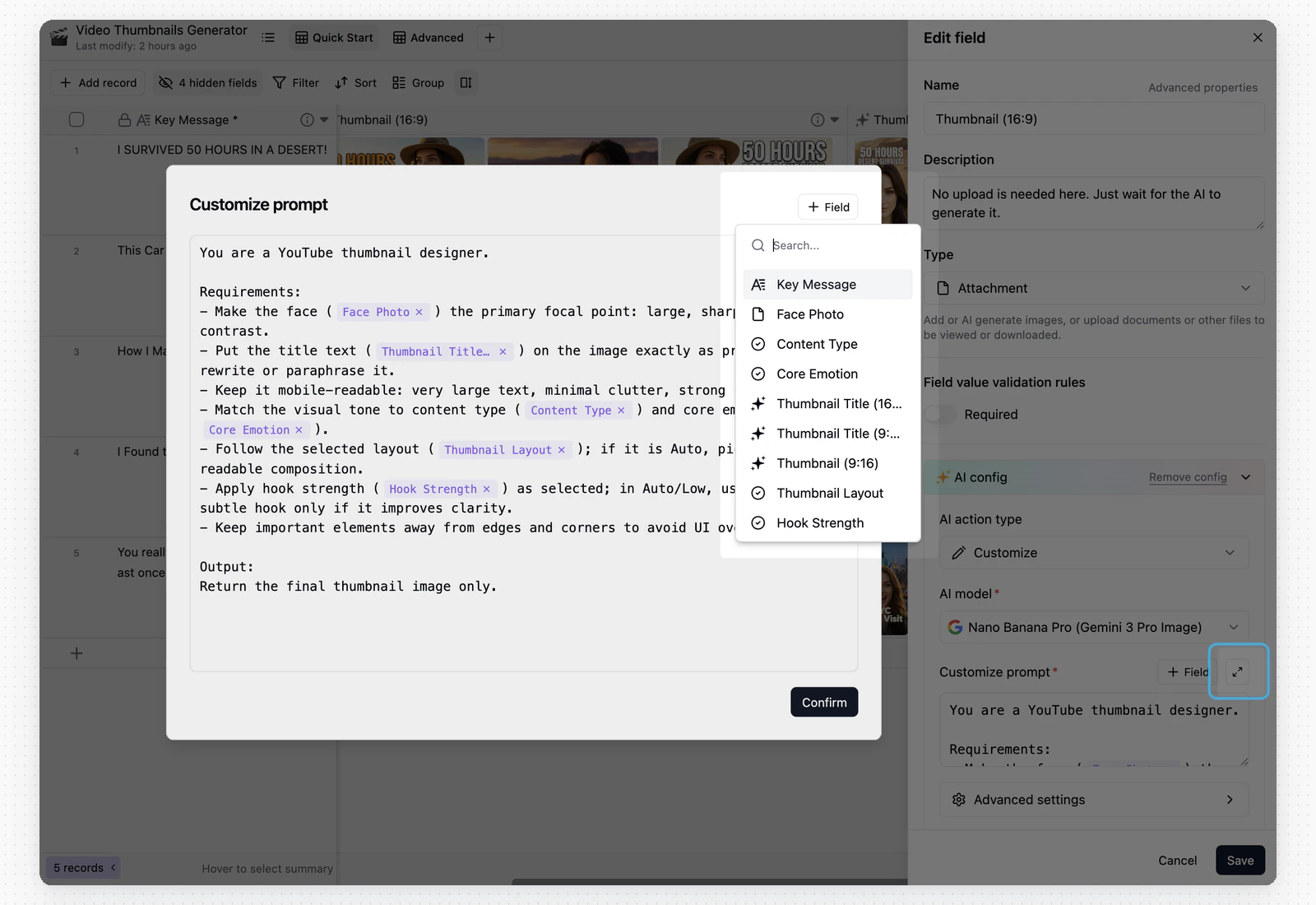
Use a custom prompt when the default actions do not cover your case. Custom prompts can reference fields from the same row.
## Workflow
Create a field, choose the field type, then expand **AI Configuration**. Each field type shows the AI actions it supports.
Choose the **AI Action Type** and **AI Model**. The action controls the task. The model controls which AI model generates the result.
Choose the field AI should read as input. The AI field generates its value from source fields in the same row.
Depending on the action, fill in **Additional Requirements**, **Target Language**, or a **Custom Prompt**. For image generation in attachment fields, use **Advanced Settings** to adjust image size, quality, count, aspect ratio, resolution, or reference images. Available settings depend on the selected model.
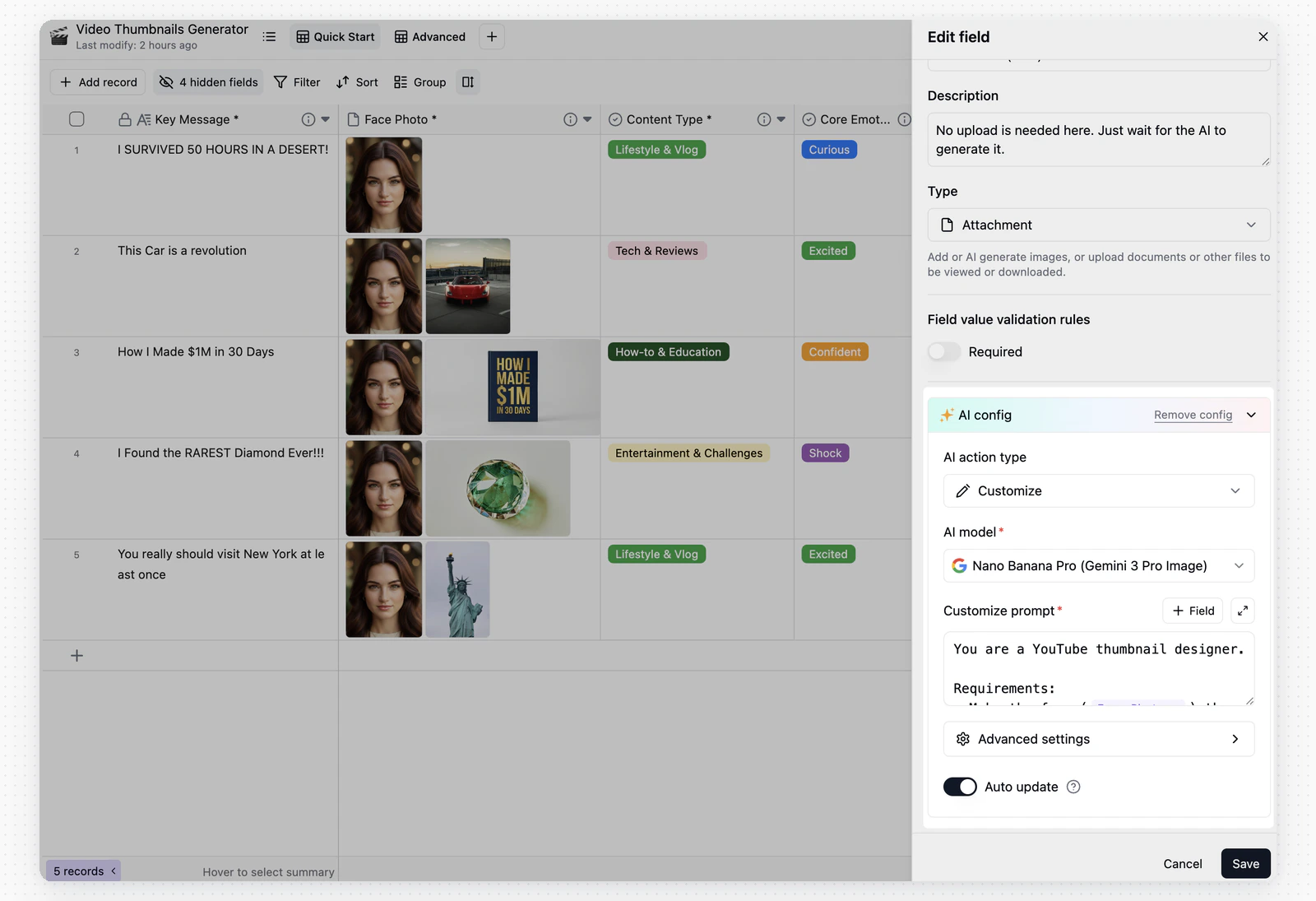 When you edit an AI field, you can change the action type, model, source fields, additional requirements, custom prompt, and auto-update setting. After you save, the new configuration applies to future generations. If an existing result is not what you want, regenerate it.
 ## Auto-update and Batch Generation
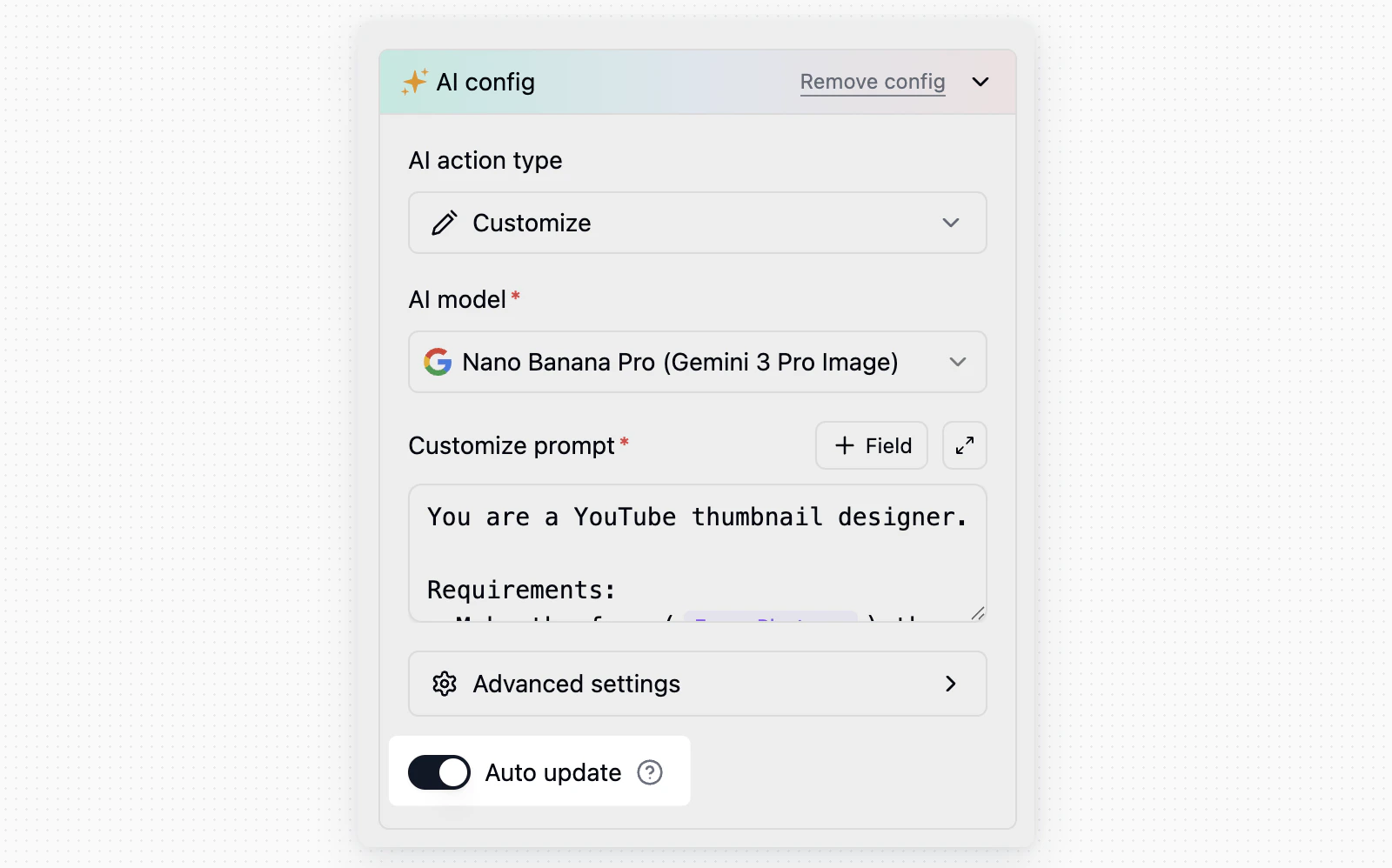
When **Auto-update** is enabled, the AI field updates with the current configuration when source field content or the AI configuration changes. Use it when the result should stay in sync with source content, such as categories, summaries, scores, or tags generated from feedback.
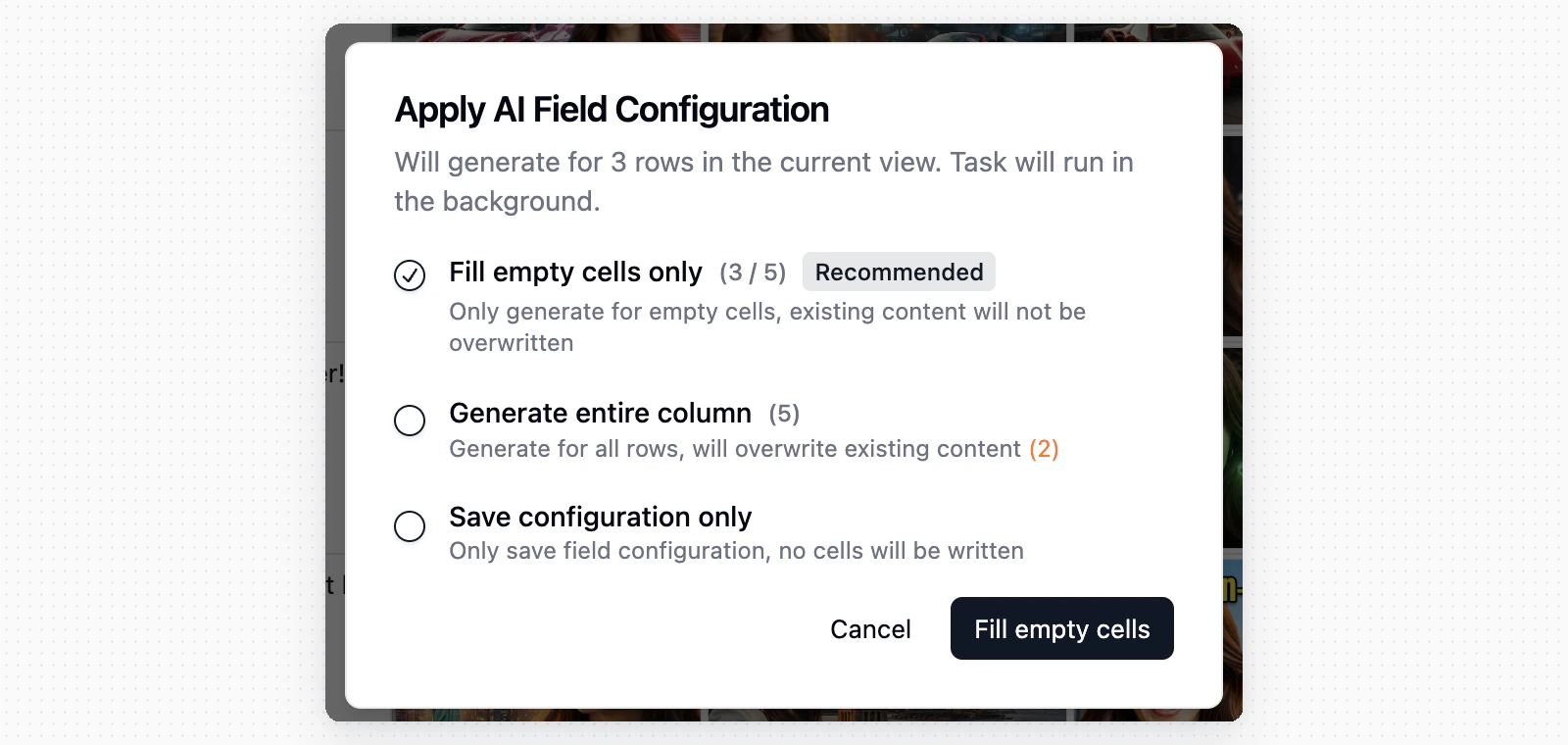
After you create a field or change its AI configuration, you can choose whether to process records in the current view right away:
Generate content only for empty cells. Existing values are not overwritten.
Regenerate results for records in the current view. Existing values are overwritten.
Save the field configuration without writing values to cells.
## Auto-update and Batch Generation
When **Auto-update** is enabled, the AI field updates with the current configuration when source field content or the AI configuration changes. Use it when the result should stay in sync with source content, such as categories, summaries, scores, or tags generated from feedback.
After you create a field or change its AI configuration, you can choose whether to process records in the current view right away:
Generate content only for empty cells. Existing values are not overwritten.
Regenerate results for records in the current view. Existing values are overwritten.
Save the field configuration without writing values to cells.
 After you choose a generation option, Teable shows the task status while it processes records.
 To run generation later, use the field menu instead of saving the configuration again.
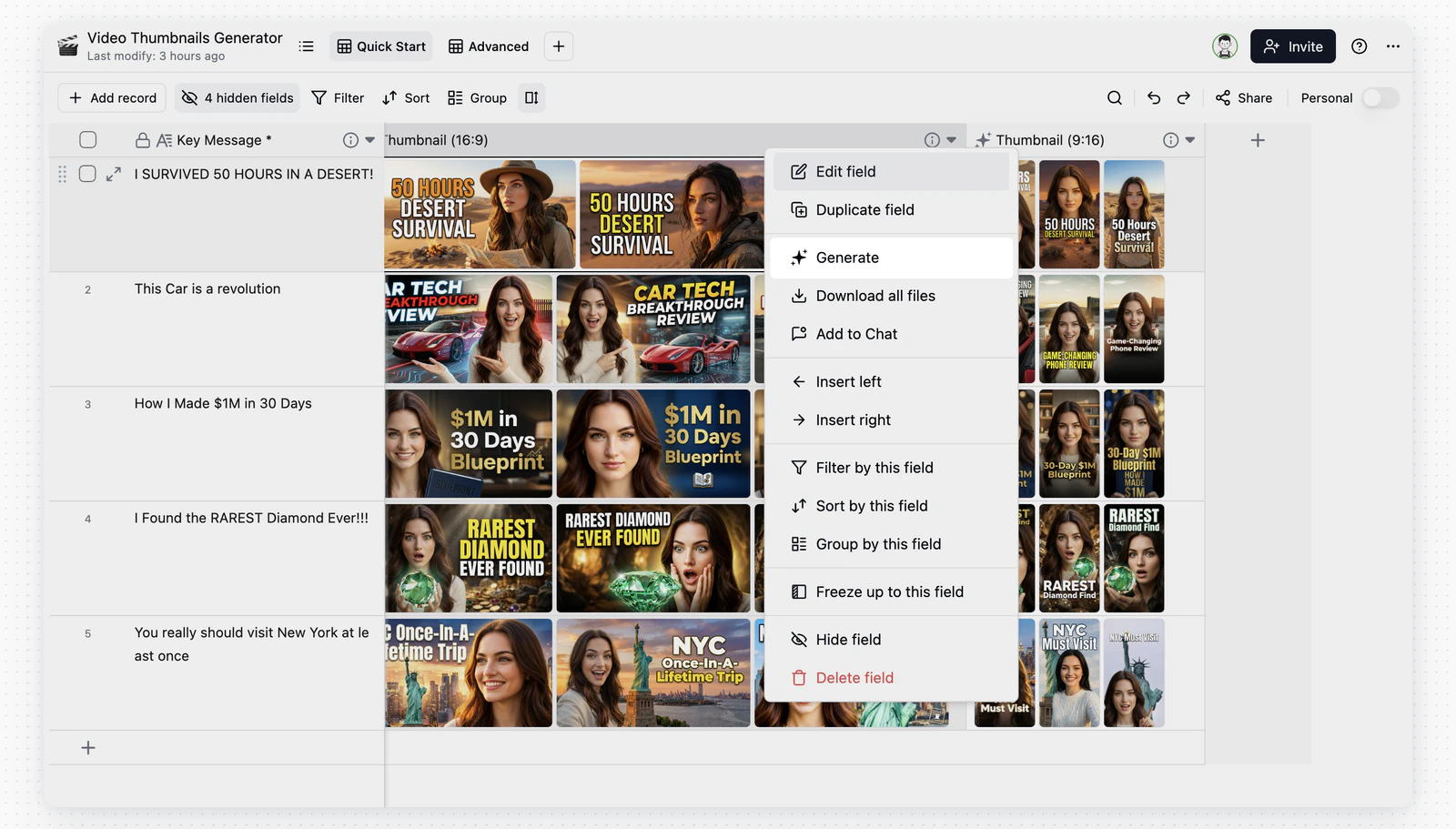
You can also right-click the field and choose **Generate** to run batch generation for the current view. Availability depends on the current view and your permissions.
To run generation later, use the field menu instead of saving the configuration again.
You can also right-click the field and choose **Generate** to run batch generation for the current view. Availability depends on the current view and your permissions.
 ## FAQ
After you create a field or change its AI configuration, you can choose **Fill empty cells only**, **Generate entire column**, or **Save configuration only**. You can also batch generate later from the field right-click menu by choosing **Generate**.
Enable **Auto-update** if you want the AI field to update when source field content changes. If you want to control when generation runs, leave it off and use **Generate** when needed.
AI actions depend on the field type. Text fields are suited for summarizing, translating, and extracting information. Single select fields are suited for Smart Classify. Multiple select fields are suited for Smart Tag. Attachment fields are suited for image generation.
The model list comes from models provided by Teable and AI models configured in the current space. To use a third-party model, add a custom AI model in space settings first.
Image size, quality, count, aspect ratio, resolution, and reference image options depend on the selected model.
Some image models apply a total pixel limit. When you choose a high resolution such as **4K**, Teable uses the largest compliant size for the selected aspect ratio, so the exact width and height can vary.
## FAQ
After you create a field or change its AI configuration, you can choose **Fill empty cells only**, **Generate entire column**, or **Save configuration only**. You can also batch generate later from the field right-click menu by choosing **Generate**.
Enable **Auto-update** if you want the AI field to update when source field content changes. If you want to control when generation runs, leave it off and use **Generate** when needed.
AI actions depend on the field type. Text fields are suited for summarizing, translating, and extracting information. Single select fields are suited for Smart Classify. Multiple select fields are suited for Smart Tag. Attachment fields are suited for image generation.
The model list comes from models provided by Teable and AI models configured in the current space. To use a third-party model, add a custom AI model in space settings first.
Image size, quality, count, aspect ratio, resolution, and reference image options depend on the selected model.
Some image models apply a total pixel limit. When you choose a high resolution such as **4K**, Teable uses the largest compliant size for the selected aspect ratio, so the exact width and height can vary.