> ## Documentation Index
> Fetch the complete documentation index at: https://help.teable.ai/llms.txt
> Use this file to discover all available pages before exploring further.
# Overview
> Records are the basic data units stored in a table. In a table view, each row usually represents one record.
Records store complete data entries. Each record is made up of multiple fields. For example, a customer record can include name, phone number, owner, and follow-up status. An order record can include order number, customer, amount, and delivery date.
## Basic Concepts
| Concept | Description |
| ------------- | ----------------------------------------------------------------------------------------- |
| Record | A row of data in a table |
| Field | An attribute in a record, corresponding to a table column |
| Cell | The value of one record under one field |
| Primary field | The main display name of a record, often used in mobile lists and linked record selectors |
## Create Records
You can create records in the following ways:
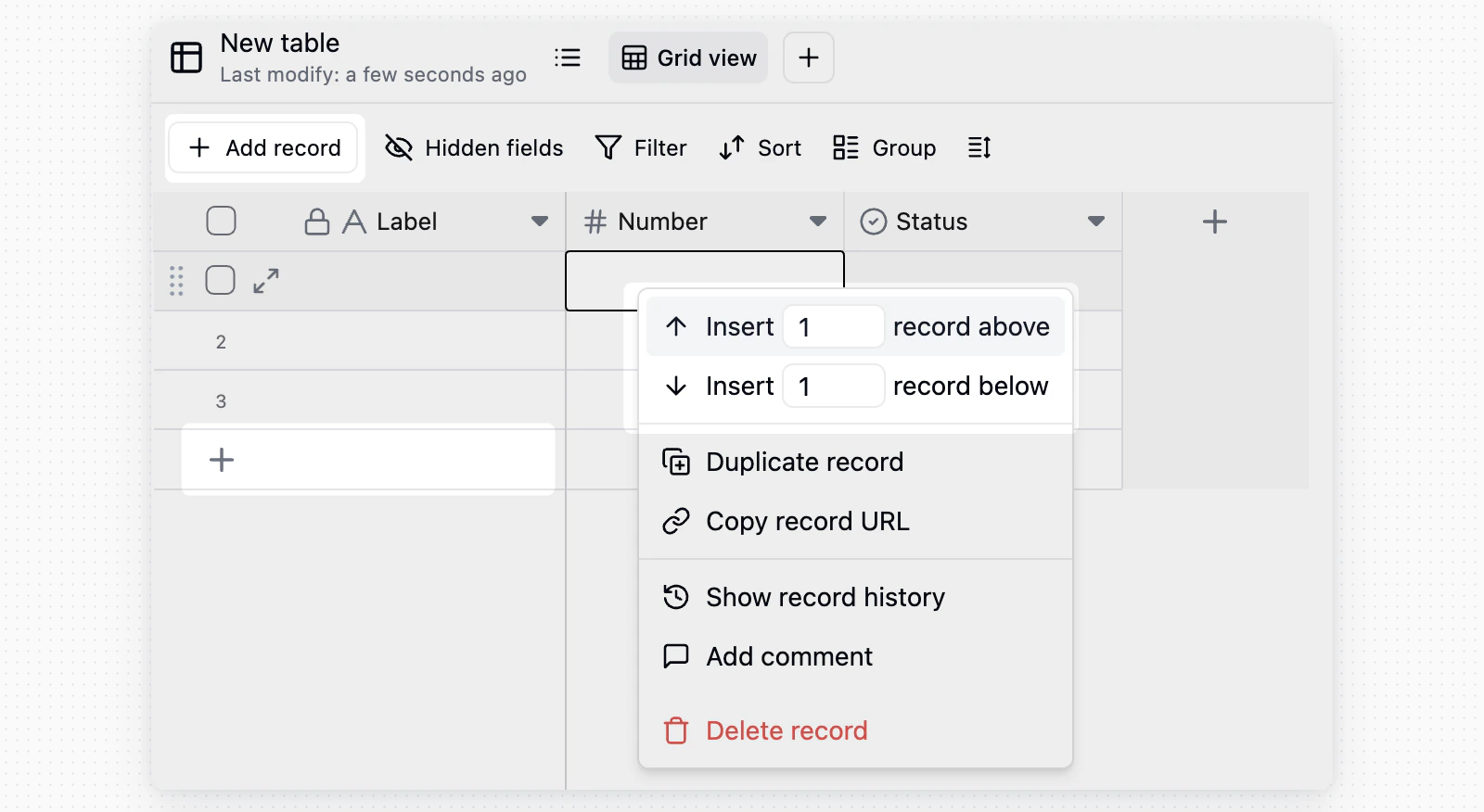 | Entry | Action |
| ------------------- | ------------------------------------------------------------------------------- |
| Bottom of the table | Click the `+` button at the bottom of the table view to add a record at the end |
| Top toolbar | Click `+ Add record` on the left side of the toolbar |
| Context menu | Right-click an existing record and insert a record above or below it |
## Edit Records
* **Edit a cell**: Click any cell and enter or change its content.
* **Clear content**: Select one or more cells, then press `Delete` or `Backspace`.
* **Bulk select**: Drag with the mouse to select multiple cells or records, then edit, delete, or copy them.
* **Copy and paste**: Copy and paste one or more cells. If the pasted data has more rows than the current table, Teable automatically adds new rows.
## Delete Records
| Entry | Action |
| ------------------- | ------------------------------------------------------------------------------- |
| Bottom of the table | Click the `+` button at the bottom of the table view to add a record at the end |
| Top toolbar | Click `+ Add record` on the left side of the toolbar |
| Context menu | Right-click an existing record and insert a record above or below it |
## Edit Records
* **Edit a cell**: Click any cell and enter or change its content.
* **Clear content**: Select one or more cells, then press `Delete` or `Backspace`.
* **Bulk select**: Drag with the mouse to select multiple cells or records, then edit, delete, or copy them.
* **Copy and paste**: Copy and paste one or more cells. If the pasted data has more rows than the current table, Teable automatically adds new rows.
## Delete Records
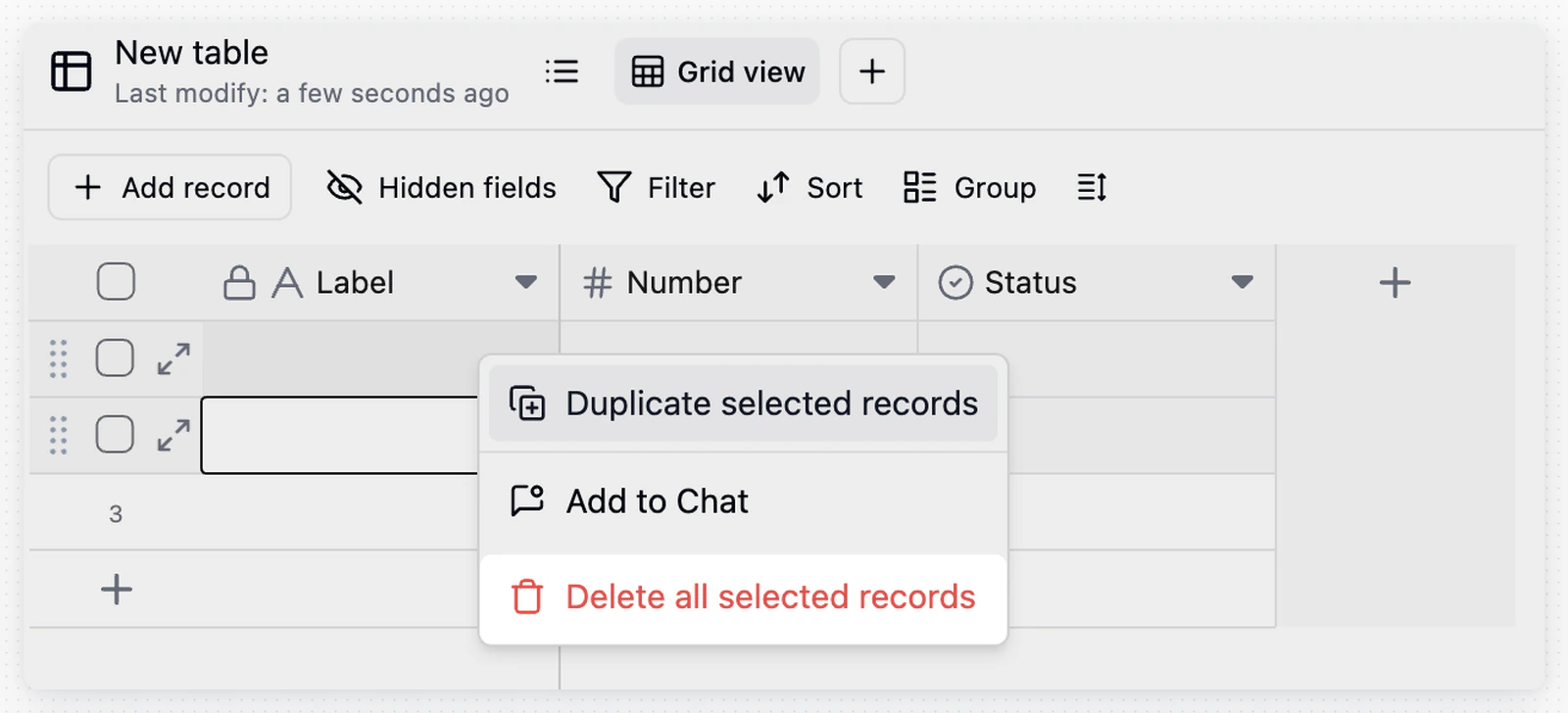 Select one or more records, then right-click and choose **Delete record**. For bulk deletion, you can select the checkboxes at the beginning of rows before deleting them.
## Record Details
Select one or more records, then right-click and choose **Delete record**. For bulk deletion, you can select the checkboxes at the beginning of rows before deleting them.
## Record Details
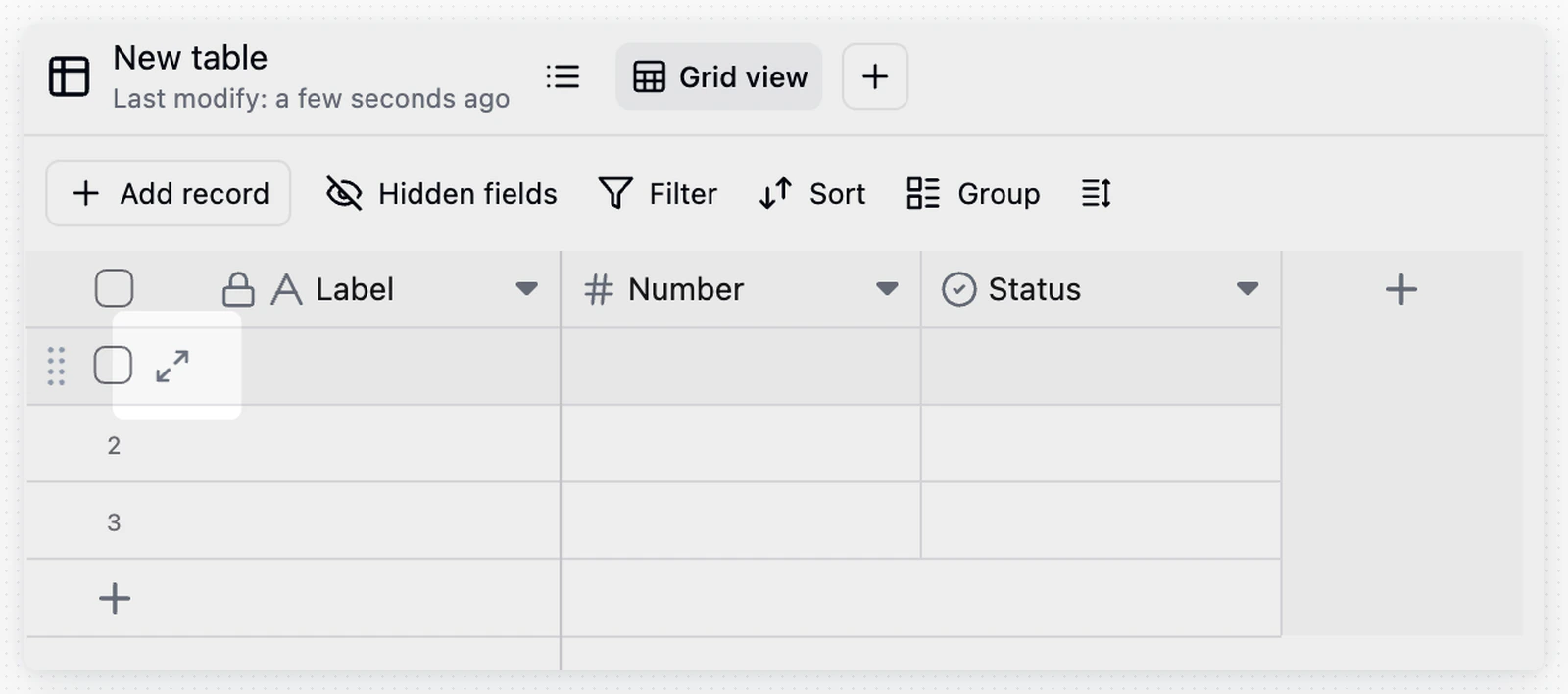 Click the expand icon at the beginning of a record row, or select a record and press Space, to open the record detail card.
The detail card is useful for records with many fields. You can browse fields vertically on one page, reduce horizontal scrolling, edit fields, view comments, and check record history.
## Collaboration and Tracking
| Feature | Description |
| -------------- | ------------------------------------------------------------------------------------------------------------------------------------------------------ |
| Comments | Each record has its own comment area for discussing specific data, @mentioning teammates, or adding context. See [Comments](/en/basic/record/comment). |
| Record history | Teable records record changes so you can trace updates. See [Record History](/en/basic/record/record-history). |
| Linked records | Use a **Link** field to connect records across tables. See [Link Field](/en/basic/field/link). |
## Notes
* The primary field is used as the main display name of a record. Put recognizable information such as a name, task title, or order number in the primary field, instead of note-style content.
* Each record has a unique record ID. After opening the record detail card, the string in the browser URL that starts with `rec` is the record ID.
* If you cannot edit some records, an administrator may have limited the editable scope through the **Authority Matrix**. See [Authority Matrix](/en/basic/authority-matrix).
Click the expand icon at the beginning of a record row, or select a record and press Space, to open the record detail card.
The detail card is useful for records with many fields. You can browse fields vertically on one page, reduce horizontal scrolling, edit fields, view comments, and check record history.
## Collaboration and Tracking
| Feature | Description |
| -------------- | ------------------------------------------------------------------------------------------------------------------------------------------------------ |
| Comments | Each record has its own comment area for discussing specific data, @mentioning teammates, or adding context. See [Comments](/en/basic/record/comment). |
| Record history | Teable records record changes so you can trace updates. See [Record History](/en/basic/record/record-history). |
| Linked records | Use a **Link** field to connect records across tables. See [Link Field](/en/basic/field/link). |
## Notes
* The primary field is used as the main display name of a record. Put recognizable information such as a name, task title, or order number in the primary field, instead of note-style content.
* Each record has a unique record ID. After opening the record detail card, the string in the browser URL that starts with `rec` is the record ID.
* If you cannot edit some records, an administrator may have limited the editable scope through the **Authority Matrix**. See [Authority Matrix](/en/basic/authority-matrix).