> ## Documentation Index
> Fetch the complete documentation index at: https://help.teable.ai/llms.txt
> Use this file to discover all available pages before exploring further.
# Overview
> Create, rename, delete, and manage spaces in Teable.
## Creating a New Space
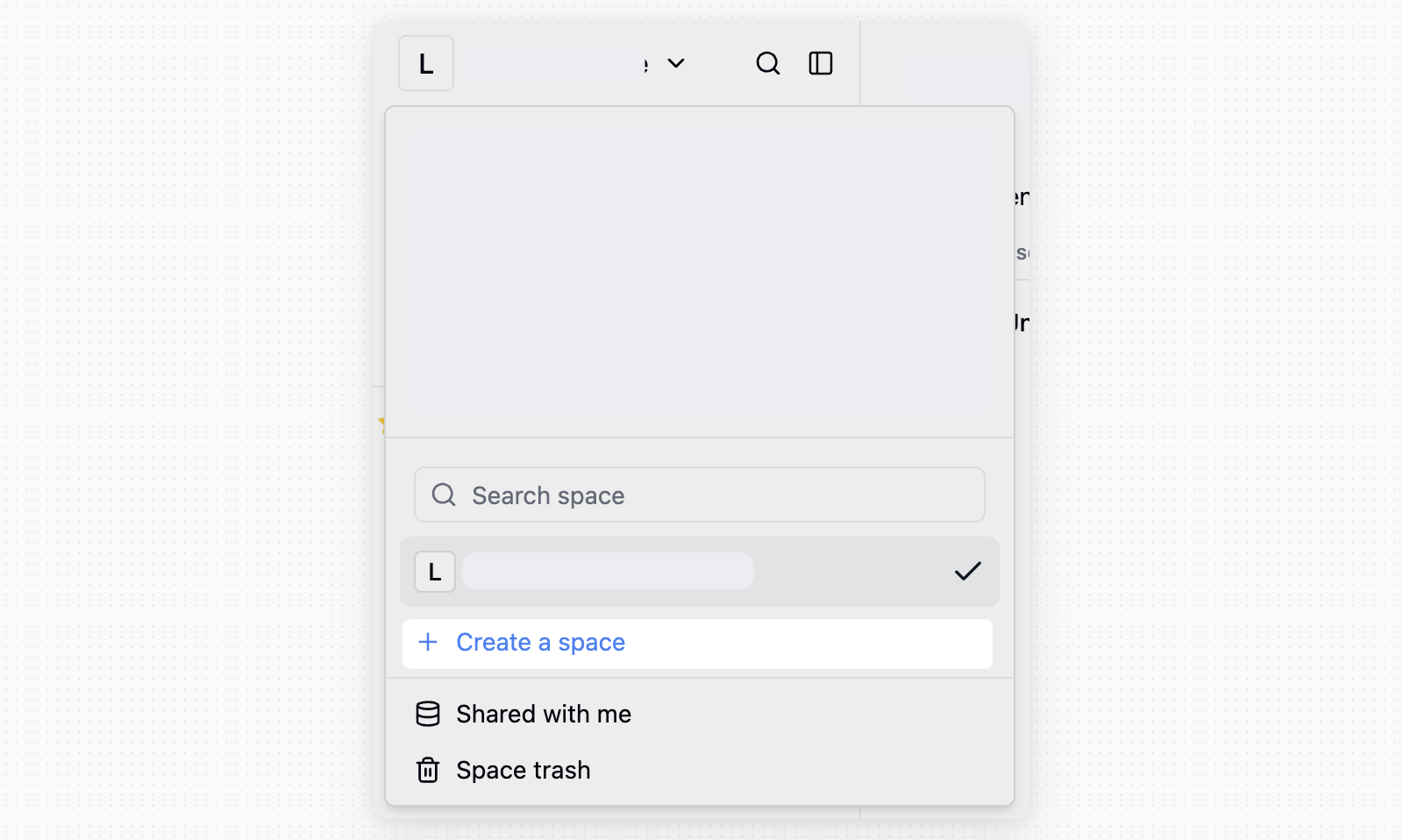
After logging into Teable, create a space from the space switcher:
Each user can own up to two free spaces. If you already own two free spaces, you cannot create another free space.
1. Click the current space name in the upper-left corner
2. Click **Create a space**
3. Enter the space name and confirm
 ## Renaming a Space
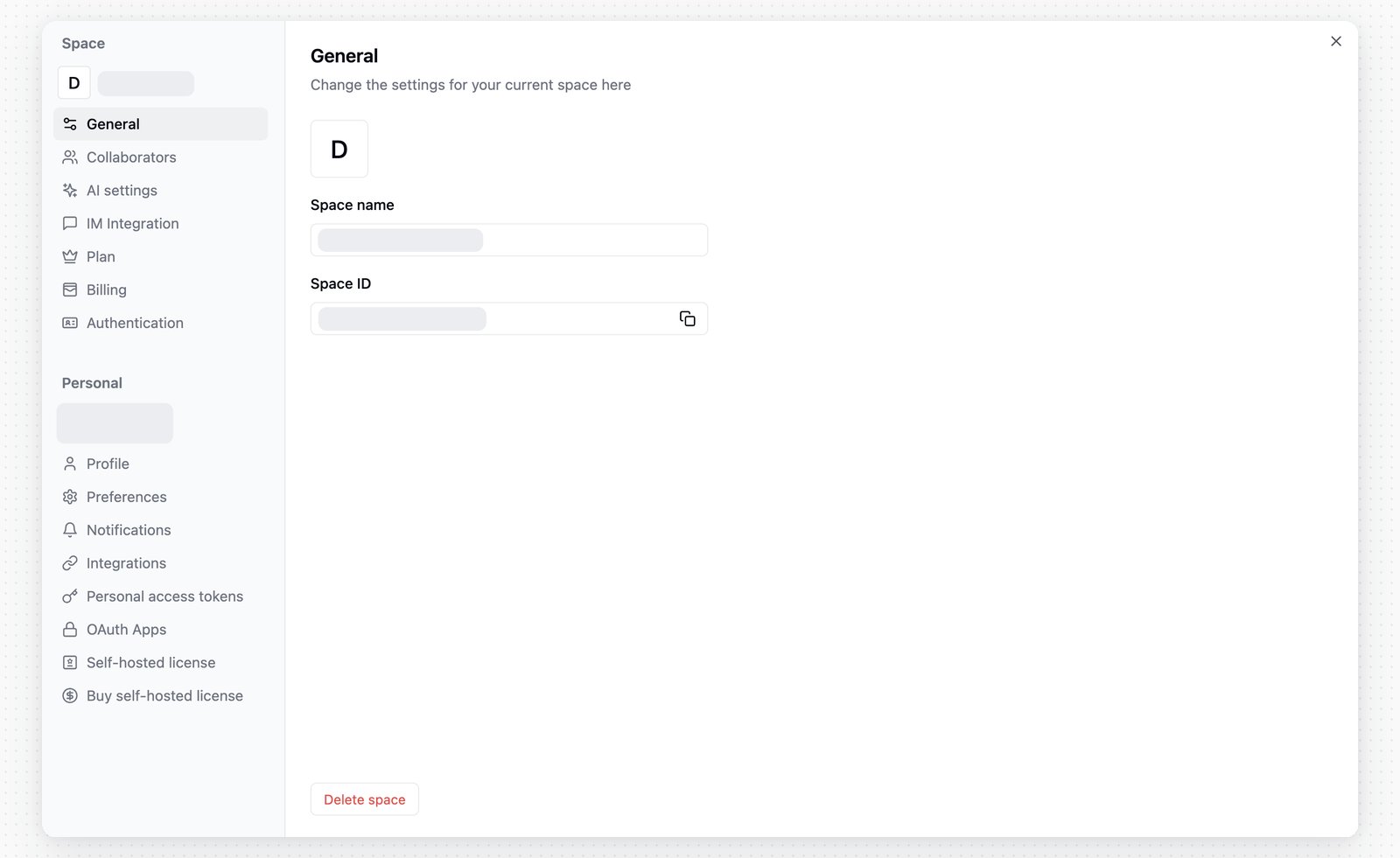
Users can change the space name from Space settings:
1. Click **Settings** in the space sidebar
2. Open **General** under **Space**
3. Edit **Space name**
## Renaming a Space
Users can change the space name from Space settings:
1. Click **Settings** in the space sidebar
2. Open **General** under **Space**
3. Edit **Space name**
 ## Deleting a Space
When necessary, you can also delete a space:
1. Click **Settings** in the space sidebar
2. Open **General** under **Space**
3. Click **Delete space**
## Space Trash
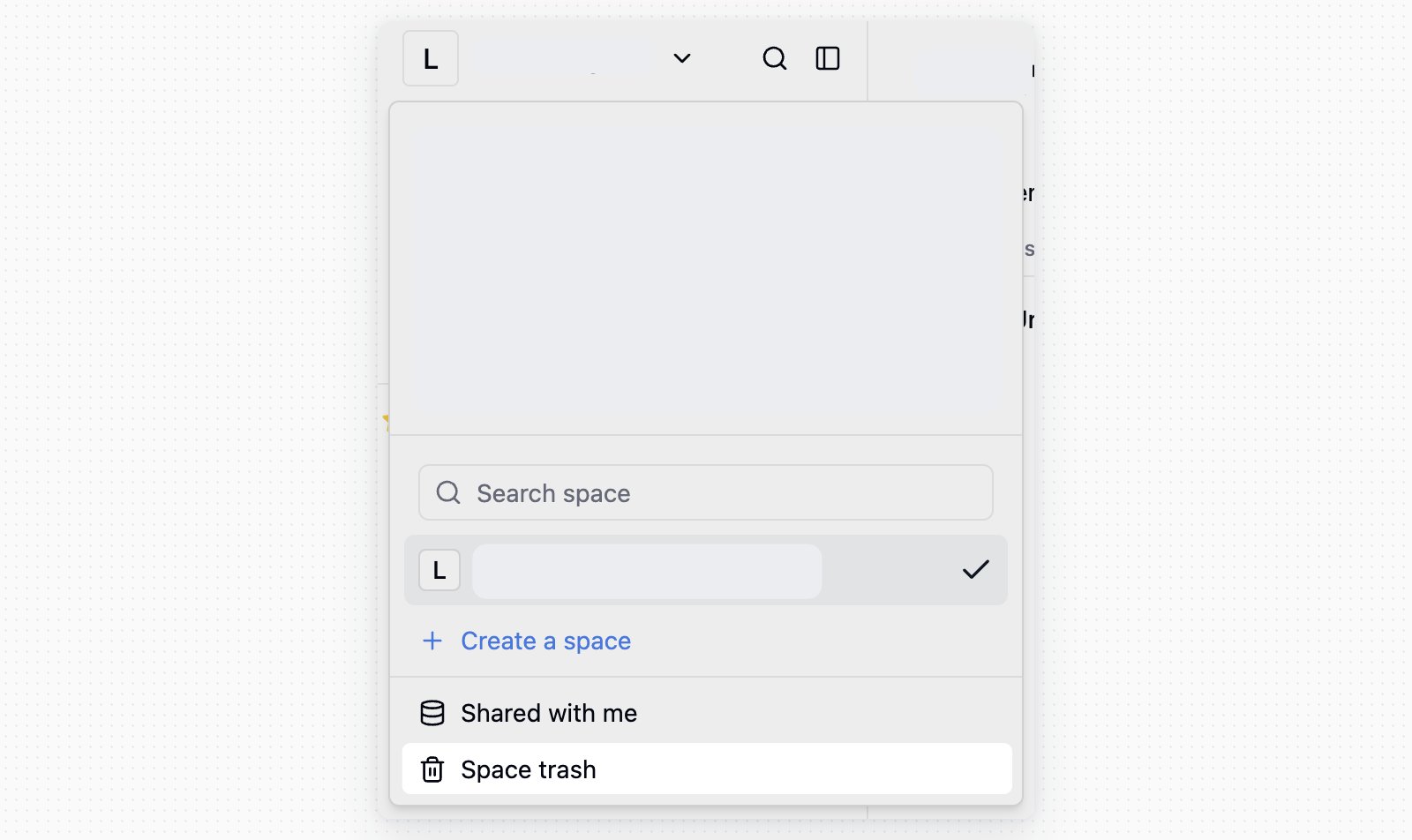
Deleted spaces will go to the trash, where you can choose to empty the trash to permanently delete data or restore spaces
## Deleting a Space
When necessary, you can also delete a space:
1. Click **Settings** in the space sidebar
2. Open **General** under **Space**
3. Click **Delete space**
## Space Trash
Deleted spaces will go to the trash, where you can choose to empty the trash to permanently delete data or restore spaces
 ## Shared with Me
When someone shares a base with you as a collaborator, the base appears under **Shared with me** in the space sidebar.
Bases shared with you are different from bases in your own spaces:
* Access is controlled by the sharer.
* Available actions depend on the base permission you were granted.
* If the sharer removes your access, the base no longer appears.
For public base sharing, see [Base](/en/basic/base).
## Space Settings
* Click the "···" button in the upper right corner of the space to open the space menu
* Click Space Settings
Space settings now open in the same settings dialog as personal settings. Use the **Space** section in the sidebar for space-level configuration.
**General**
In the General page, you can edit **Space name** and view the Space ID.
**Collaborators**
In the Collaborators page, you can manage collaborators, send invitations, remove members, and configure permissions.
**AI settings**
In the AI settings page, space owners can configure custom model providers for AI features in the current space. For configuration details, see [Custom AI models](/en/basic/ai/custom-model).
**CuppyClaw**
In the CuppyClaw page, space administrators can create and manage bots for the current space. Bot settings include model selection, accessible Bases, Skills, File Management, IM Integration, and delete controls.
**Plan**
In the Plan page, you can view the plan capabilities available to the current space.
**Billing (Cloud Version Only)**
In the Billing page, you can view your current subscription plan and usage statistics.
**Authentication**
In the Authentication page, you can configure SSO providers for the space and manage **Login by URL** and **Login by Button**. See [Single Sign-On (SSO)](/en/basic/sso/overview).
## Shared with Me
When someone shares a base with you as a collaborator, the base appears under **Shared with me** in the space sidebar.
Bases shared with you are different from bases in your own spaces:
* Access is controlled by the sharer.
* Available actions depend on the base permission you were granted.
* If the sharer removes your access, the base no longer appears.
For public base sharing, see [Base](/en/basic/base).
## Space Settings
* Click the "···" button in the upper right corner of the space to open the space menu
* Click Space Settings
Space settings now open in the same settings dialog as personal settings. Use the **Space** section in the sidebar for space-level configuration.
**General**
In the General page, you can edit **Space name** and view the Space ID.
**Collaborators**
In the Collaborators page, you can manage collaborators, send invitations, remove members, and configure permissions.
**AI settings**
In the AI settings page, space owners can configure custom model providers for AI features in the current space. For configuration details, see [Custom AI models](/en/basic/ai/custom-model).
**CuppyClaw**
In the CuppyClaw page, space administrators can create and manage bots for the current space. Bot settings include model selection, accessible Bases, Skills, File Management, IM Integration, and delete controls.
**Plan**
In the Plan page, you can view the plan capabilities available to the current space.
**Billing (Cloud Version Only)**
In the Billing page, you can view your current subscription plan and usage statistics.
**Authentication**
In the Authentication page, you can configure SSO providers for the space and manage **Login by URL** and **Login by Button**. See [Single Sign-On (SSO)](/en/basic/sso/overview).