> ## Documentation Index
> Fetch the complete documentation index at: https://help.teable.ai/llms.txt
> Use this file to discover all available pages before exploring further.
# Billing & Subscription
> Learn how to manage your subscription, view billing details, monitor usage, and download invoices.
Billing is only available in the Cloud version of Teable. Self-hosted users should refer to the [License Activation](/en/deploy/activate) documentation.
## Accessing Billing Settings
Only **Space Owners** have access to billing settings. To access:
1. Click **Settings** in the space sidebar
2. Select **Billing** under **Space**
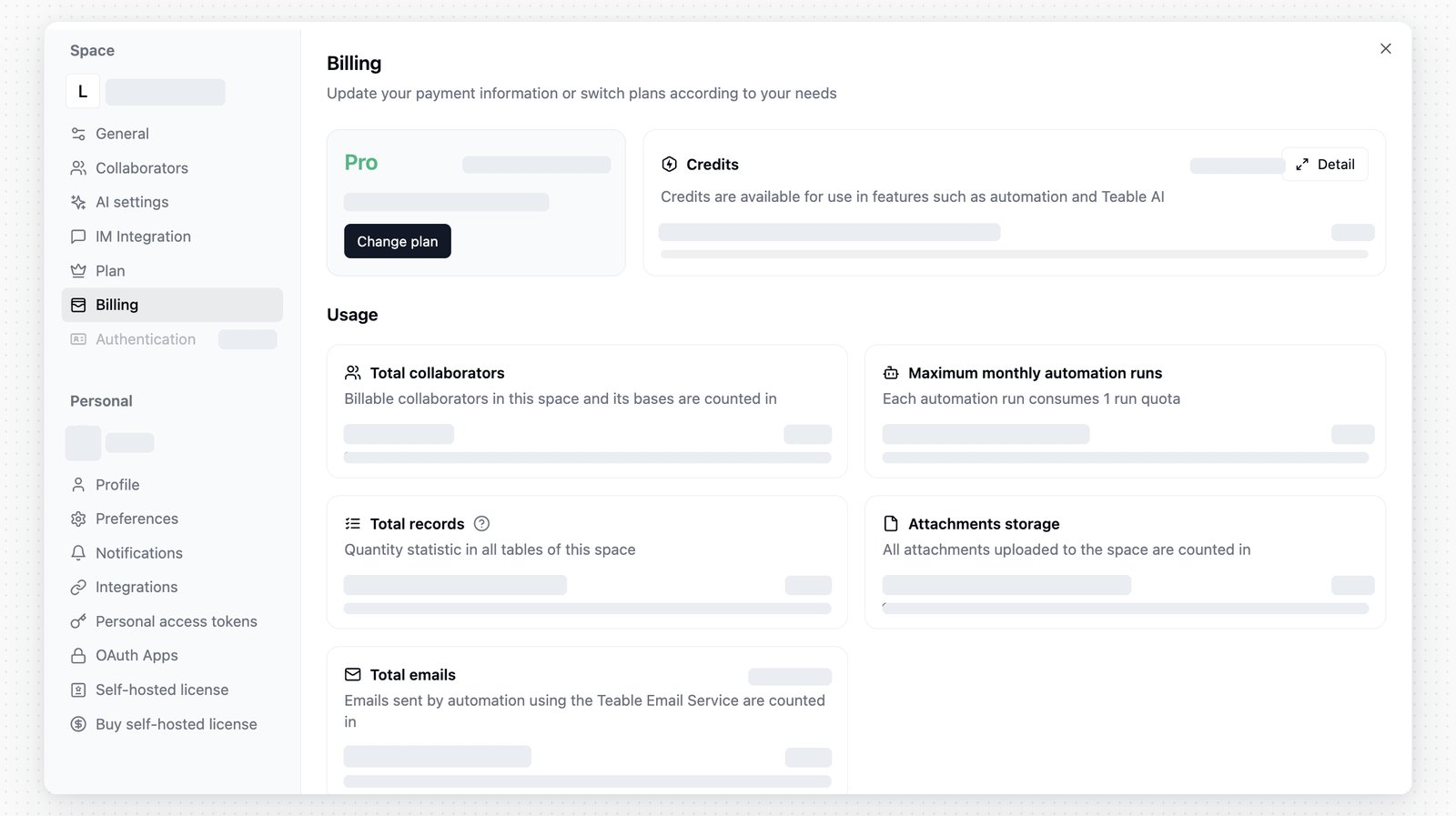 ## Billing Page Overview
The Billing page displays the following information:
### Current Plan
Shows your current subscription status including:
* **Subscription level** (Free, Pro, or Business)
* **Price per seat** (monthly or yearly)
* **Number of seats**
* **Renewal date** or cancellation date if applicable
Click **Change plan** to upgrade, downgrade, or modify your subscription.
### Usage Statistics
Monitor your space's resource consumption with these metrics:
| Metric | Description |
| ----------------------------------- | ---------------------------------------------------------------------- |
| **Total collaborators** | Number of billable collaborators in the current space and its bases |
| **Maximum monthly automation runs** | Monthly automation run quota. Each automation run consumes 1 run quota |
| **Total records** | Total row count across all tables in the space |
| **Attachments storage** | Total storage used by uploaded attachments |
| **Total emails** | Emails sent via automation using Teable Email Service |
Data in both space trash and base trash are counted in the total record statistics. To reduce the total record count, clean up data in "Space → Trash" or "Base → Trash".
Click **Details** on the **Total records** card to view record usage by Base. The dialog shows active records, trash records, and total records for each Base. You can open a Base trash page from the dialog, or permanently delete a Base that is already in trash.
### Credits
Credits are Teable's usage units for AI-powered features. They allow you to track and manage AI usage in a transparent way. Credits reset every billing period and don't roll over.
**What uses credits:**
* **AI features** – Including AI Field generation, AI Chat, CuppyClaw, and App Builder. Credit consumption is based on the AI tokens used by the underlying language models.
**Monthly credit allocation per plan:**
* **Free**: 500 credits/month
* **Pro**: 1,000 credits/seat/month
* **Business**: 2,000 credits/seat/month
**Add-on credits:** Pro and above users can purchase additional credits.
When you add new billable collaborators, the seat count is updated at the start of the next billing cycle. Credits for new seats are allocated at that point on a prorated basis. If credits are needed before then, add-on credits can be purchased for instant use.
**What happens when credits run out:** Once your monthly credits are exhausted, AI features will be limited until the next billing cycle or until you purchase additional credits.
Credits only apply to Teable Cloud; self-hosted editions don't consume Teable Cloud credits and are instead limited by your own infrastructure and any external AI providers you use.
The credits card shows your total credits, included extra credits, reset date, and current usage. Click **Detail** to open **Credit usage summary**, where you can filter by date range and type, view usage charts, and check usage records by name, type, model, credits, member, and date.
### Billing Details
Displays your billing information:
* **Name**: The billing account name
* **Email**: The billing email address
Click **Manage info** to open the payment portal where you can:
* Update your payment method
* Change billing address
* View payment history
The "Manage info" button opens Stripe Customer Portal in a new tab.
### Invoices
View and download your billing invoices:
1. Scroll to the **Invoices** section at the bottom of the page
2. Find the invoice you need in the table
3. Click the download icon to get a PDF copy
The invoice table shows:
* **Reference**: Invoice number
* **Tax**: Total amount including tax
* **Status**: Payment status (e.g., paid)
* **Date**: Invoice date
* **Download**: PDF download button
## Changing Your Subscription Plan
To upgrade, downgrade, or modify your plan:
1. Go to **Settings** → **Plan**
2. Review the available plan cards: **Free**, **Pro**, and **Business**
3. Click **Subscribe** on the plan you want
4. Choose a billing cycle (Monthly or Yearly)
5. Adjust the number of seats if needed
6. Complete the checkout process
Yearly billing saves approximately 17% compared to monthly billing.
### Available Plans
| Plan | Best For |
| ------------ | --------------------------- |
| **Free** | Individuals |
| **Pro** | Small teams & professionals |
| **Business** | Scaling businesses |
### Add-on Usage Subscriptions
In the **Plan** tab, **Add-on usage subscriptions** lets you purchase extra usage without changing the main plan. Available add-ons include:
* **Credits**
* **Automation**
* **Records**
* **Attachments storage**
## Canceling Your Subscription
Teable follows a "use what you paid for" cancellation policy. When you cancel a subscription, you're not requesting an immediate service termination or refund. Instead, you're choosing not to renew at the end of your current billing period.
To cancel your subscription:
1. Go to **Space Settings** → **Billing**
2. Click **Change plan** to go to the Plan page
3. Find your current plan and click the cancel option
4. Confirm the cancellation
After cancellation:
* Your subscription will remain active until the end of the current billing period
* You'll see a "Will cancel on \[date]" notice
* Your data will be preserved, but premium features will become unavailable after the period ends
* You can resubscribe at any time to restore access to premium features
* No refunds are provided for unused time
## FAQ
Only the Space Owner has access to billing settings. Other collaborators (Creators, Editors, Commenters, Viewers) cannot view or modify billing information.
Seats are counted based on collaborators with **Editor** role or higher (Owner, Creator, Editor). Collaborators with **Commenter** or **Viewer** (Read-only) roles are free of charge.
* **Cloud version**: Teable Cloud plans are billed per seat on a space basis. Seats are counted across the space. Charges are prorated: if you add billable collaborators partway through a billing period, you only pay for the remaining time in that period.
* **Self-hosted version**: Pricing is based on a monthly or annual pre-paid seat license with no storage, row, or other usage limits. Seats are counted across the entire instance. If the number of users exceeds your license limit, you will need to upgrade your plan to add more seats. See [License Activation](/en/deploy/activate) for details.
For Business plans with Authority Matrix enabled, users assigned through Authority Matrix are counted as billable users.
Have more questions about products or pricing? [Contact sales](https://contact.teable.ai/).
You'll be charged immediately upon subscribing and then on the renewal date each billing cycle (monthly or annually).
Click the **Manage info** button in the Billing details section. This opens the Stripe Customer Portal where you can update your card or add alternative payment methods.
Teable follows a "use what you paid for" cancellation policy. When you cancel, you're choosing not to renew at the end of your current billing period—not requesting an immediate service termination.
Teable does not provide refunds for canceled subscriptions (both Cloud and Self-Hosted) because your service continues until the end of your prepaid period. You receive the full value of your payment by maintaining access to paid features until your subscription naturally expires.
For self-hosted licenses specifically, once a license key is issued, it cannot be modified, downgraded, or refunded. This is because self-hosted licenses are issued as pre-paid, fixed-term authorizations with encrypted validation that cannot be revoked after delivery. If you need a different seat count, you would need to purchase a new license when your current one expires.
For annual billing payments, the upfront annual payment, as well as each additional annual user payment and monthly/quarterly true-up payments, are non-refundable. We offer this discounted rate as a way to encourage long-term investment in Teable, which helps us hire more people, improve the product and customer experience, and support the open source project. If you're not ready to commit, no worries; stick with monthly billing.
If a payment fails, we'll notify you via email. You'll have a grace period to update your payment method before your subscription is suspended.
Credits are consumed by AI-powered features including AI field generation, AI chat, CuppyClaw, and the app builder. Each plan includes a monthly credit allocation:
* **Free**: 500 credits
* **Pro**: 1,000 credits per seat
* **Business**: 2,000 credits per seat
**Can I undo a prompt to get my credits back?**
Credits can't be returned once a prompt is processed. For App Builder, you can roll back your app to a previous version to undo unwanted changes, but the credits used for that prompt won't be restored.
**Credits were used on a failed action. Can I get them back?**
Credits are consumed once your prompt is processed, even if the result is not what you expected. If the AI Agent is unexpectedly interrupted, Teable restores the credits used by the final failed step. If you believe the failure was caused by a Teable-side issue, contact support and we can review it.
**I lost credits to repeated errors that didn't fix the problem.**
We understand the frustration. For App Builder, follow the [App Builder Practical Guide](/en/basic/ai/app-builder-practical-guide) before sending repeated fix prompts.
**The AI made changes I didn't ask for and used my credits.**
If the AI agent made unwanted changes in App Builder, you can roll back to a previous version. Credits for processed prompts are not automatically refunded unless the AI Agent was unexpectedly interrupted, but if the behavior seems like a product bug, we can review it.
If you believe credits were unfairly consumed because of a Teable-side issue, submit a [Credit Issue Report](https://app.teable.ai/share/shrmBIyArdkWm999klP/view) with the related usage details.
One AI Chat or App Builder run can include multiple processing steps. The conversation and billing page both show the total credits for that run. Work that Cuppy already completed and saved can still be used. If the final step is interrupted by an unexpected error, credits for that interrupted step are refunded automatically. You can continue working in the same conversation.
In Teable Cloud, Teable sends AI credit usage notifications to Space Owners when a space is close to or over its credit quota, or when credit usage increases sharply in a short time.
For quota reminders, Teable sends a notification when the current billing period reaches 80% or 90% of the available credits.
Teable Cloud may also send critical notifications for unusual usage, such as a large daily increase or a sudden burst in a short time. The system uses recent daily and hourly usage patterns, and the exact thresholds may change.
The notification opens **Space Settings** → **Billing**. When available, it shows top contributors, such as AI fields, AI Chat, App Builder, or other AI-powered usage.
If the usage is expected, consider buying extra credits or changing your plan. If it is unexpected, review the top contributor and adjust or pause the related workflow, app, or AI feature.
Credits are allocated based on your billed seat count. When you add new billable collaborators, the seat count is updated at the start of the next billing cycle. Credits for new seats are allocated at that point on a prorated basis. If credits are needed before then, add-on credits can be purchased for instant use.
## Need Help?
If you have billing questions or issues:
* Email us at **[support@teable.ai](mailto:support@teable.ai)**
* Include your space name and billing email for faster assistance
## Billing Page Overview
The Billing page displays the following information:
### Current Plan
Shows your current subscription status including:
* **Subscription level** (Free, Pro, or Business)
* **Price per seat** (monthly or yearly)
* **Number of seats**
* **Renewal date** or cancellation date if applicable
Click **Change plan** to upgrade, downgrade, or modify your subscription.
### Usage Statistics
Monitor your space's resource consumption with these metrics:
| Metric | Description |
| ----------------------------------- | ---------------------------------------------------------------------- |
| **Total collaborators** | Number of billable collaborators in the current space and its bases |
| **Maximum monthly automation runs** | Monthly automation run quota. Each automation run consumes 1 run quota |
| **Total records** | Total row count across all tables in the space |
| **Attachments storage** | Total storage used by uploaded attachments |
| **Total emails** | Emails sent via automation using Teable Email Service |
Data in both space trash and base trash are counted in the total record statistics. To reduce the total record count, clean up data in "Space → Trash" or "Base → Trash".
Click **Details** on the **Total records** card to view record usage by Base. The dialog shows active records, trash records, and total records for each Base. You can open a Base trash page from the dialog, or permanently delete a Base that is already in trash.
### Credits
Credits are Teable's usage units for AI-powered features. They allow you to track and manage AI usage in a transparent way. Credits reset every billing period and don't roll over.
**What uses credits:**
* **AI features** – Including AI Field generation, AI Chat, CuppyClaw, and App Builder. Credit consumption is based on the AI tokens used by the underlying language models.
**Monthly credit allocation per plan:**
* **Free**: 500 credits/month
* **Pro**: 1,000 credits/seat/month
* **Business**: 2,000 credits/seat/month
**Add-on credits:** Pro and above users can purchase additional credits.
When you add new billable collaborators, the seat count is updated at the start of the next billing cycle. Credits for new seats are allocated at that point on a prorated basis. If credits are needed before then, add-on credits can be purchased for instant use.
**What happens when credits run out:** Once your monthly credits are exhausted, AI features will be limited until the next billing cycle or until you purchase additional credits.
Credits only apply to Teable Cloud; self-hosted editions don't consume Teable Cloud credits and are instead limited by your own infrastructure and any external AI providers you use.
The credits card shows your total credits, included extra credits, reset date, and current usage. Click **Detail** to open **Credit usage summary**, where you can filter by date range and type, view usage charts, and check usage records by name, type, model, credits, member, and date.
### Billing Details
Displays your billing information:
* **Name**: The billing account name
* **Email**: The billing email address
Click **Manage info** to open the payment portal where you can:
* Update your payment method
* Change billing address
* View payment history
The "Manage info" button opens Stripe Customer Portal in a new tab.
### Invoices
View and download your billing invoices:
1. Scroll to the **Invoices** section at the bottom of the page
2. Find the invoice you need in the table
3. Click the download icon to get a PDF copy
The invoice table shows:
* **Reference**: Invoice number
* **Tax**: Total amount including tax
* **Status**: Payment status (e.g., paid)
* **Date**: Invoice date
* **Download**: PDF download button
## Changing Your Subscription Plan
To upgrade, downgrade, or modify your plan:
1. Go to **Settings** → **Plan**
2. Review the available plan cards: **Free**, **Pro**, and **Business**
3. Click **Subscribe** on the plan you want
4. Choose a billing cycle (Monthly or Yearly)
5. Adjust the number of seats if needed
6. Complete the checkout process
Yearly billing saves approximately 17% compared to monthly billing.
### Available Plans
| Plan | Best For |
| ------------ | --------------------------- |
| **Free** | Individuals |
| **Pro** | Small teams & professionals |
| **Business** | Scaling businesses |
### Add-on Usage Subscriptions
In the **Plan** tab, **Add-on usage subscriptions** lets you purchase extra usage without changing the main plan. Available add-ons include:
* **Credits**
* **Automation**
* **Records**
* **Attachments storage**
## Canceling Your Subscription
Teable follows a "use what you paid for" cancellation policy. When you cancel a subscription, you're not requesting an immediate service termination or refund. Instead, you're choosing not to renew at the end of your current billing period.
To cancel your subscription:
1. Go to **Space Settings** → **Billing**
2. Click **Change plan** to go to the Plan page
3. Find your current plan and click the cancel option
4. Confirm the cancellation
After cancellation:
* Your subscription will remain active until the end of the current billing period
* You'll see a "Will cancel on \[date]" notice
* Your data will be preserved, but premium features will become unavailable after the period ends
* You can resubscribe at any time to restore access to premium features
* No refunds are provided for unused time
## FAQ
Only the Space Owner has access to billing settings. Other collaborators (Creators, Editors, Commenters, Viewers) cannot view or modify billing information.
Seats are counted based on collaborators with **Editor** role or higher (Owner, Creator, Editor). Collaborators with **Commenter** or **Viewer** (Read-only) roles are free of charge.
* **Cloud version**: Teable Cloud plans are billed per seat on a space basis. Seats are counted across the space. Charges are prorated: if you add billable collaborators partway through a billing period, you only pay for the remaining time in that period.
* **Self-hosted version**: Pricing is based on a monthly or annual pre-paid seat license with no storage, row, or other usage limits. Seats are counted across the entire instance. If the number of users exceeds your license limit, you will need to upgrade your plan to add more seats. See [License Activation](/en/deploy/activate) for details.
For Business plans with Authority Matrix enabled, users assigned through Authority Matrix are counted as billable users.
Have more questions about products or pricing? [Contact sales](https://contact.teable.ai/).
You'll be charged immediately upon subscribing and then on the renewal date each billing cycle (monthly or annually).
Click the **Manage info** button in the Billing details section. This opens the Stripe Customer Portal where you can update your card or add alternative payment methods.
Teable follows a "use what you paid for" cancellation policy. When you cancel, you're choosing not to renew at the end of your current billing period—not requesting an immediate service termination.
Teable does not provide refunds for canceled subscriptions (both Cloud and Self-Hosted) because your service continues until the end of your prepaid period. You receive the full value of your payment by maintaining access to paid features until your subscription naturally expires.
For self-hosted licenses specifically, once a license key is issued, it cannot be modified, downgraded, or refunded. This is because self-hosted licenses are issued as pre-paid, fixed-term authorizations with encrypted validation that cannot be revoked after delivery. If you need a different seat count, you would need to purchase a new license when your current one expires.
For annual billing payments, the upfront annual payment, as well as each additional annual user payment and monthly/quarterly true-up payments, are non-refundable. We offer this discounted rate as a way to encourage long-term investment in Teable, which helps us hire more people, improve the product and customer experience, and support the open source project. If you're not ready to commit, no worries; stick with monthly billing.
If a payment fails, we'll notify you via email. You'll have a grace period to update your payment method before your subscription is suspended.
Credits are consumed by AI-powered features including AI field generation, AI chat, CuppyClaw, and the app builder. Each plan includes a monthly credit allocation:
* **Free**: 500 credits
* **Pro**: 1,000 credits per seat
* **Business**: 2,000 credits per seat
**Can I undo a prompt to get my credits back?**
Credits can't be returned once a prompt is processed. For App Builder, you can roll back your app to a previous version to undo unwanted changes, but the credits used for that prompt won't be restored.
**Credits were used on a failed action. Can I get them back?**
Credits are consumed once your prompt is processed, even if the result is not what you expected. If the AI Agent is unexpectedly interrupted, Teable restores the credits used by the final failed step. If you believe the failure was caused by a Teable-side issue, contact support and we can review it.
**I lost credits to repeated errors that didn't fix the problem.**
We understand the frustration. For App Builder, follow the [App Builder Practical Guide](/en/basic/ai/app-builder-practical-guide) before sending repeated fix prompts.
**The AI made changes I didn't ask for and used my credits.**
If the AI agent made unwanted changes in App Builder, you can roll back to a previous version. Credits for processed prompts are not automatically refunded unless the AI Agent was unexpectedly interrupted, but if the behavior seems like a product bug, we can review it.
If you believe credits were unfairly consumed because of a Teable-side issue, submit a [Credit Issue Report](https://app.teable.ai/share/shrmBIyArdkWm999klP/view) with the related usage details.
One AI Chat or App Builder run can include multiple processing steps. The conversation and billing page both show the total credits for that run. Work that Cuppy already completed and saved can still be used. If the final step is interrupted by an unexpected error, credits for that interrupted step are refunded automatically. You can continue working in the same conversation.
In Teable Cloud, Teable sends AI credit usage notifications to Space Owners when a space is close to or over its credit quota, or when credit usage increases sharply in a short time.
For quota reminders, Teable sends a notification when the current billing period reaches 80% or 90% of the available credits.
Teable Cloud may also send critical notifications for unusual usage, such as a large daily increase or a sudden burst in a short time. The system uses recent daily and hourly usage patterns, and the exact thresholds may change.
The notification opens **Space Settings** → **Billing**. When available, it shows top contributors, such as AI fields, AI Chat, App Builder, or other AI-powered usage.
If the usage is expected, consider buying extra credits or changing your plan. If it is unexpected, review the top contributor and adjust or pause the related workflow, app, or AI feature.
Credits are allocated based on your billed seat count. When you add new billable collaborators, the seat count is updated at the start of the next billing cycle. Credits for new seats are allocated at that point on a prorated basis. If credits are needed before then, add-on credits can be purchased for instant use.
## Need Help?
If you have billing questions or issues:
* Email us at **[support@teable.ai](mailto:support@teable.ai)**
* Include your space name and billing email for faster assistance