> ## Documentation Index
> Fetch the complete documentation index at: https://help.teable.ai/llms.txt
> Use this file to discover all available pages before exploring further.
# Space Invitation
> Invite others to become space collaborators via email or link
## What is a Space Collaborator?
When you share a space with another user, they become a space collaborator with access to all bases within that space.
## Adding Space Collaborators
Creating an invitation link requires Manager or Creator space permissions.
1. Click the space where you want to add collaborators in the left sidebar.
2. Click the "Invite" button near the top of the space.
3. This opens the space invitation window, where you'll see options to invite via email or link. You'll also find previously configured "Invitation Links" and existing "Space Collaborators" in their respective sections.
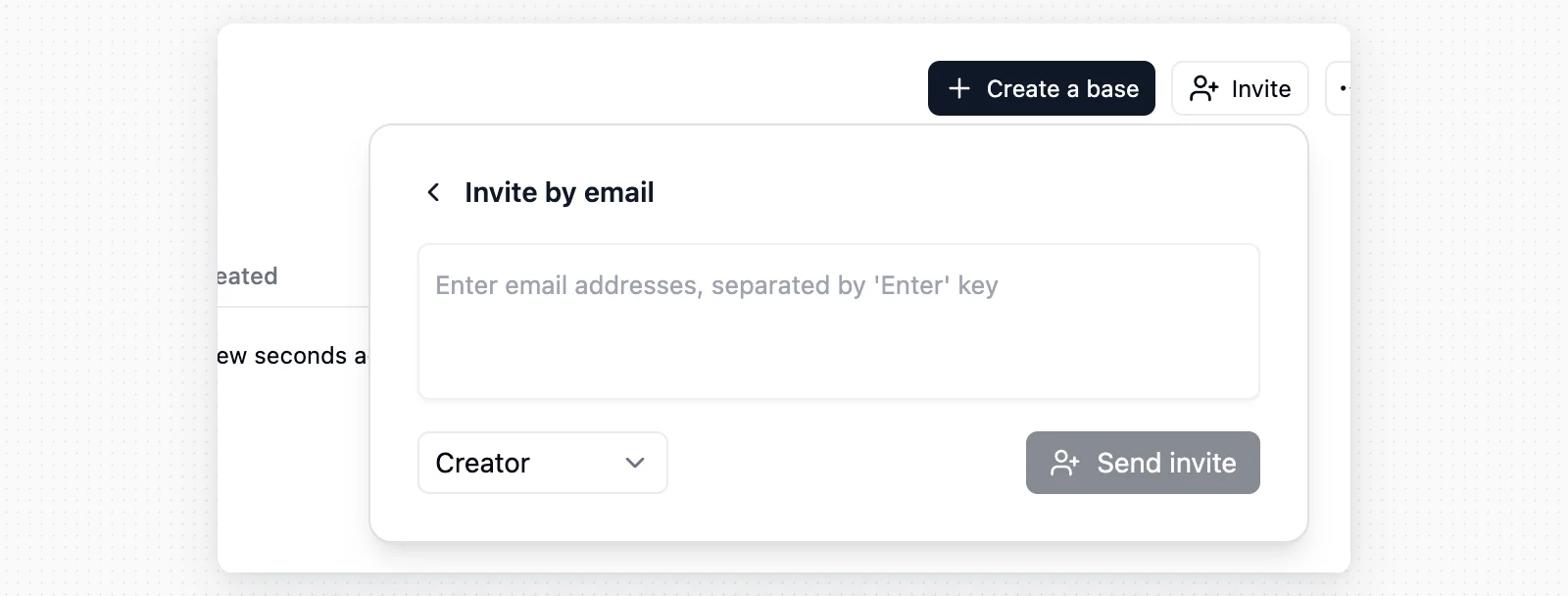
4. **Email invitation**: Enter an email address or multiple addresses (separated by commas). Then, set the permission level you want users to have for all bases in the space. Finally, click send email to invite users to collaborate.
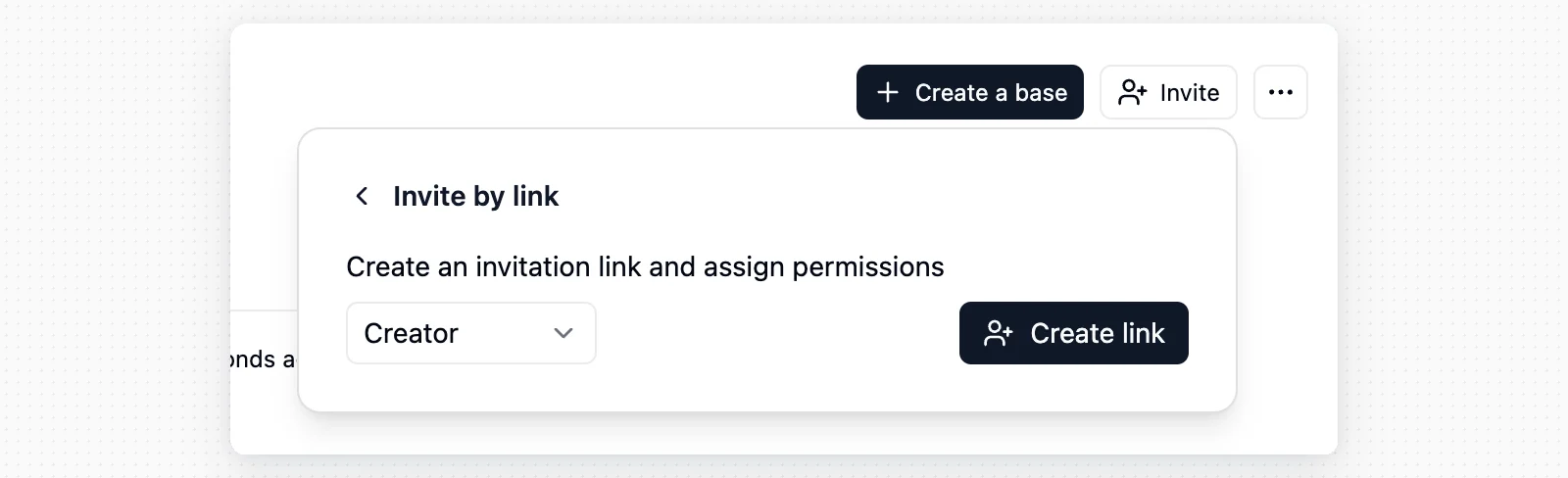
 5. **Link invitation**: Click the "Invite via Link" option. Then, set the permission level that the invitation link will grant for all bases in the space. Finally, click create link. You can now click the clipboard icon next to the created link to share it however you see fit.
 Space collaborators have access to all bases in the space. If someone only needs to work on specific bases, consider making them [Base Collaborators](/en/basic/space/base-invite).
## Deleting Invitation Links
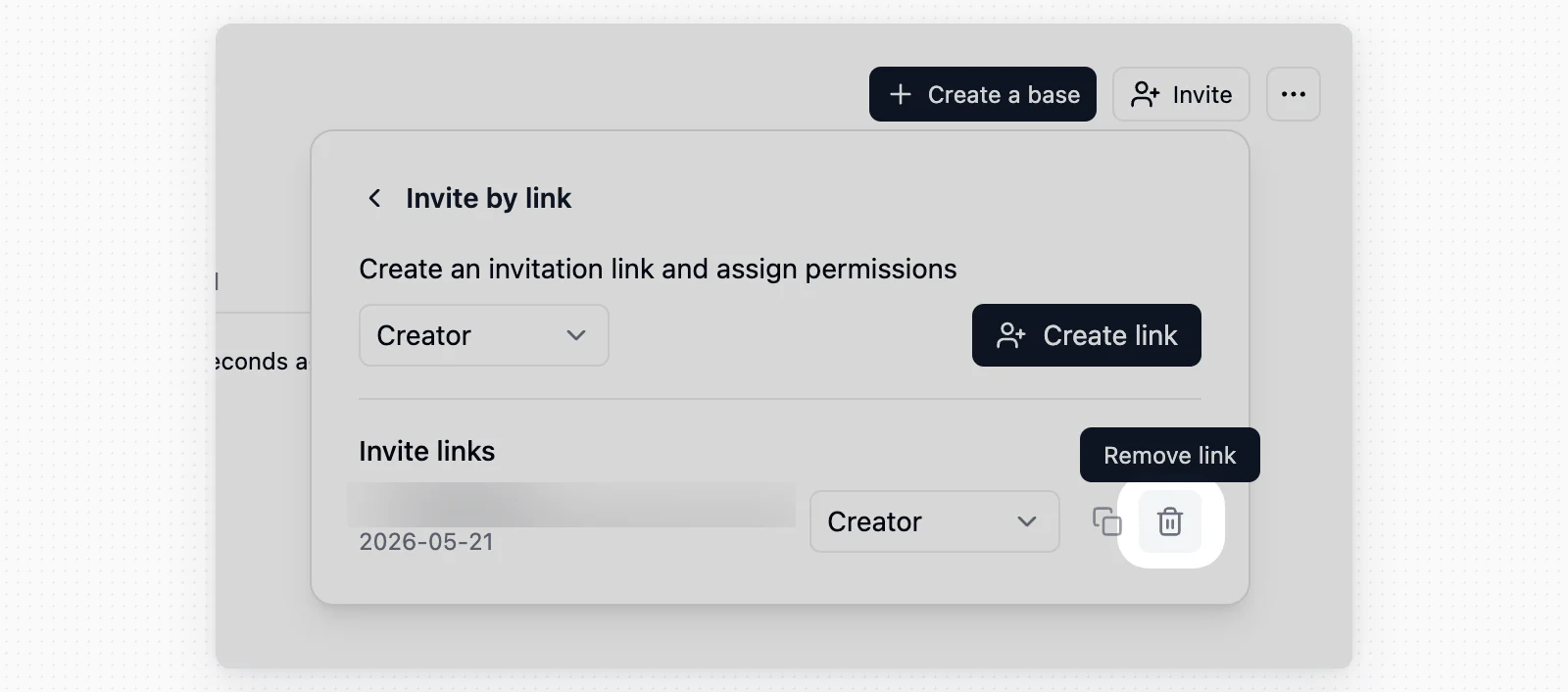
To delete an invitation link, click the X on the right side of the link. This will invalidate the link, and anyone trying to use the old link will not be able to access the space.
Space collaborators have access to all bases in the space. If someone only needs to work on specific bases, consider making them [Base Collaborators](/en/basic/space/base-invite).
## Deleting Invitation Links
To delete an invitation link, click the X on the right side of the link. This will invalidate the link, and anyone trying to use the old link will not be able to access the space.
 ## Removing Space Collaborators
You can remove space collaborators from the space sharing window. Click the X next to the user you want to remove. A few things to note:
## Removing Space Collaborators
You can remove space collaborators from the space sharing window. Click the X next to the user you want to remove. A few things to note:
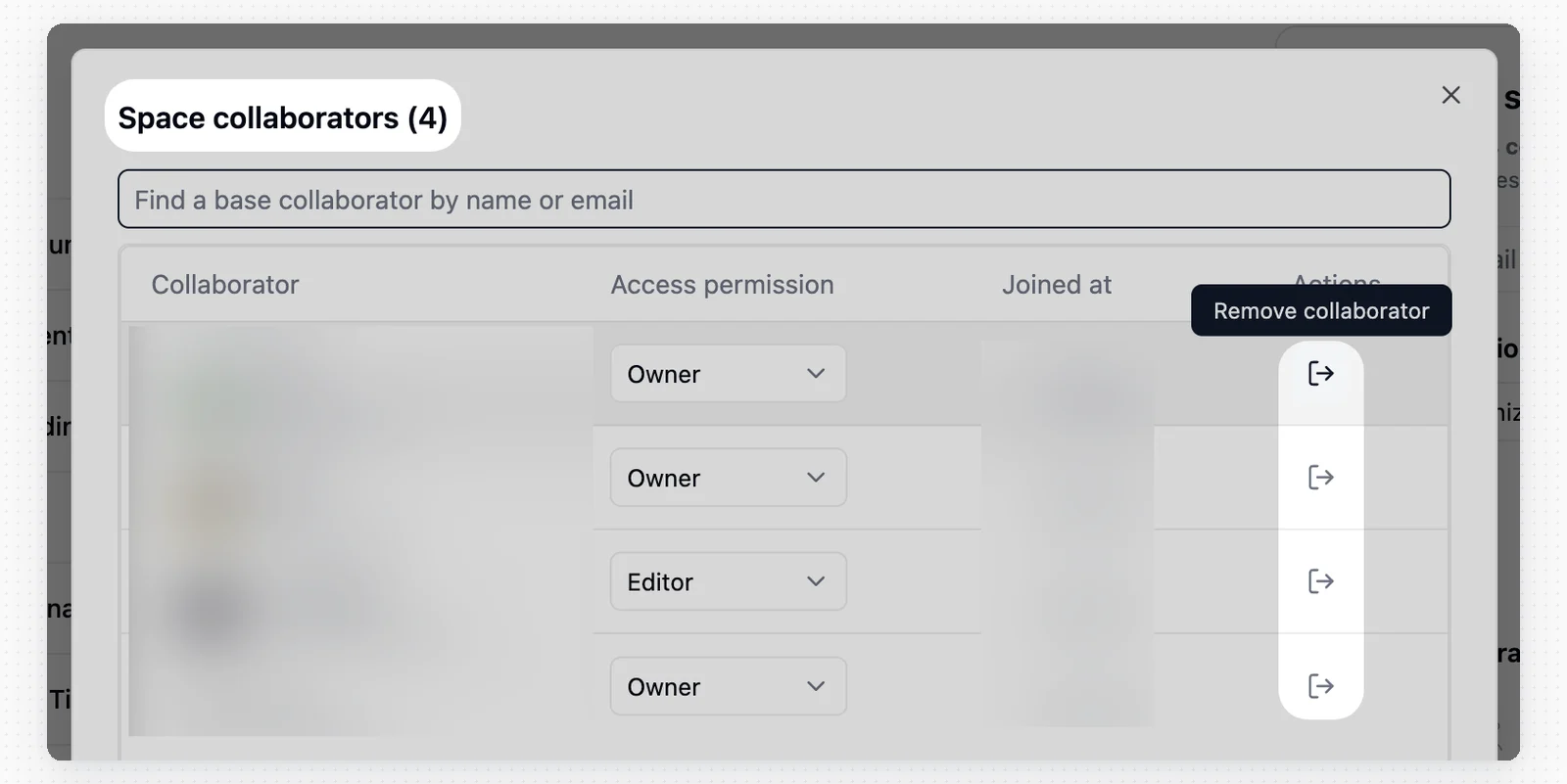 * **Permission restriction**: Only users with Manager or Creator permissions can remove other collaborators.
* **Self-removal**: You can remove your own access if there is at least one other Manager in the space.
* **Scope**: Base collaborators cannot be removed from this window.
When adding new users to a space, you can assign the following roles (see [Permission Details](/en/basic/space/space-permission)):
| Role | Description |
| --------- | ----------------------------------------------------------------------------------------------------------------------------------- |
| Manager | Responsible for administration, has full permissions including user management, tables, automations, and enabling authority matrix. |
| Creator | Can perform creation actions, modify table structure, edit automations, and enable authority matrix. |
| Editor | Can modify data. |
| Commenter | Can comment on records but cannot modify data. |
| Viewer | Can view but cannot comment. |
* **Permission restriction**: Only users with Manager or Creator permissions can remove other collaborators.
* **Self-removal**: You can remove your own access if there is at least one other Manager in the space.
* **Scope**: Base collaborators cannot be removed from this window.
When adding new users to a space, you can assign the following roles (see [Permission Details](/en/basic/space/space-permission)):
| Role | Description |
| --------- | ----------------------------------------------------------------------------------------------------------------------------------- |
| Manager | Responsible for administration, has full permissions including user management, tables, automations, and enabling authority matrix. |
| Creator | Can perform creation actions, modify table structure, edit automations, and enable authority matrix. |
| Editor | Can modify data. |
| Commenter | Can comment on records but cannot modify data. |
| Viewer | Can view but cannot comment. |