> ## Documentation Index
> Fetch the complete documentation index at: https://help.teable.ai/llms.txt
> Use this file to discover all available pages before exploring further.
# Azure Entra ID SSO
> Configure Azure Entra ID as your SSO authentication provider for Teable
Available for Business plan and above
## Step 1: Create Authentication Provider in Teable
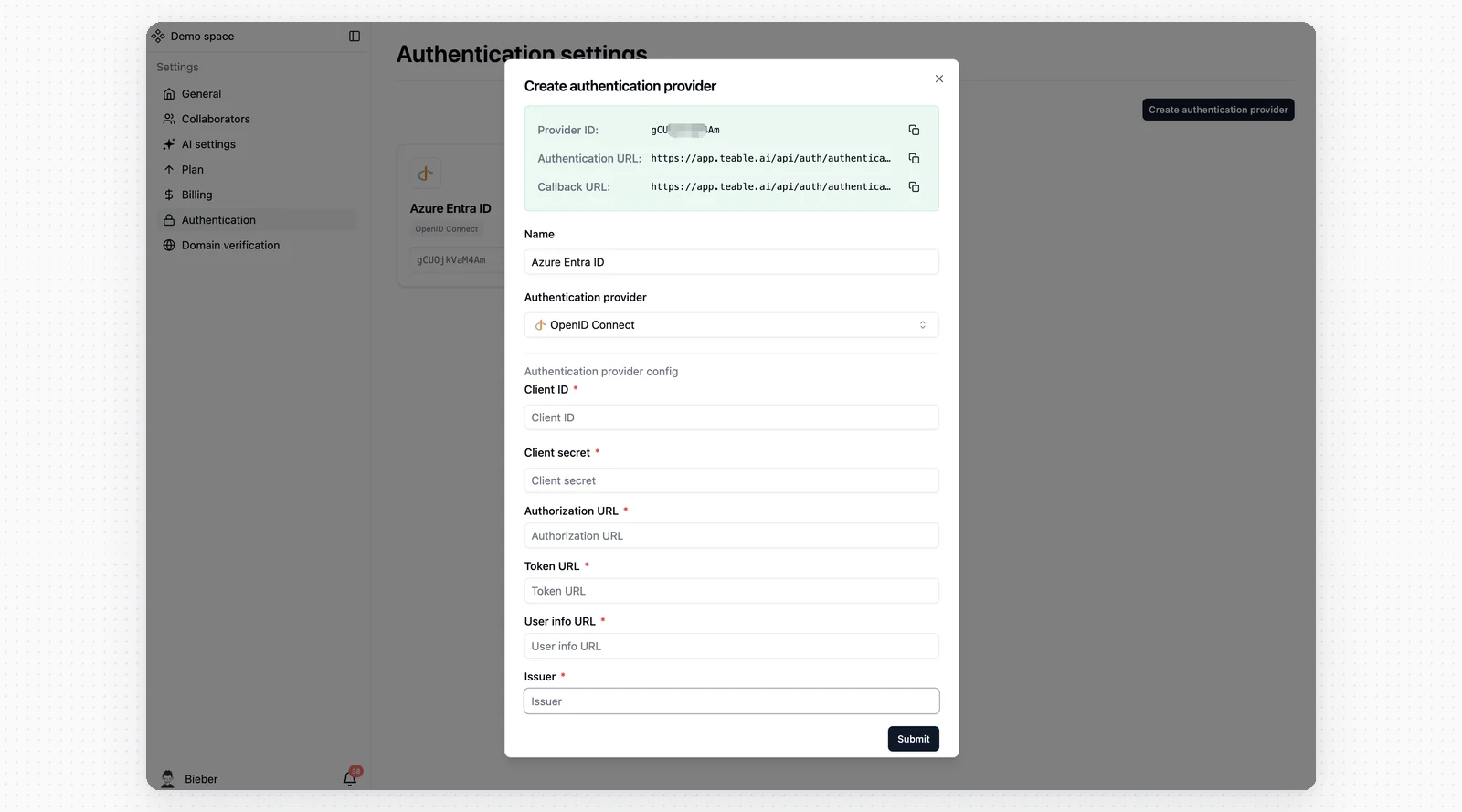
1. Navigate to your Teable SSO settings
2. Create a new authentication provider and name it **Azure Entra ID** and select **OpenID Connect**
 ## Step 2: Access Azure Entra ID
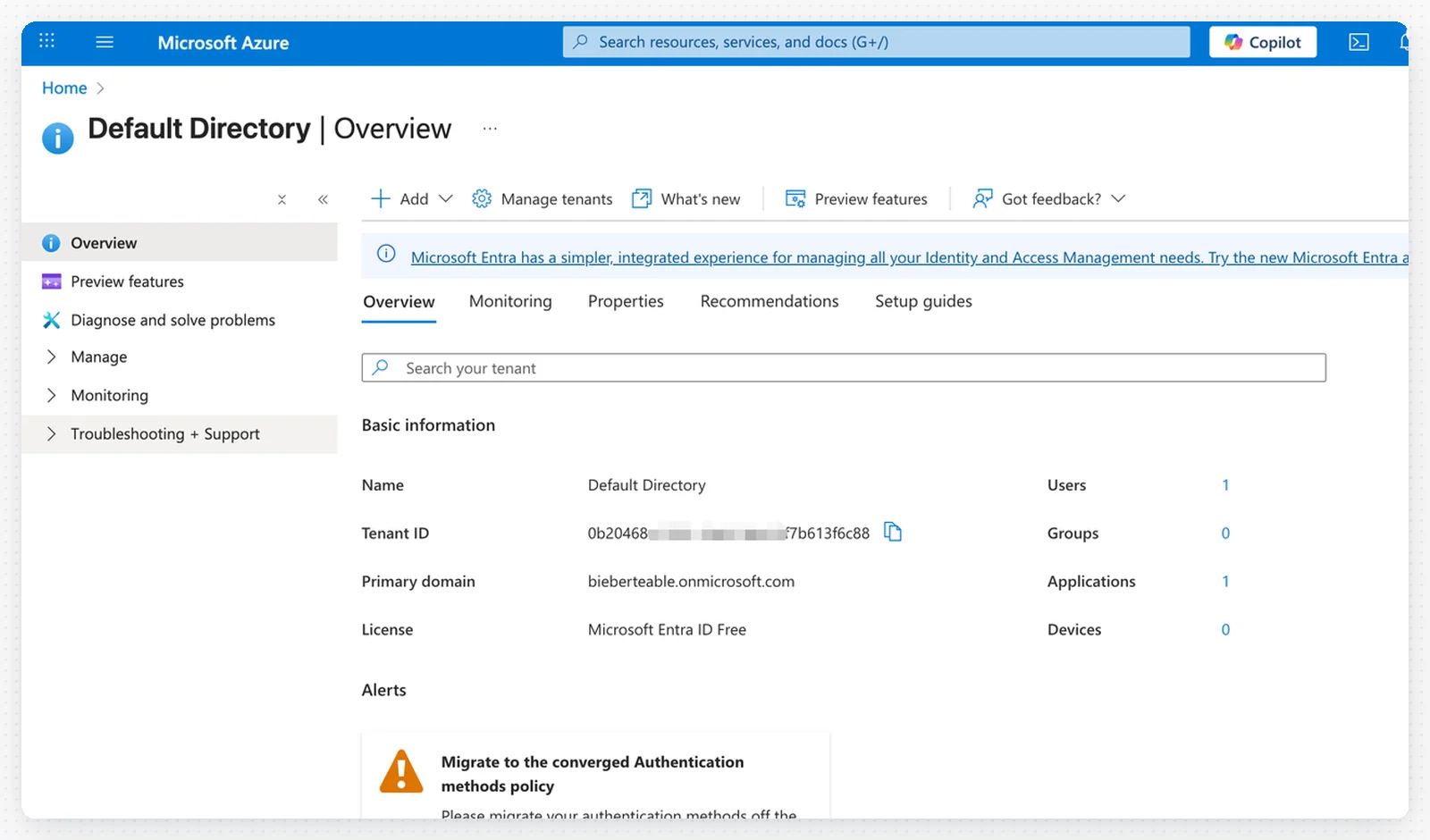
1. Log in to your Azure account
2. Navigate to **Microsoft Entra ID** (formerly Azure Active Directory)
## Step 2: Access Azure Entra ID
1. Log in to your Azure account
2. Navigate to **Microsoft Entra ID** (formerly Azure Active Directory)
 ## Step 3: Configure OAuth Endpoints
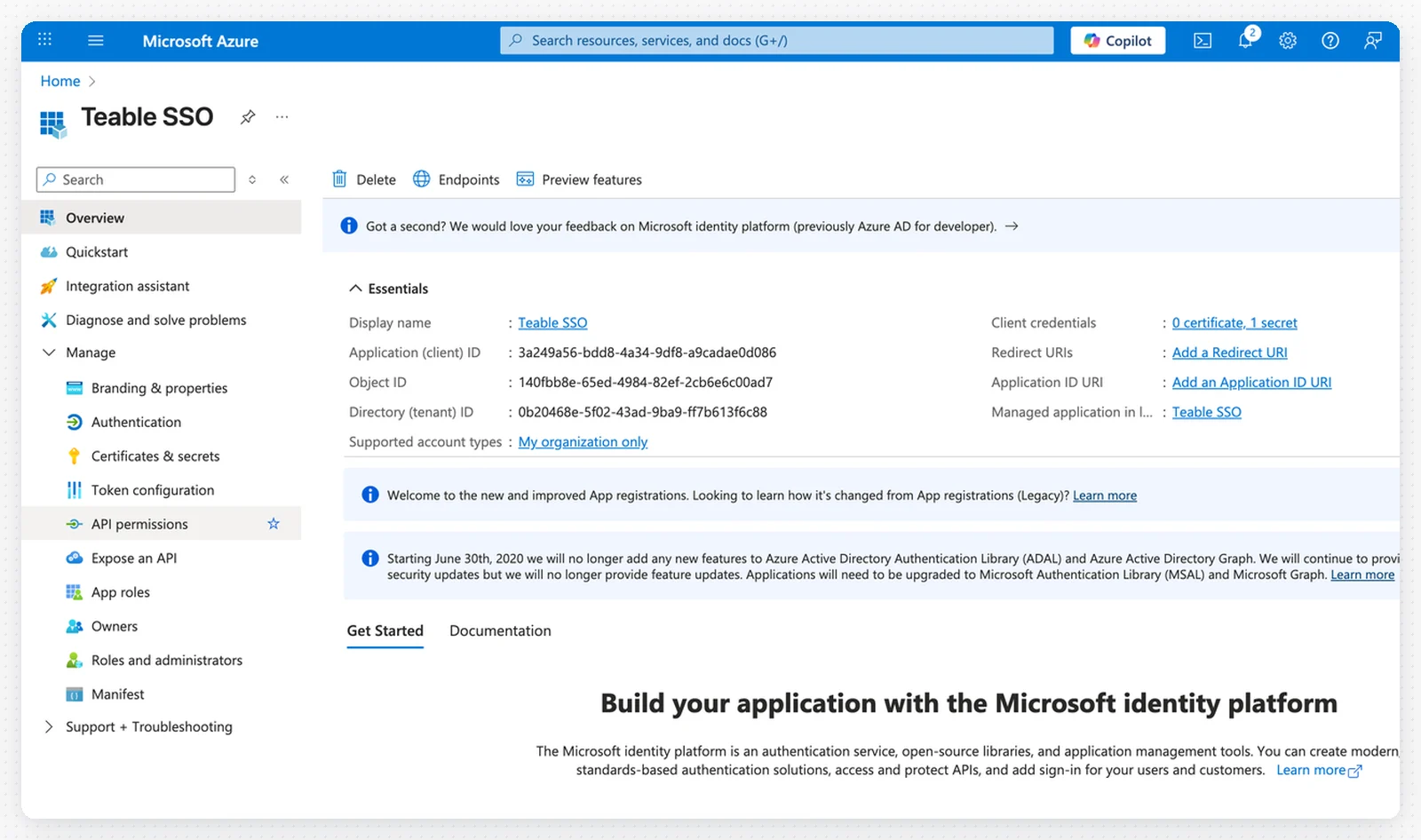
Fill in the following OAuth endpoints in Teable using your **Tenant ID**:
## Step 3: Configure OAuth Endpoints
Fill in the following OAuth endpoints in Teable using your **Tenant ID**:
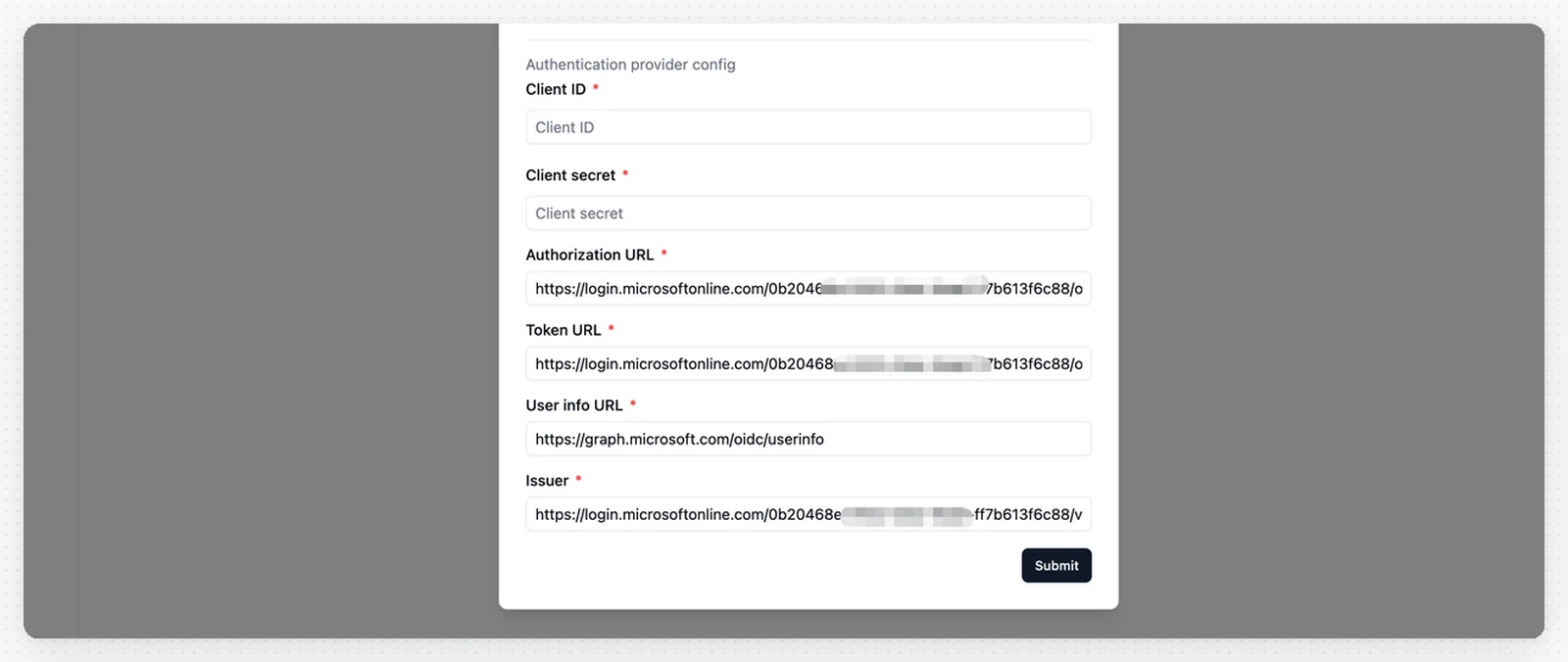 * **Authorization URL**: `https://login.microsoftonline.com/_YOUR_TENANT_ID_/oauth2/v2.0/authorize`
* **Token URL**: `https://login.microsoftonline.com/_YOUR_TENANT_ID_/oauth2/v2.0/token`
* **User Info URL**: `https://graph.microsoft.com/oidc/userinfo`
* **Issuer**: `https://login.microsoftonline.com/_YOUR_TENANT_ID_/v2.0`
Replace `_YOUR_TENANT_ID_` with your actual Azure Tenant ID.
## Step 4: Register a New Application
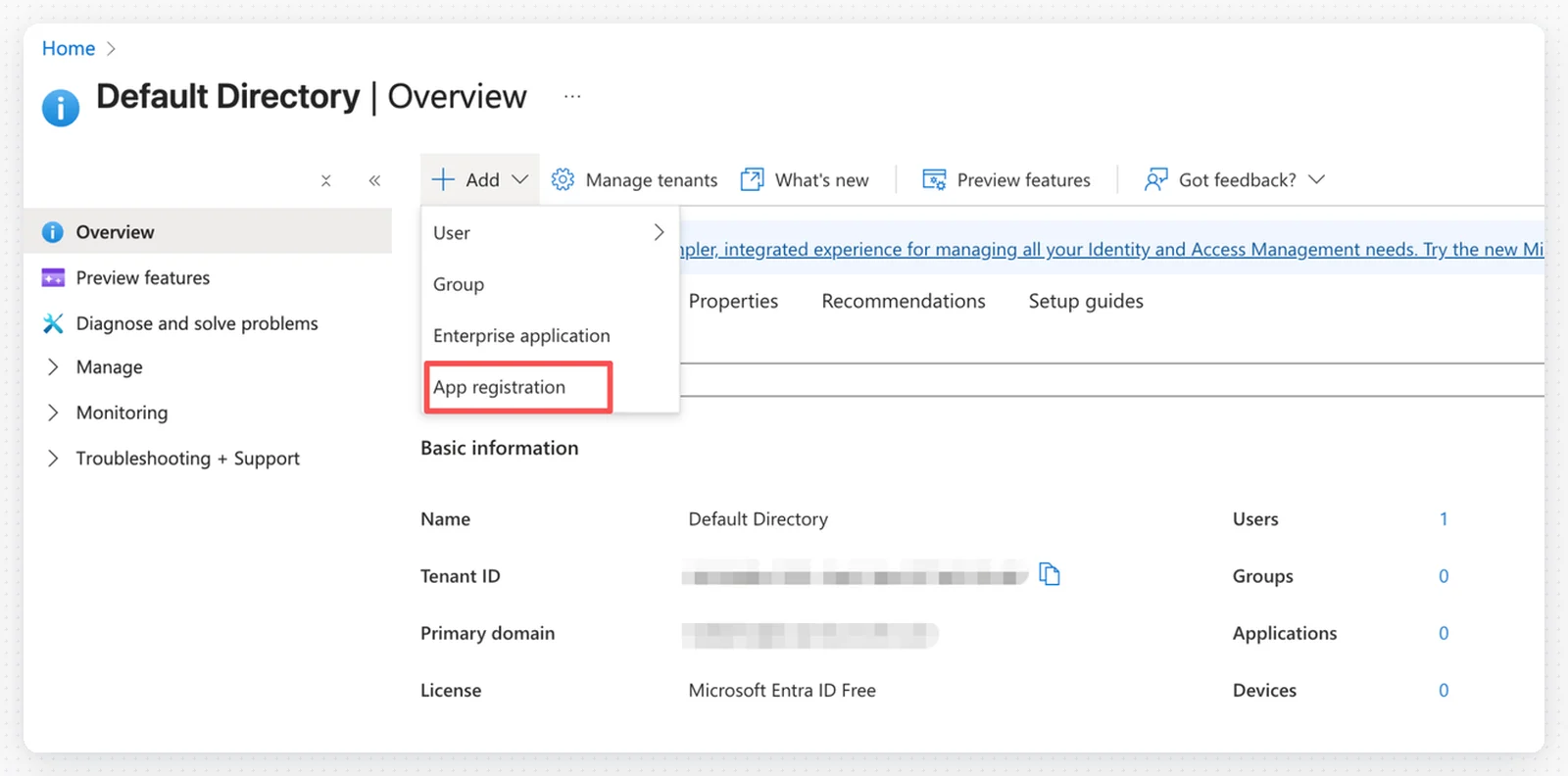
1. In Azure Entra ID, click **App registrations** in the left menu
2. Click **+ New registration**
* **Authorization URL**: `https://login.microsoftonline.com/_YOUR_TENANT_ID_/oauth2/v2.0/authorize`
* **Token URL**: `https://login.microsoftonline.com/_YOUR_TENANT_ID_/oauth2/v2.0/token`
* **User Info URL**: `https://graph.microsoft.com/oidc/userinfo`
* **Issuer**: `https://login.microsoftonline.com/_YOUR_TENANT_ID_/v2.0`
Replace `_YOUR_TENANT_ID_` with your actual Azure Tenant ID.
## Step 4: Register a New Application
1. In Azure Entra ID, click **App registrations** in the left menu
2. Click **+ New registration**
 ## Step 5: Configure Application Registration
Fill in the application registration form:
## Step 5: Configure Application Registration
Fill in the application registration form:
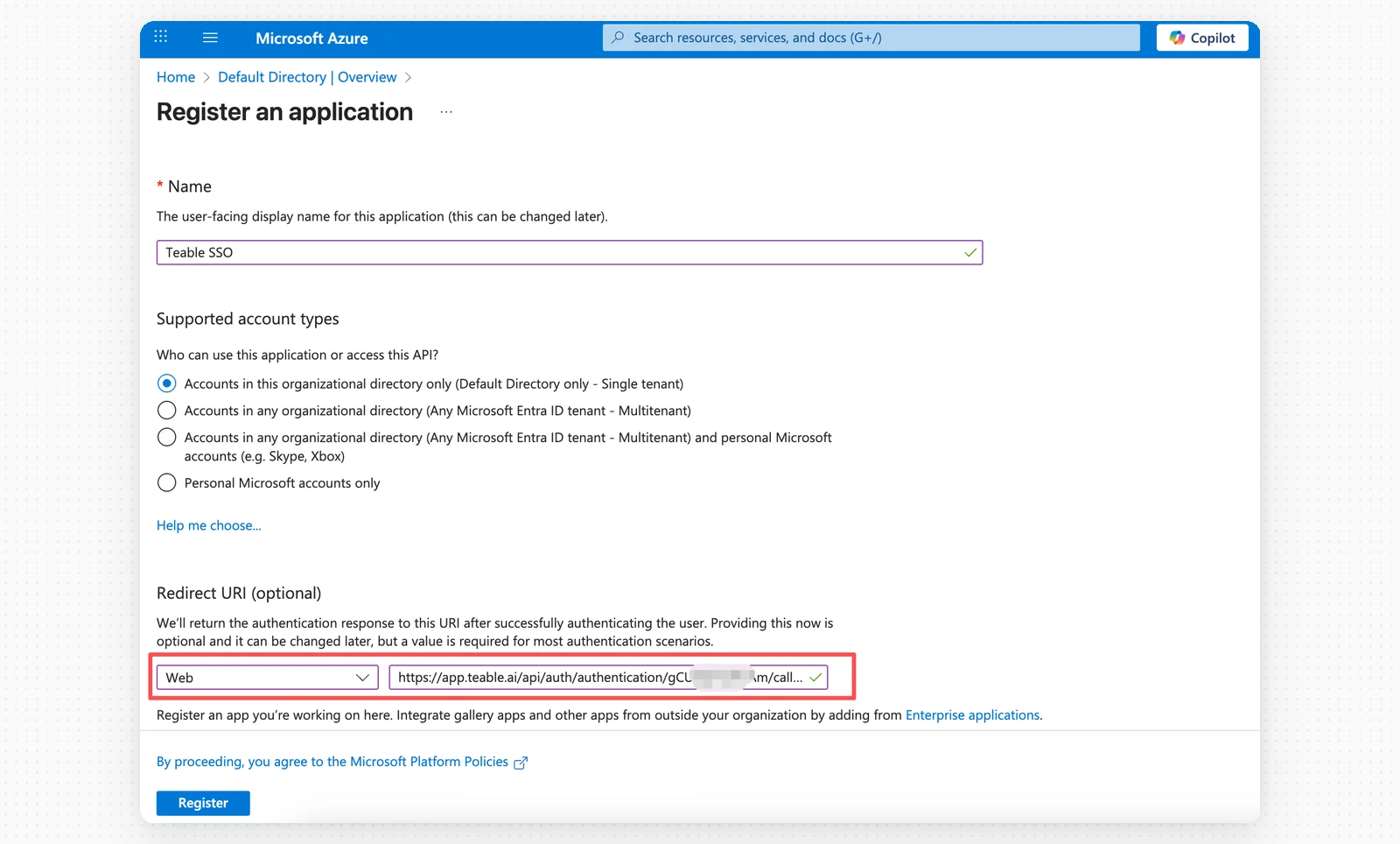
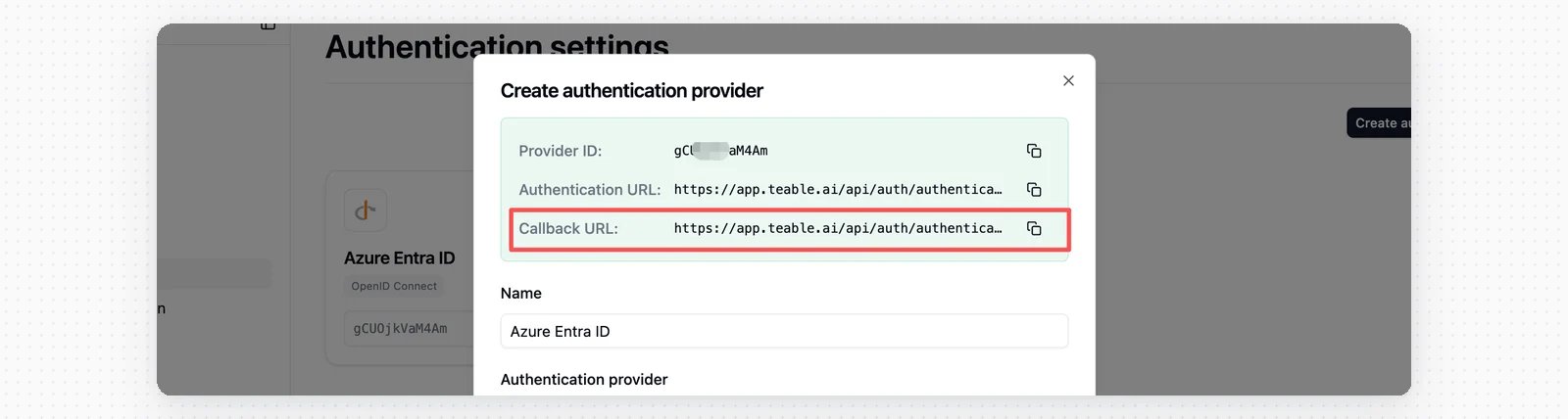 * **Name**: Teable SSO
* **Supported account types**: Select based on your needs
* **Platform**: Web
* **Redirect URI**: Paste the **Callback URL** from Teable
Click **Register** to create the application.
## Step 6: Save the Client ID
1. Copy the **Application (client) ID** from the application overview page
* **Name**: Teable SSO
* **Supported account types**: Select based on your needs
* **Platform**: Web
* **Redirect URI**: Paste the **Callback URL** from Teable
Click **Register** to create the application.
## Step 6: Save the Client ID
1. Copy the **Application (client) ID** from the application overview page
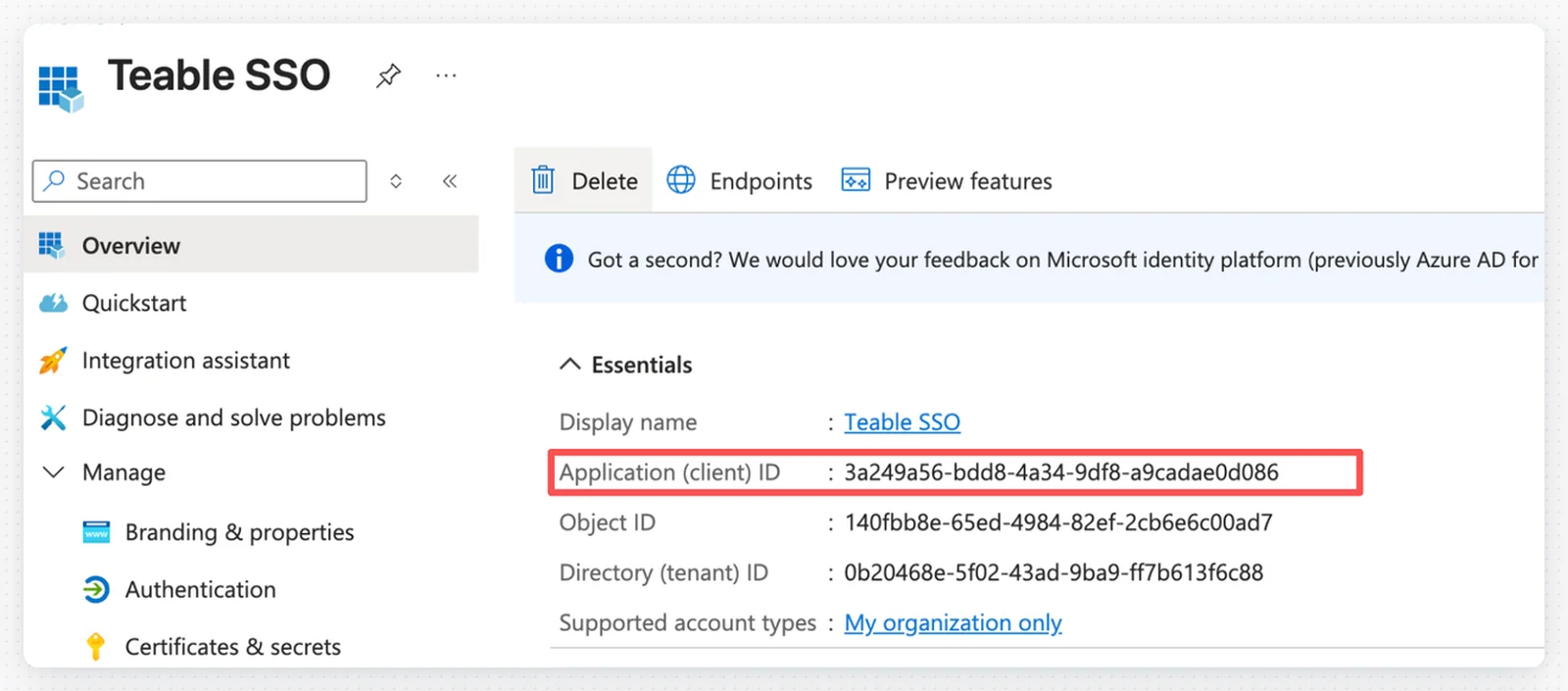 2. Paste the Client ID into the Teable SSO configuration
 ## Step 7: Create Client Secret
1. In your application, click **Certificates & secrets** in the left menu
## Step 7: Create Client Secret
1. In your application, click **Certificates & secrets** in the left menu
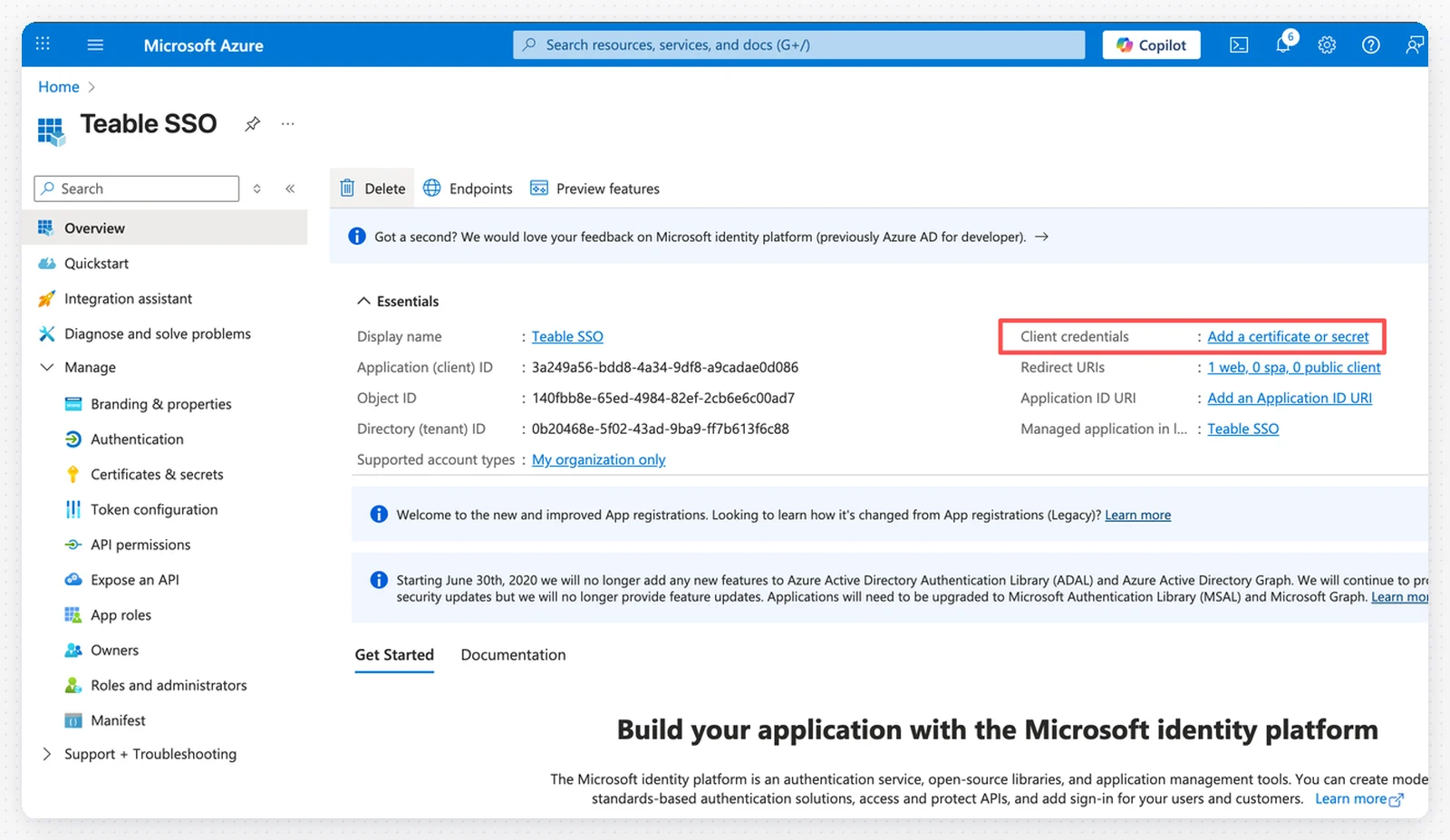 2. Click **+ Add a certificate or secret**
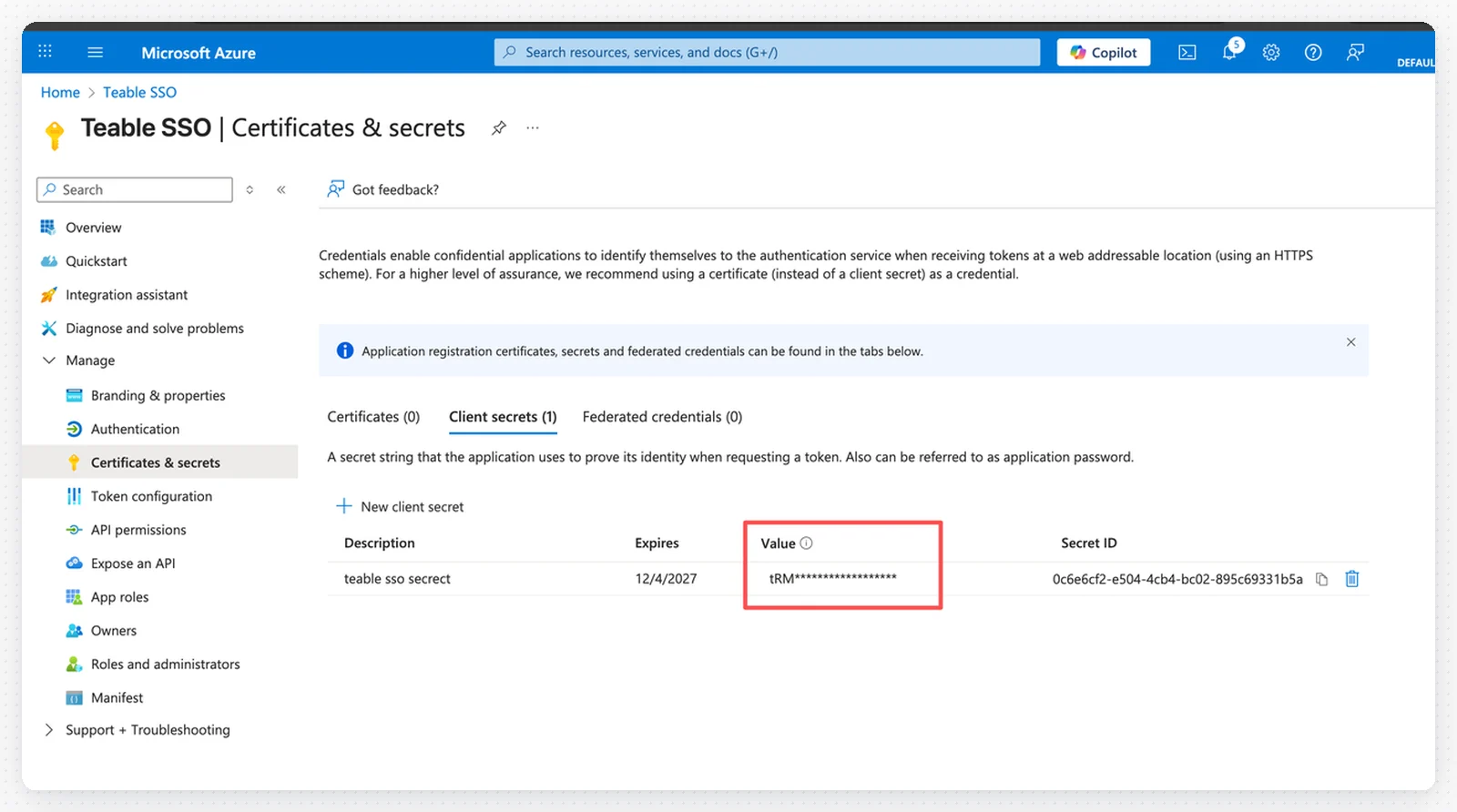 3. Add a description and set the expiration period
4. Click **Add**
5. **Important**: Copy the secret **Value** immediately and save it as your Client Secret in Teable
3. Add a description and set the expiration period
4. Click **Add**
5. **Important**: Copy the secret **Value** immediately and save it as your Client Secret in Teable
 The secret value is only visible once. Make sure to save it immediately.
## Step 8: Configure API Permissions
1. Click **API permissions** in the left menu
2. Click **+ Add a permission**
The secret value is only visible once. Make sure to save it immediately.
## Step 8: Configure API Permissions
1. Click **API permissions** in the left menu
2. Click **+ Add a permission**
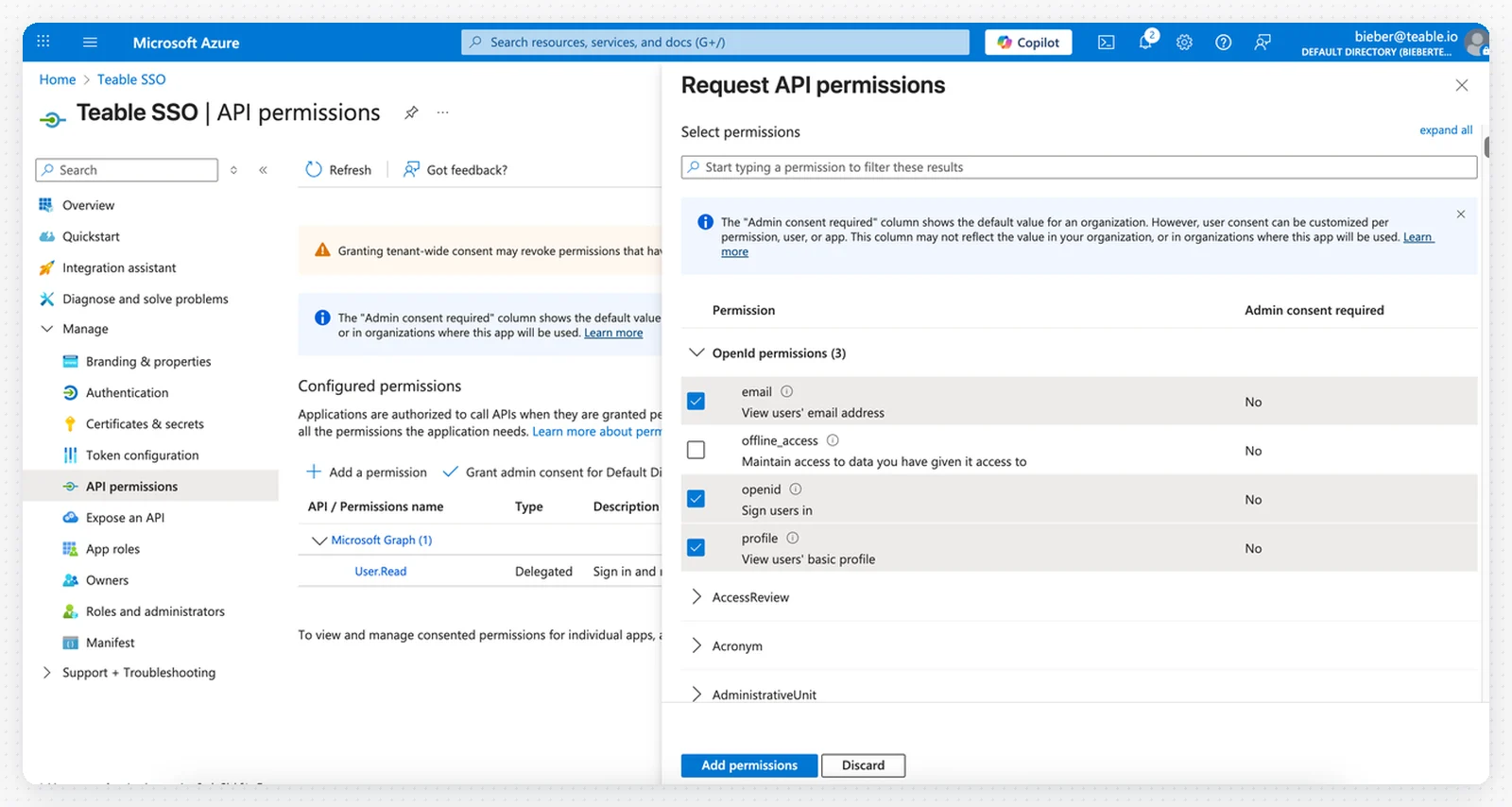 3. Select **Microsoft Graph**
4. Choose **Delegated permissions**
5. Add the following permissions:
* `email`
* `openid`
* `profile`
6. Click **Add permissions**
3. Select **Microsoft Graph**
4. Choose **Delegated permissions**
5. Add the following permissions:
* `email`
* `openid`
* `profile`
6. Click **Add permissions**
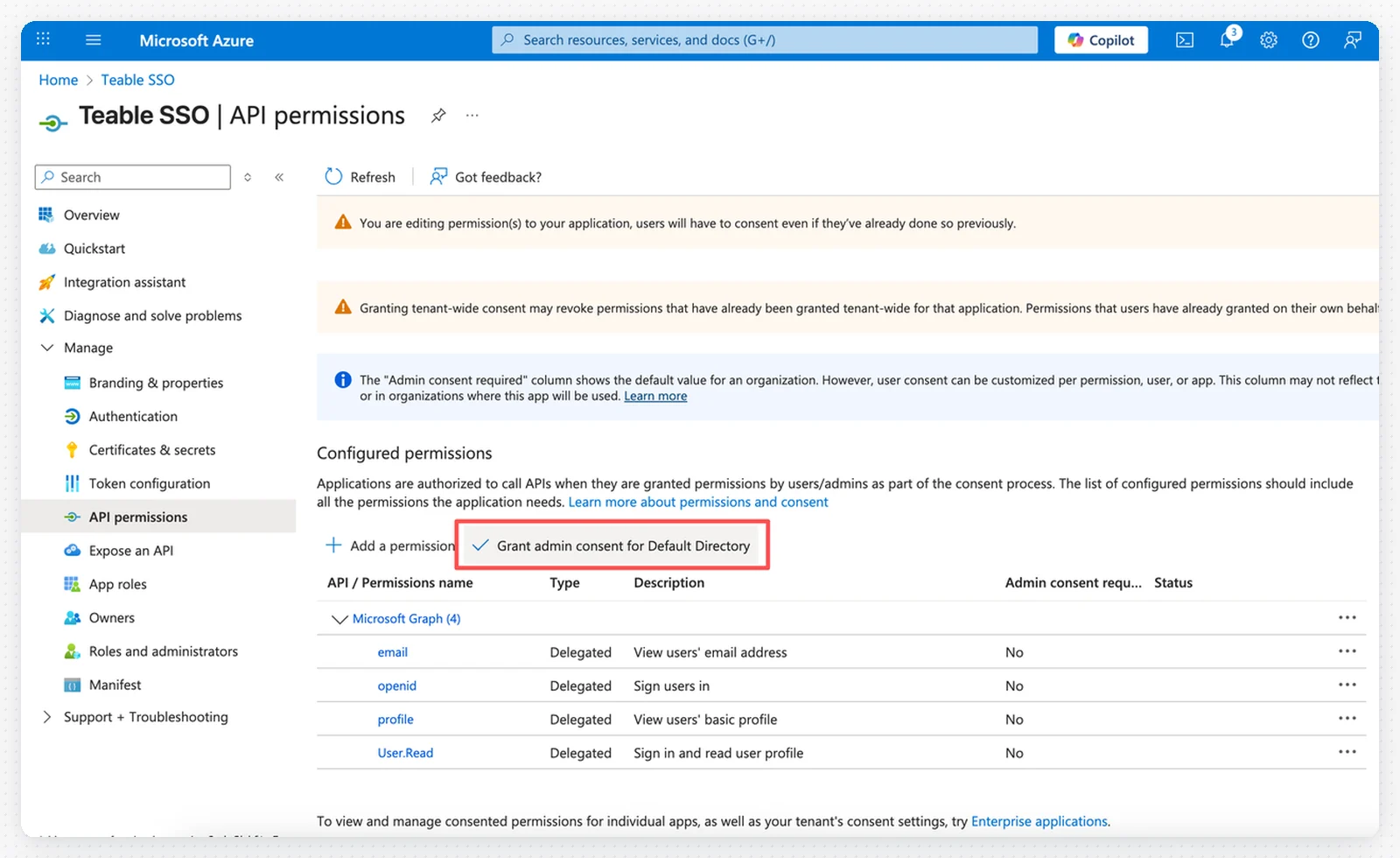 7. Click **Grant admin consent for \[Your Directory]** to approve the permissions
## Step 9: Test SSO Login
You have two options to enable SSO login:
7. Click **Grant admin consent for \[Your Directory]** to approve the permissions
## Step 9: Test SSO Login
You have two options to enable SSO login:
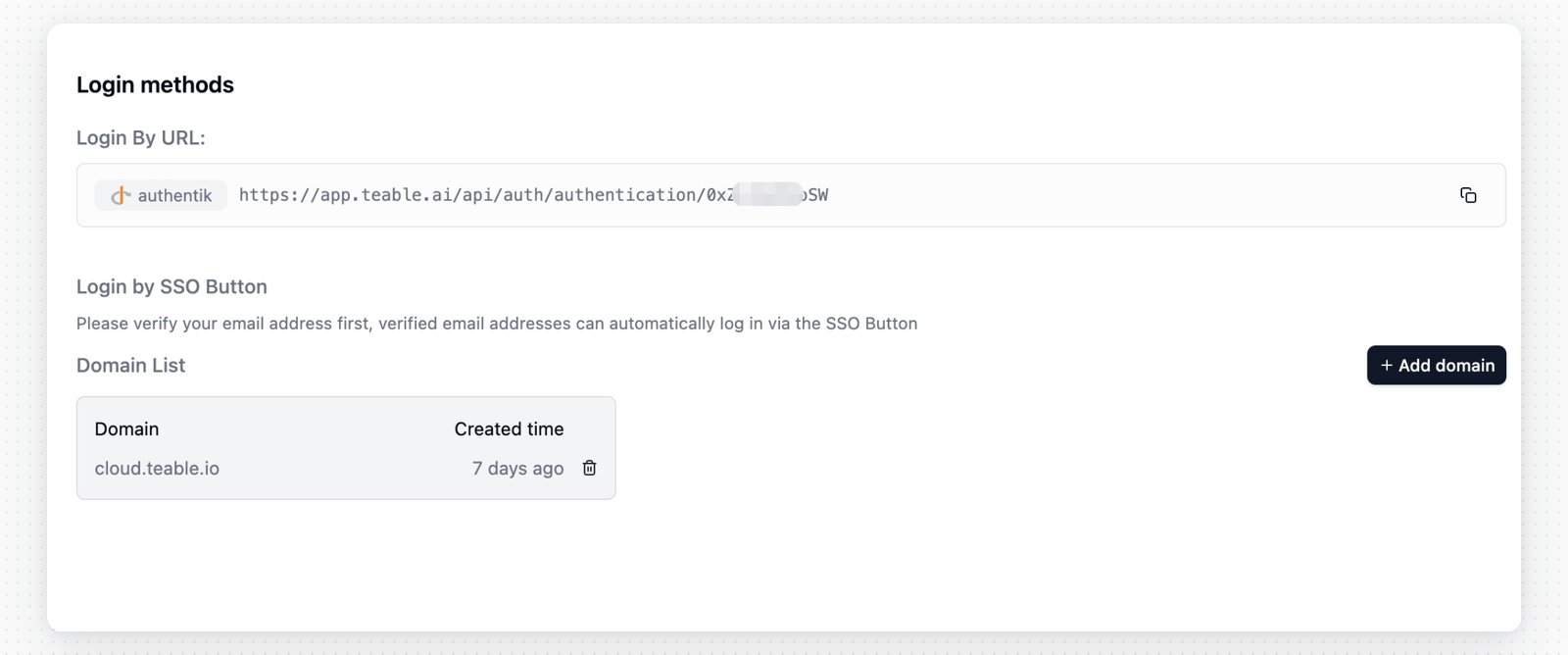 **Option 1: Direct Authentication URL**
* Use the authentication URL as your SSO login URL
**Option 2: Domain Verification**
1. Click **Domain verification** in the left menu
2. Verify your custom domain
3. Visit your teable login page
4. Click the SSO login button
5. Enter your email address under the verified domain to log in
**Option 1: Direct Authentication URL**
* Use the authentication URL as your SSO login URL
**Option 2: Domain Verification**
1. Click **Domain verification** in the left menu
2. Verify your custom domain
3. Visit your teable login page
4. Click the SSO login button
5. Enter your email address under the verified domain to log in