> ## Documentation Index
> Fetch the complete documentation index at: https://help.teable.ai/llms.txt
> Use this file to discover all available pages before exploring further.
# Import
> Import CSV, Excel, or Airtable data into Teable.
Use import to initialize a new table, append new data to an existing table, or bring tables from Airtable into a Teable base.
Excel files are limited to **5MB**. If you need to import a larger dataset, save it as **CSV** first and then import it.
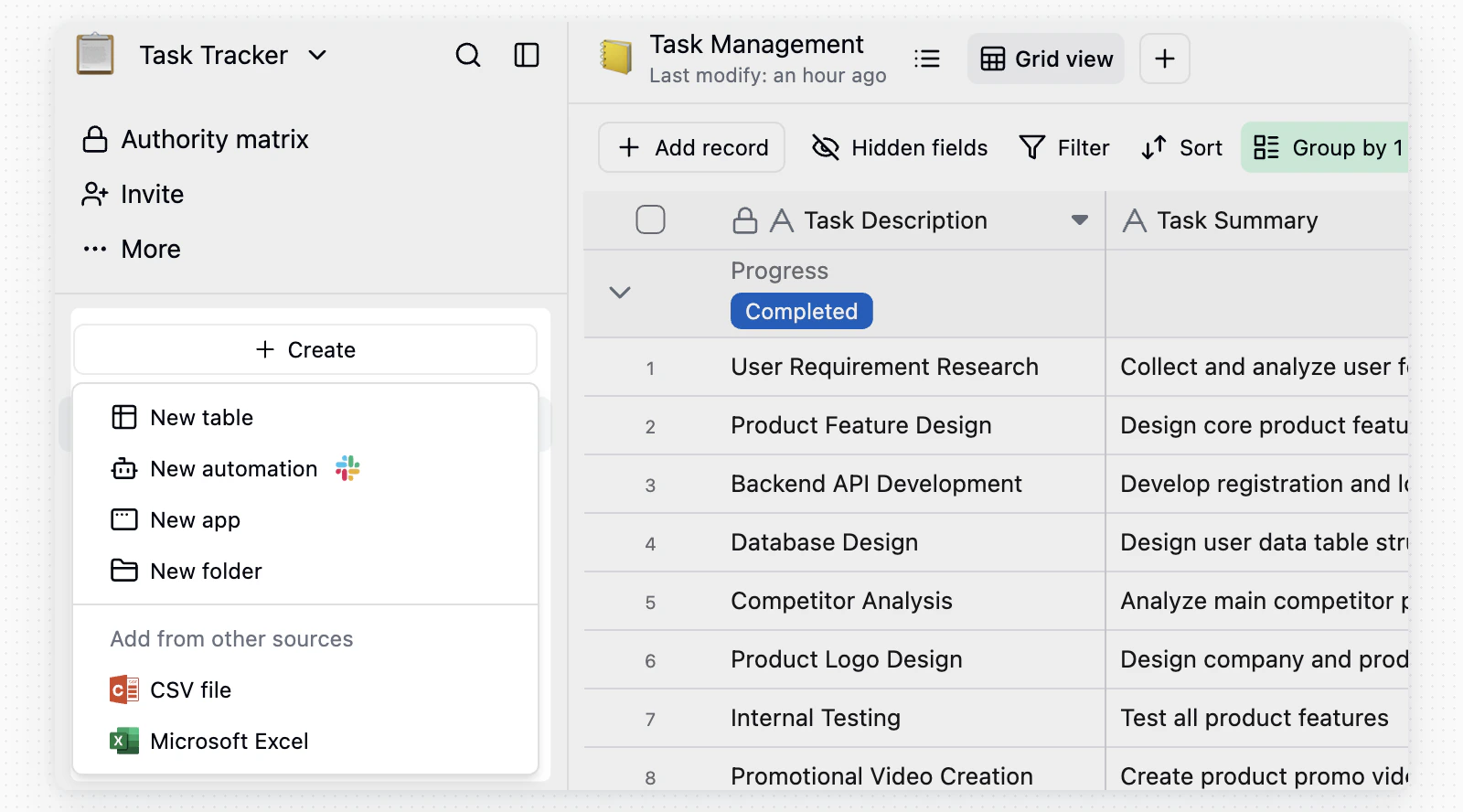
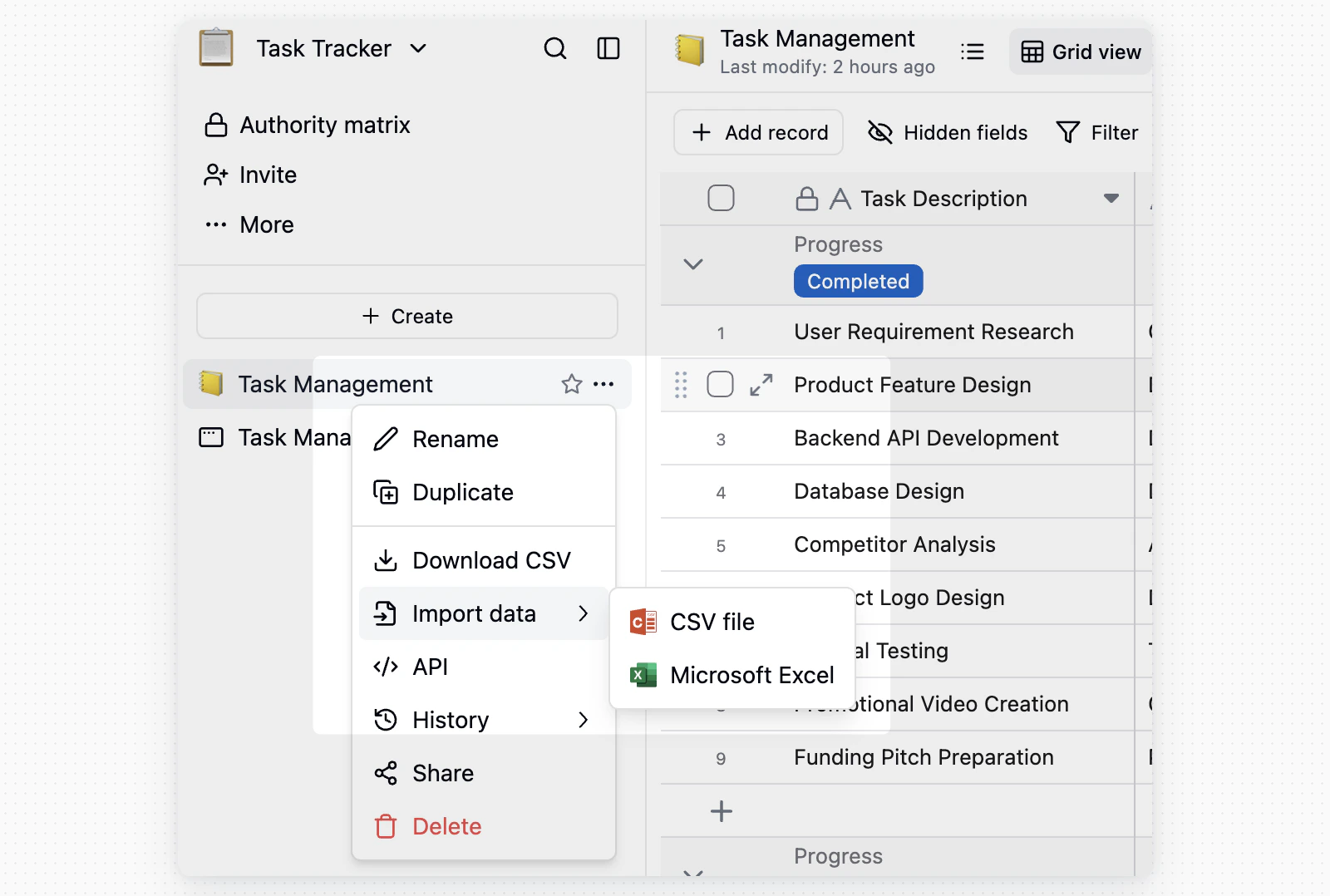
To create a new table, click `+` at the top of the left directory and choose **CSV file** or **Excel file** under **Add from other sources**. To append data to an existing table, choose **Import data** from the target table menu.
Select the CSV or Excel file you want to import. Excel files must be **5MB** or smaller.
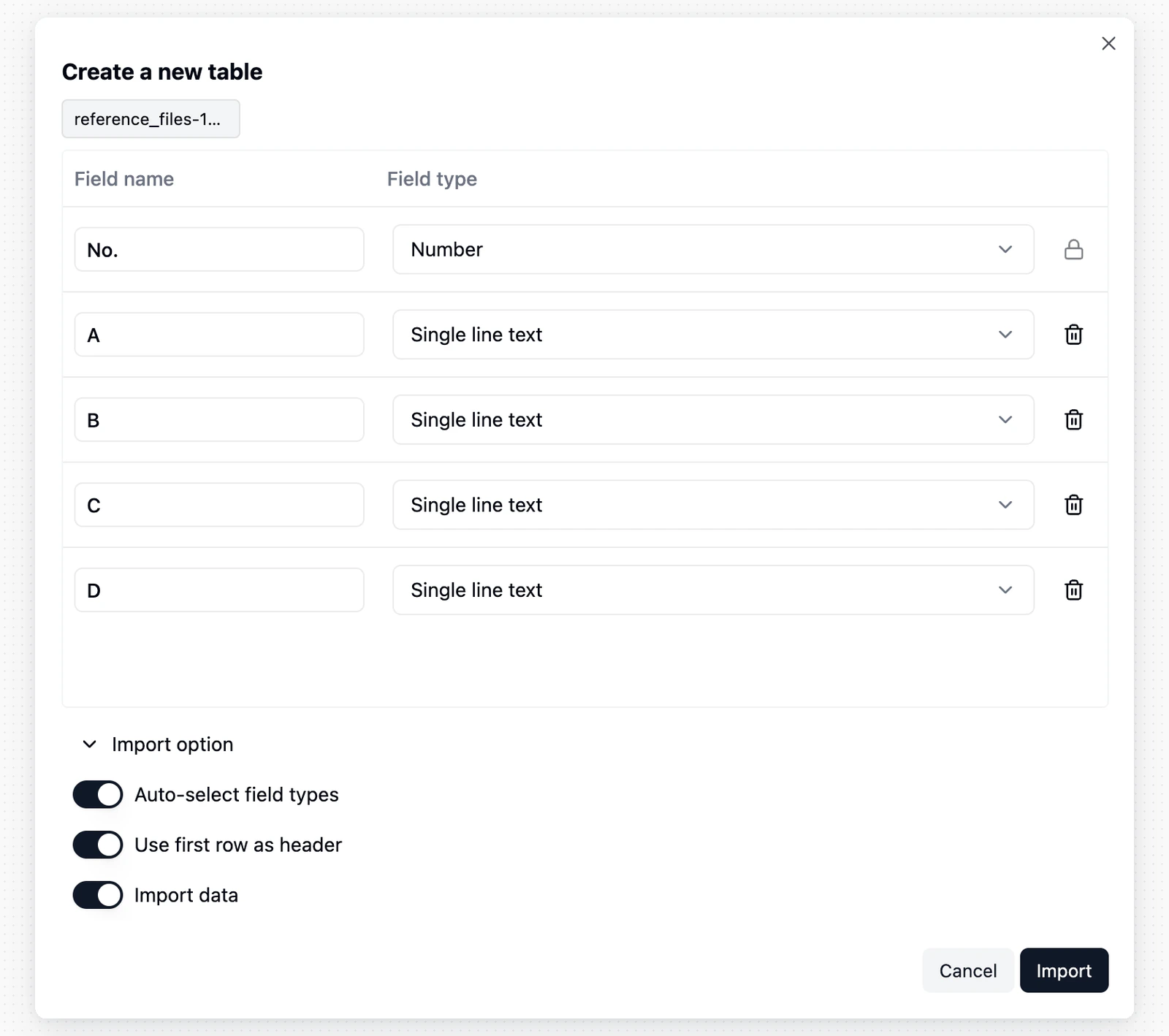
Review the preview after upload. When creating a new table, you can adjust field types. When appending to an existing table, confirm how file columns map to target fields.
Click **Import**. Teable processes the data in the background and notifies you when the import succeeds or fails.
Before the completion notification arrives, do not delete the table being generated, delete fields, or change field types. These changes may affect the import result.
## Import Flow
Click `+` at the top of the left directory and select **CSV file** or **Excel file** according to your file type.
 After upload, Teable predicts field types from the first 5,000 rows of data. You can adjust them before importing.
 To append data to an existing table, open the table menu, select **Import data**, and choose the file type.
 After upload, map file columns to fields in the target table, then click **Import**. Teable processes the data in the background and notifies you when the import succeeds or fails.
## Import from Airtable
If Airtable integration is configured for your instance, you can import an Airtable base into the Teable base you are viewing.
1. Open the target Teable base.
2. Click `+` at the top of the left directory.
3. Under **Add from other sources**, choose **Airtable**.
After upload, map file columns to fields in the target table, then click **Import**. Teable processes the data in the background and notifies you when the import succeeds or fails.
## Import from Airtable
If Airtable integration is configured for your instance, you can import an Airtable base into the Teable base you are viewing.
1. Open the target Teable base.
2. Click `+` at the top of the left directory.
3. Under **Add from other sources**, choose **Airtable**.
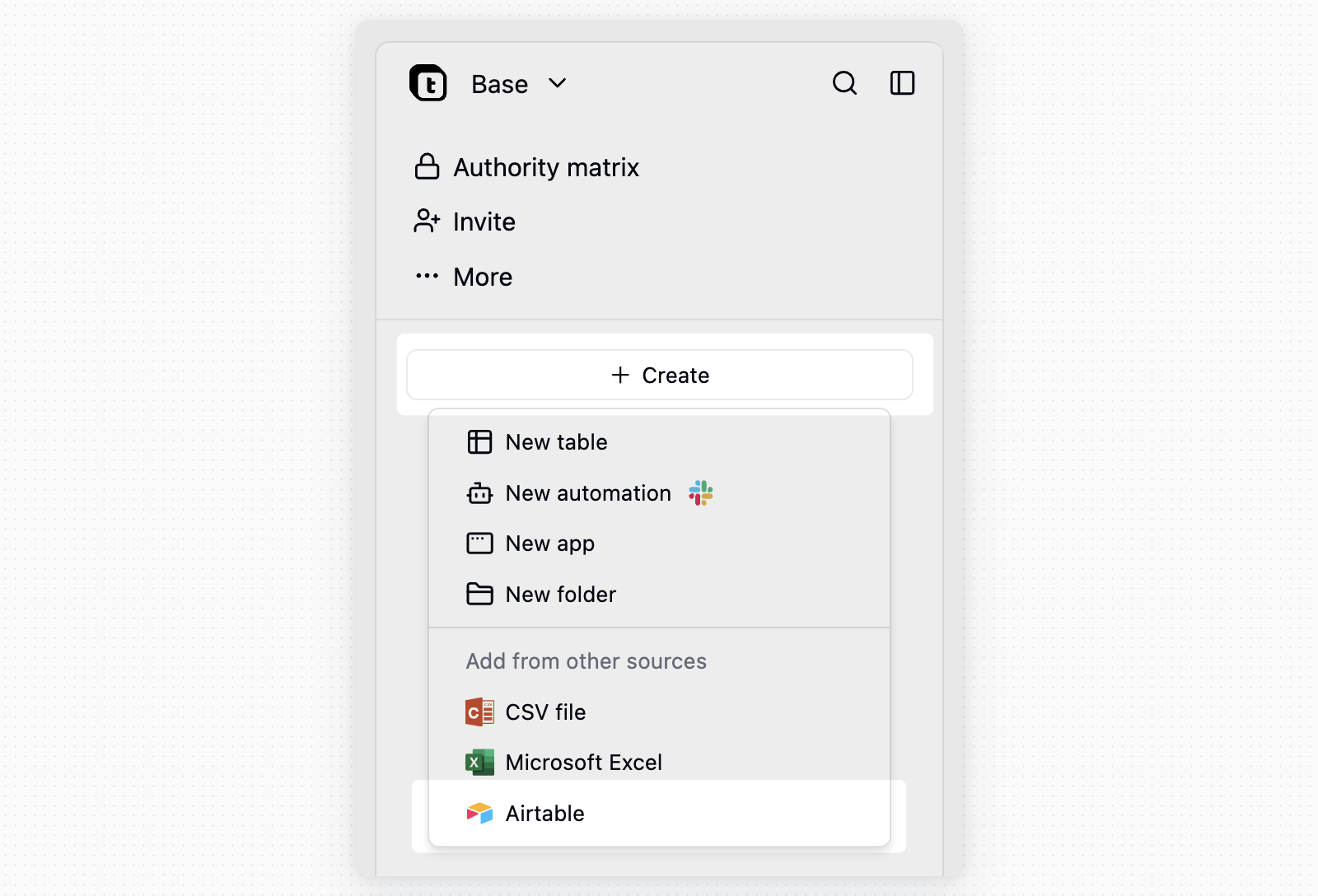 4. Connect your Airtable account if needed, then choose the Airtable base to import.
5. Choose whether to import records, download and import attachments, and import view filters, sorts, and grouping.
6. Click **Start import**.
When **Import view filters, sorts and grouping** is enabled, Teable asks for a read-only Airtable shared-base link because the Airtable API does not expose view settings. In Airtable, open the base's **Share** menu, use **Share to web** with full base access, paste that shared-base link into Teable, then turn the shared link off after the import completes.
During import, Teable shows progress by table. If some fields, views, or values need to be adjusted, the import log lists the changes before showing **Import completed**.
## Notes
* **First row detection**: Teable treats the first row as the header row by default. Make sure the first row contains clear column names, not data.
* **Date format**: Teable can recognize common date formats such as `YYYY-MM-DD`. For unusual formats, standardize them before import, or import them as text and convert the field type later.
4. Connect your Airtable account if needed, then choose the Airtable base to import.
5. Choose whether to import records, download and import attachments, and import view filters, sorts, and grouping.
6. Click **Start import**.
When **Import view filters, sorts and grouping** is enabled, Teable asks for a read-only Airtable shared-base link because the Airtable API does not expose view settings. In Airtable, open the base's **Share** menu, use **Share to web** with full base access, paste that shared-base link into Teable, then turn the shared link off after the import completes.
During import, Teable shows progress by table. If some fields, views, or values need to be adjusted, the import log lists the changes before showing **Import completed**.
## Notes
* **First row detection**: Teable treats the first row as the header row by default. Make sure the first row contains clear column names, not data.
* **Date format**: Teable can recognize common date formats such as `YYYY-MM-DD`. For unusual formats, standardize them before import, or import them as text and convert the field type later.