> ## Documentation Index
> Fetch the complete documentation index at: https://help.teable.ai/llms.txt
> Use this file to discover all available pages before exploring further.
# Grid
> Display records in rows and columns for structured viewing, editing, and data cleanup.
Grid view is the most common view in Teable. Each record appears as a row, and each field appears as a column. Use it for daily data entry, bulk editing, sorting, filtering, and quick checks.
## Use Cases
| Scenario | Recommended setup |
| ------------------------ | ----------------------------------------------------------- |
| Maintain data day to day | Enter, edit, copy, and paste records directly in the grid |
| Clean up many records | Combine filters, groups, sorts, and hidden fields |
| Check numeric data | Use selection statistics for average, filled count, and sum |
| Work with wide tables | Freeze key columns so identifying fields stay visible |
## Create a Grid View
Every new table includes a grid view by default. To create another grid view for a specific workflow:
Go to the target table and open the view list on the left.
Click `+` at the top of the view sidebar and choose **Grid view**.
Enter a view name, set the collaboration mode if needed, and create the view.
## Display Settings
### Manage Field Display
 | Action | Description |
| -------------- | ---------------------------------------------------------------------------- |
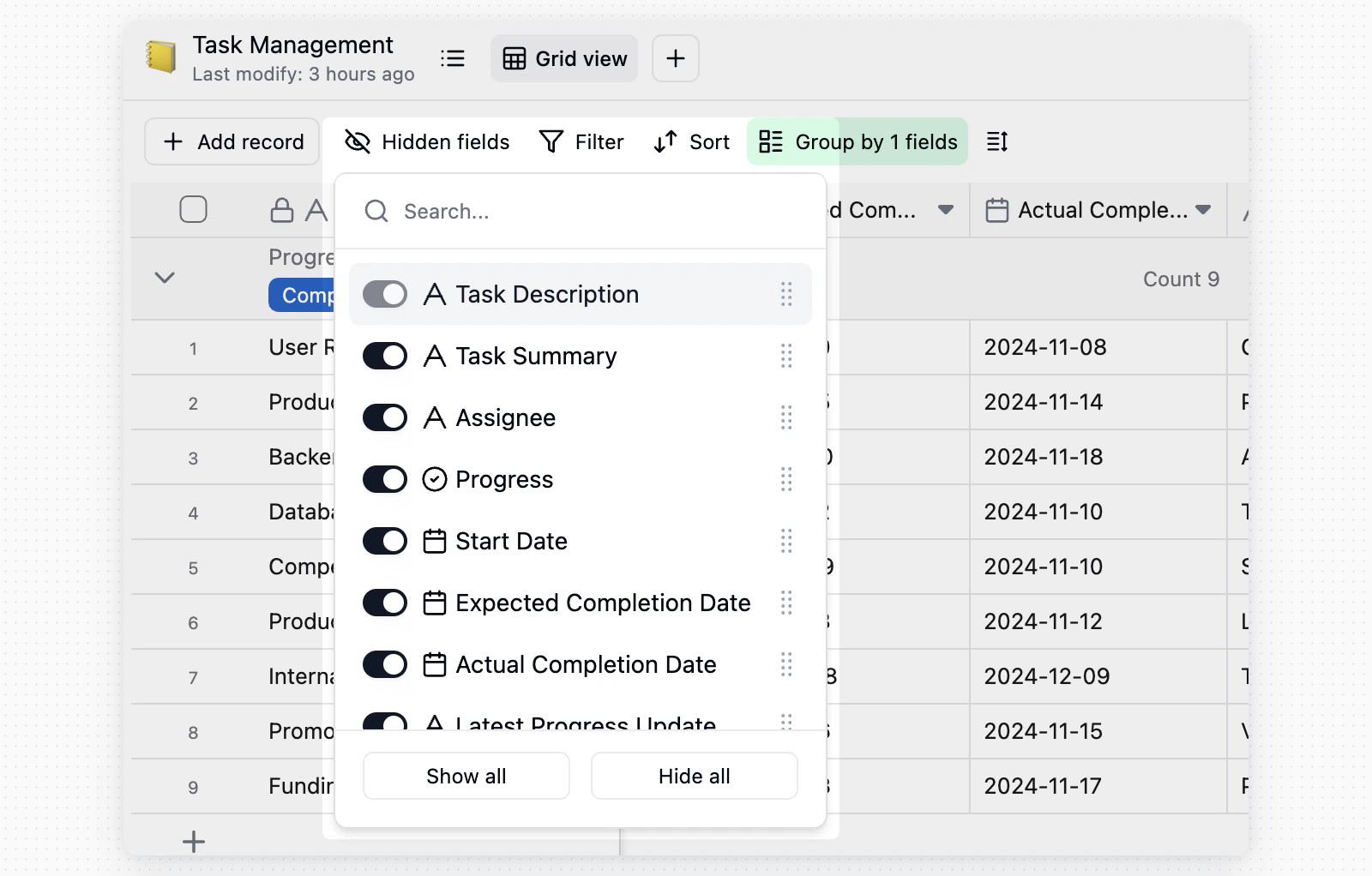
| Hide fields | Click **Hidden fields** in the toolbar and turn fields on or off |
| Reorder fields | Drag field headers left or right |
| Find fields | Search field names in the hidden fields panel when the table has many fields |
Hidden fields only change the current view. They do not delete fields or record data.
### Adjust Row Height and Field Name Height
Click **Row height** in the toolbar to adjust the display density of the table view.
| Action | Description |
| -------------- | ---------------------------------------------------------------------------- |
| Hide fields | Click **Hidden fields** in the toolbar and turn fields on or off |
| Reorder fields | Drag field headers left or right |
| Find fields | Search field names in the hidden fields panel when the table has many fields |
Hidden fields only change the current view. They do not delete fields or record data.
### Adjust Row Height and Field Name Height
Click **Row height** in the toolbar to adjust the display density of the table view.
 * **Row height**: Choose Short, Medium, Tall, or Extra tall to adjust record row height.
* **Field name**: Choose 1 line, 2 lines, or 3 lines to control the display height of column names in the table header.
### Freeze Columns
When a table has many fields, freeze key columns so they stay visible while you scroll horizontally.
* **Row height**: Choose Short, Medium, Tall, or Extra tall to adjust record row height.
* **Field name**: Choose 1 line, 2 lines, or 3 lines to control the display height of column names in the table header.
### Freeze Columns
When a table has many fields, freeze key columns so they stay visible while you scroll horizontally.
 * Drag the freeze divider to freeze the columns on its left.
 * Right-click a field header and choose **Freeze up to this field** to freeze that field and all fields to its left.
* Teable keeps a scrollable area to the right of frozen columns. If the current window is too narrow, **Freeze up to this field** is disabled or Teable shows **Cannot freeze to this area because the current window is too narrow**. Widen the window or freeze fewer columns.
## Edit and Review Data
### Edit and Work in Bulk
* **Edit a cell**: Click any cell and enter or change content.
* **View long content**: Double-click a cell, or select it and press Space, to open the full content.
* **Fill by dragging**: Drag the fill handle at the bottom-right corner of a selected cell to copy values downward.
### Selection Statistics
* Right-click a field header and choose **Freeze up to this field** to freeze that field and all fields to its left.
* Teable keeps a scrollable area to the right of frozen columns. If the current window is too narrow, **Freeze up to this field** is disabled or Teable shows **Cannot freeze to this area because the current window is too narrow**. Widen the window or freeze fewer columns.
## Edit and Review Data
### Edit and Work in Bulk
* **Edit a cell**: Click any cell and enter or change content.
* **View long content**: Double-click a cell, or select it and press Space, to open the full content.
* **Fill by dragging**: Drag the fill handle at the bottom-right corner of a selected cell to copy values downward.
### Selection Statistics
 When you select a range of cells, Teable shows **Average**, **Filled**, and **Sum** for numeric values. Use this for quick checks on amounts, counts, and scores.
## Notes
* Hidden fields, sorting, filtering, grouping, and similar settings apply only to the current view.
* To prevent accidental configuration changes, lock the view. Only users with permission can unlock or change it.
When you select a range of cells, Teable shows **Average**, **Filled**, and **Sum** for numeric values. Use this for quick checks on amounts, counts, and scores.
## Notes
* Hidden fields, sorting, filtering, grouping, and similar settings apply only to the current view.
* To prevent accidental configuration changes, lock the view. Only users with permission can unlock or change it.