> ## Documentation Index
> Fetch the complete documentation index at: https://help.teable.ai/llms.txt
> Use this file to discover all available pages before exploring further.
# Subscribe and Activate License
> Learn how to buy, subscribe, and activate a Teable self-hosted license. Get your license key and unlock premium features for your self-hosted deployment.
This guide will walk you through the process of subscribing to a Teable self-hosted plan and activating your license.
## Overview
Teable offers different plans for self-hosted deployments, each with its own set of features. To unlock these features, you need to first install Teable, get your Instance ID, subscribe to a plan, and then activate your instance with a license key.
## Step 1: Install Teable
Before subscribing to a plan, you need to have Teable installed and running on your server.
If you haven't installed Teable yet, please follow one of these installation guides:
* [Docker Deployment](/en/deploy/docker) (Recommended for quick setup)
* [Full-featured platform](/en/deploy/architecture) (AI features and App Builder, Docker or Kubernetes)
Make sure your Teable instance is up and running before proceeding to the next steps.
## Step 2: Access the Admin Panel
After successfully installing Teable:
1. Log in to your self-hosted Teable instance
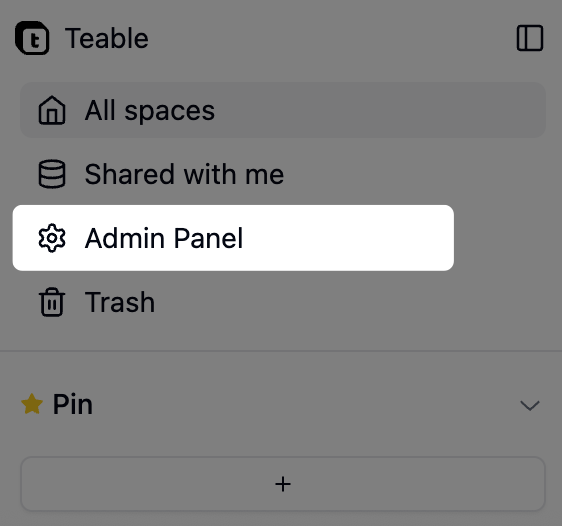
2. Navigate to the **Admin Panel**
3. You can access the Admin Panel from the user menu
If this is your first time opening the instance, sign up on the instance URL first. Teable does not provide a default administrator account; the first registered user becomes the instance administrator.
 ## Step 3: Copy Your Instance ID
In the Admin Panel, navigate to **Self-hosted License** to find your unique Instance ID:
1. Go to **Admin Panel** → **Self-hosted License**
2. Click the **Copy** button to copy your Instance ID
3. Keep this Instance ID ready - you'll need it during the subscription process
## Step 3: Copy Your Instance ID
In the Admin Panel, navigate to **Self-hosted License** to find your unique Instance ID:
1. Go to **Admin Panel** → **Self-hosted License**
2. Click the **Copy** button to copy your Instance ID
3. Keep this Instance ID ready - you'll need it during the subscription process

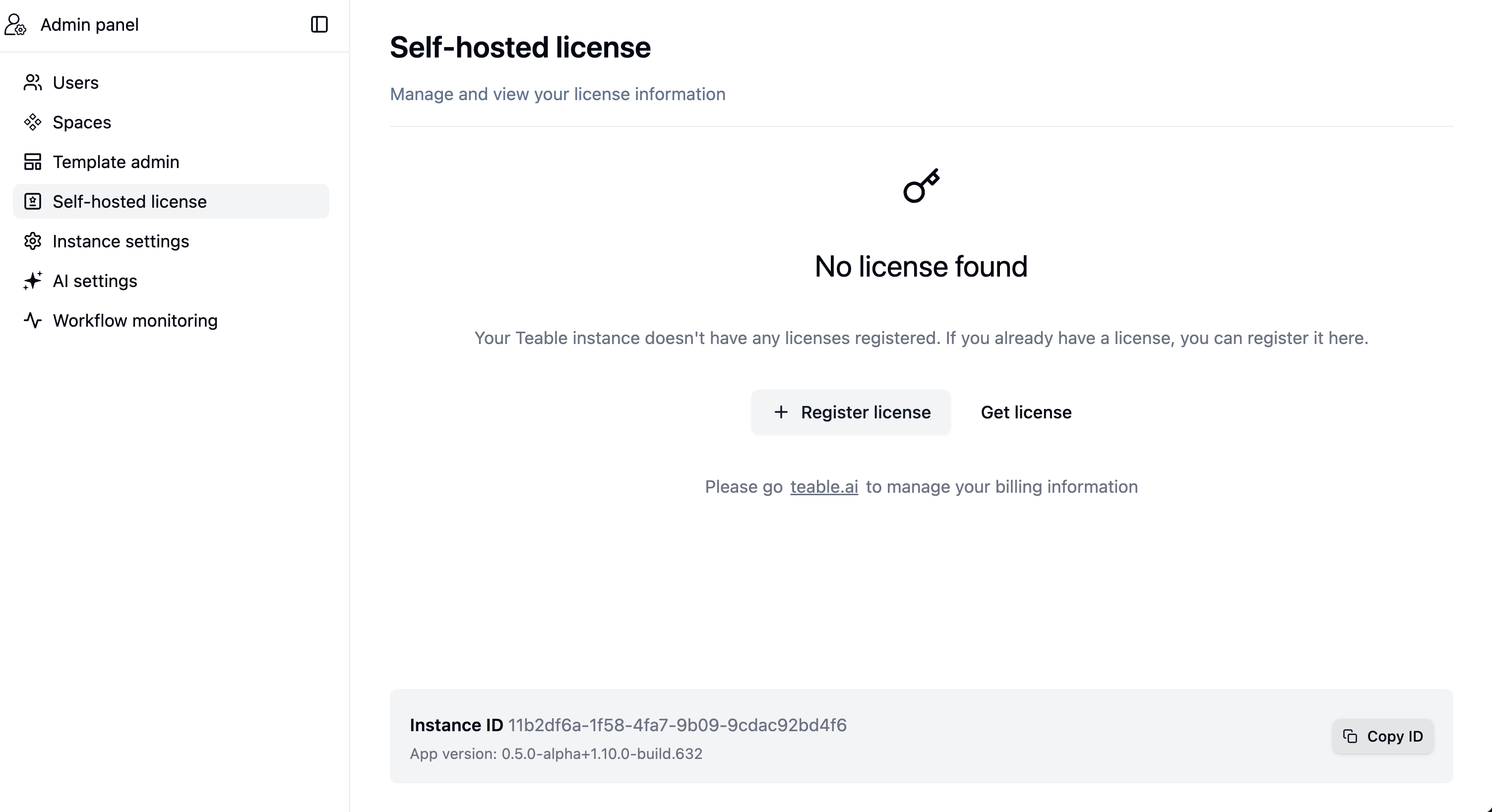 Your Instance ID is a unique identifier for your self-hosted installation. It's required to bind your license to your specific instance.
## Step 4: Subscribe to a Plan
Now that you have your Instance ID, you can proceed to subscribe:
1. Visit the [Teable Self-Hosted Pricing Page](https://app.teable.ai/public/pricing?host=self-hosted)
2. Compare features across different plans
3. Choose the plan that meets your requirements
4. Complete the subscription process
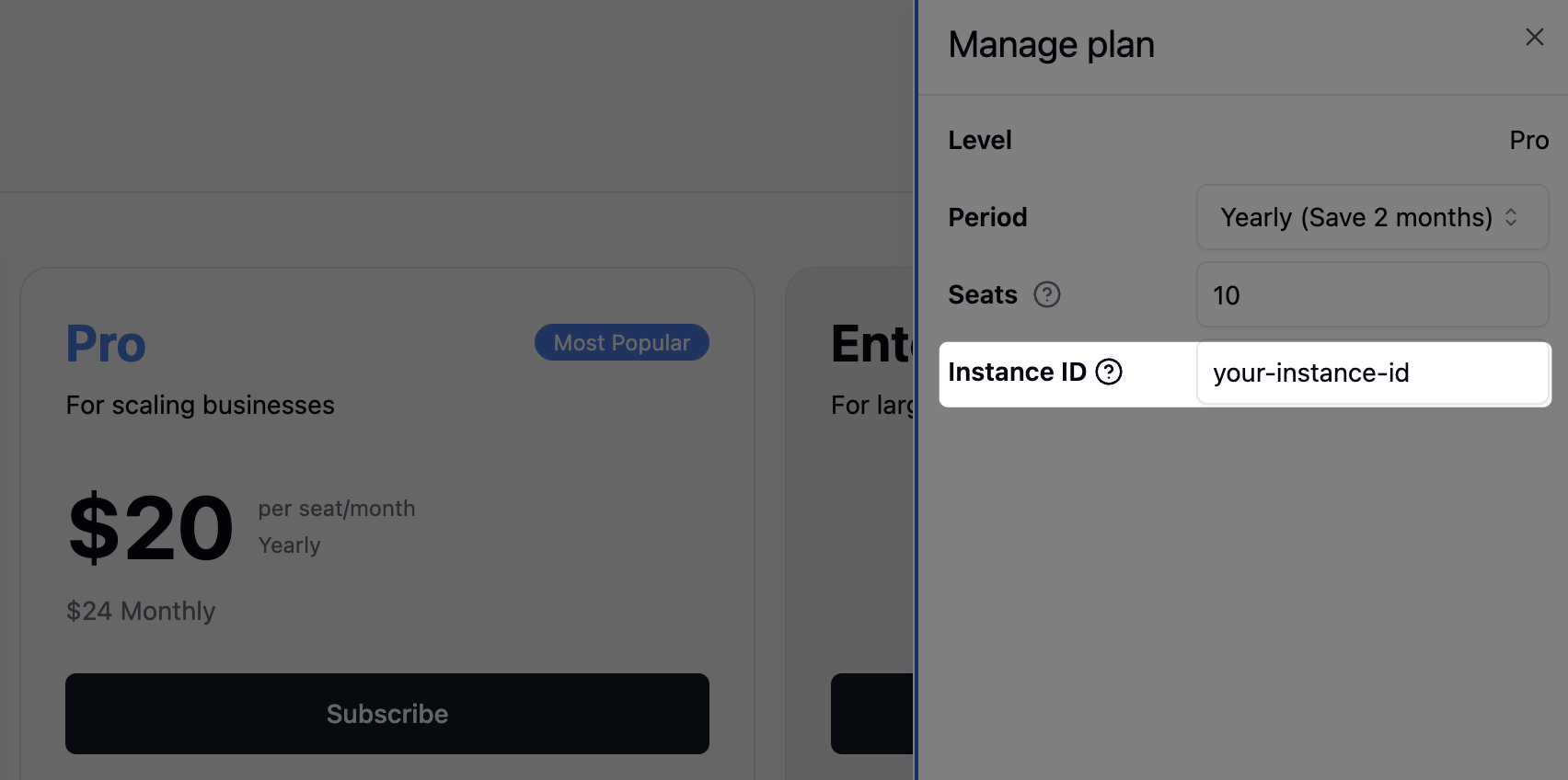
5. During subscription, you'll be asked to provide your **Instance ID**
Your Instance ID is a unique identifier for your self-hosted installation. It's required to bind your license to your specific instance.
## Step 4: Subscribe to a Plan
Now that you have your Instance ID, you can proceed to subscribe:
1. Visit the [Teable Self-Hosted Pricing Page](https://app.teable.ai/public/pricing?host=self-hosted)
2. Compare features across different plans
3. Choose the plan that meets your requirements
4. Complete the subscription process
5. During subscription, you'll be asked to provide your **Instance ID**
 6. After successful subscription, you'll receive a **License Key**
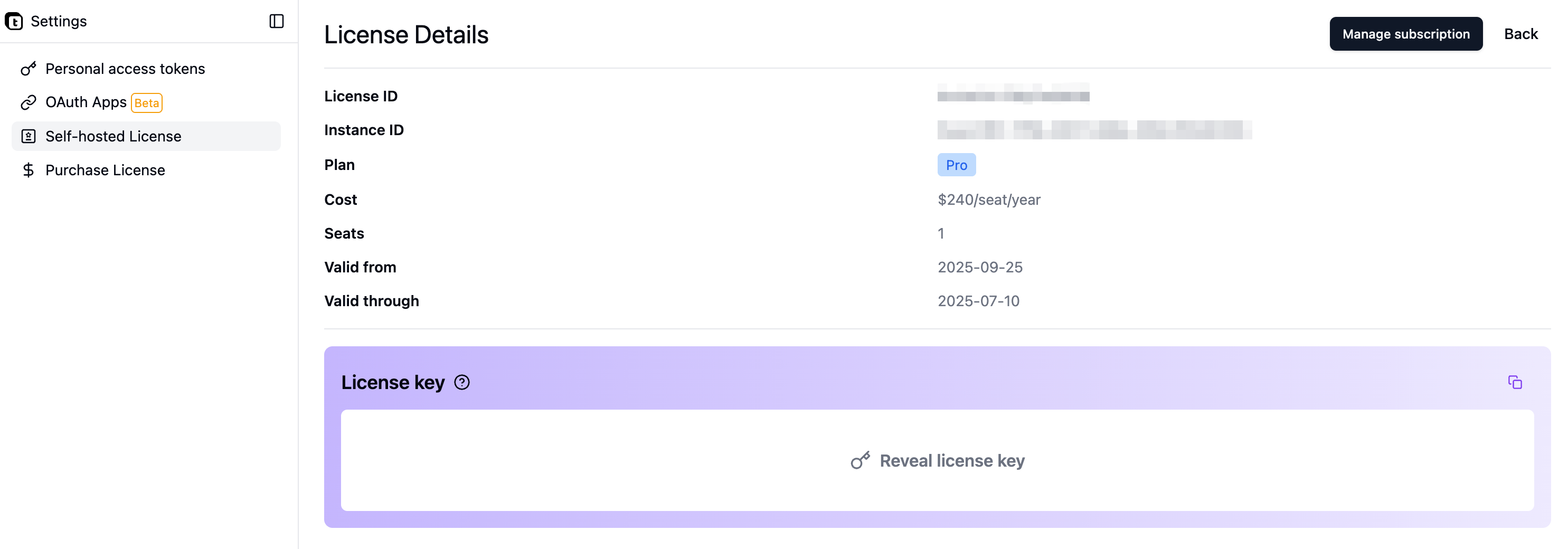 Make sure to copy your License Key immediately after subscription. You'll need it in the next step.
## Step 5: Activate Your License
Once you have your License Key, return to your Teable instance to activate it:
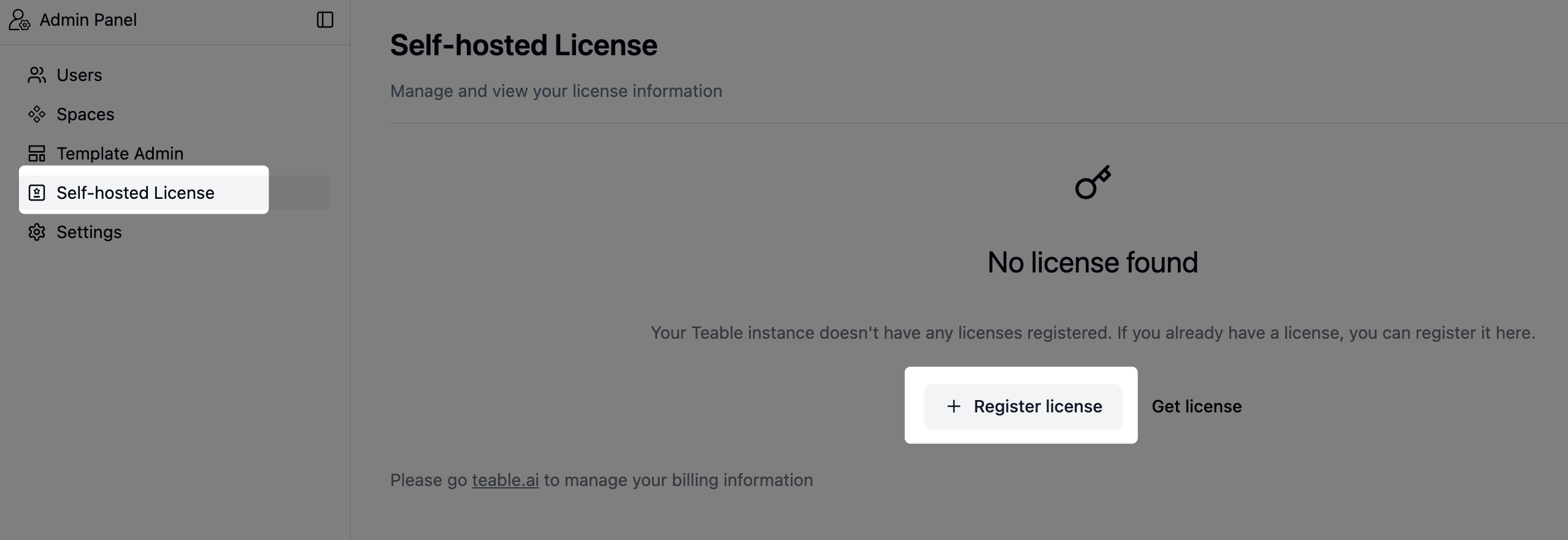
1. Go back to the **Admin Panel** in your self-hosted Teable instance
2. Navigate to **Self-hosted License** section
3. Paste your **License Key** into the activation field
4. Click the activation button
5. Wait for the confirmation message
Make sure to copy your License Key immediately after subscription. You'll need it in the next step.
## Step 5: Activate Your License
Once you have your License Key, return to your Teable instance to activate it:
1. Go back to the **Admin Panel** in your self-hosted Teable instance
2. Navigate to **Self-hosted License** section
3. Paste your **License Key** into the activation field
4. Click the activation button
5. Wait for the confirmation message
 After successful activation, your instance will immediately have access to all features included in your subscribed plan.
## Step 6: Manage Your License
You can view and manage your licenses at any time:
* Visit the [License Management Page](https://app.teable.ai/setting/license)
* Here you can:
* View all your active licenses
* Check license expiration dates
* Renew or upgrade your licenses
* View usage details
* Manage multiple instances if you have more than one
## Auto-renew Your License
When registering or updating a license in **Admin Panel** → **Self-hosted License**, turn on **Auto-renew** if your instance can reach the Teable license server: Teable tests the connection before saving the setting, renews the license after each billing period, shows administrators a banner with **Retry** if renewal fails, and still requires manual updates when the instance cannot reach Teable Cloud.
## Frequently Asked Questions
No, your Instance ID remains constant throughout application updates. It's a permanent identifier for your self-hosted installation.
When migrating environments, perform a complete database migration. This ensures your Instance ID remains unchanged, as the Instance ID is stored in the database. Simply migrate your entire PostgreSQL database to the new environment.
If your **billable user count** exceeds the subscribed seats in a paid plan, usage will be restricted and users will receive blocking notifications when attempting to access features. To restore full functionality, you'll need to upgrade your subscription to accommodate more seats.
**Billable users** are counted at the **instance level** and include users with **Editor** role or higher (Owner, Creator, Editor). Users with **Commenter** or **Viewer** (Read-only) roles are free and do not count towards your seat limit.
Administrators can disable "Allow everyone to create new spaces" in **Admin Panel** → **Instance settings** to prevent users from creating spaces that add billable collaborators.
When your subscription expires, your Teable instance will revert to the basic version. However, all your data will be preserved and remain safe. Once you renew and reactivate your subscription, all premium features will be immediately restored.
Teable provides a 7-day grace period after subscription expiration. During this grace period:
* All features remain fully functional
* Administrators receive email reminders
* You have time to renew without service interruption
We recommend renewing before the grace period ends to ensure uninterrupted access to premium features.
For Docker Compose deployments, you have several backup options:
**Option 1: Full Virtual Machine Backup** (Recommended for simplicity)
* Regularly backup the entire virtual machine hosting Teable
* Provides complete system recovery capability
**Option 2: Docker Volume Backup**
* Backup all Docker volumes defined in your `docker-compose.yaml`
* Use `docker volume ls` to list volumes
* Use `docker run --rm -v :/data -v $(pwd):/backup alpine tar czf /backup/.tar.gz /data`
**Option 3: Component-Level Backup** (Recommended for granular control)
* **PostgreSQL database**: Backup using `pg_dump` (contains all table data)
```bash theme={null}
docker exec teable-db pg_dump -U teable teable > backup.sql
```
* **Redis database**: Backup RDB file (contains automation queue data)
```bash theme={null}
docker exec teable-cache redis-cli --rdb /data/dump.rdb
```
* **Data directory**: Backup the `teable-data` volume (contains all attachment files)
For production environments, we recommend setting up automated daily backups with retention policies.
## Troubleshooting
If your license activation fails, please check:
* The License Key is copied correctly without extra spaces
* The license hasn't expired
If issues persist, contact support at [support@teable.ai](mailto:support@teable.ai)
If features don't appear immediately after activation:
* Try refreshing your browser
* Clear your browser cache
* Verify the activation status in the License Management Page
* Check that your subscription is active and not expired
## Next Steps
After activating your license, you can:
* Configure additional features available in your plan
* Set up team members and permissions
* Explore enterprise features
For more information on deployment and configuration, see:
* [Docker Deployment](/en/deploy/docker)
* [Environment Configuration](/en/deploy/env)
* [Email Configuration](/en/deploy/email)
After successful activation, your instance will immediately have access to all features included in your subscribed plan.
## Step 6: Manage Your License
You can view and manage your licenses at any time:
* Visit the [License Management Page](https://app.teable.ai/setting/license)
* Here you can:
* View all your active licenses
* Check license expiration dates
* Renew or upgrade your licenses
* View usage details
* Manage multiple instances if you have more than one
## Auto-renew Your License
When registering or updating a license in **Admin Panel** → **Self-hosted License**, turn on **Auto-renew** if your instance can reach the Teable license server: Teable tests the connection before saving the setting, renews the license after each billing period, shows administrators a banner with **Retry** if renewal fails, and still requires manual updates when the instance cannot reach Teable Cloud.
## Frequently Asked Questions
No, your Instance ID remains constant throughout application updates. It's a permanent identifier for your self-hosted installation.
When migrating environments, perform a complete database migration. This ensures your Instance ID remains unchanged, as the Instance ID is stored in the database. Simply migrate your entire PostgreSQL database to the new environment.
If your **billable user count** exceeds the subscribed seats in a paid plan, usage will be restricted and users will receive blocking notifications when attempting to access features. To restore full functionality, you'll need to upgrade your subscription to accommodate more seats.
**Billable users** are counted at the **instance level** and include users with **Editor** role or higher (Owner, Creator, Editor). Users with **Commenter** or **Viewer** (Read-only) roles are free and do not count towards your seat limit.
Administrators can disable "Allow everyone to create new spaces" in **Admin Panel** → **Instance settings** to prevent users from creating spaces that add billable collaborators.
When your subscription expires, your Teable instance will revert to the basic version. However, all your data will be preserved and remain safe. Once you renew and reactivate your subscription, all premium features will be immediately restored.
Teable provides a 7-day grace period after subscription expiration. During this grace period:
* All features remain fully functional
* Administrators receive email reminders
* You have time to renew without service interruption
We recommend renewing before the grace period ends to ensure uninterrupted access to premium features.
For Docker Compose deployments, you have several backup options:
**Option 1: Full Virtual Machine Backup** (Recommended for simplicity)
* Regularly backup the entire virtual machine hosting Teable
* Provides complete system recovery capability
**Option 2: Docker Volume Backup**
* Backup all Docker volumes defined in your `docker-compose.yaml`
* Use `docker volume ls` to list volumes
* Use `docker run --rm -v :/data -v $(pwd):/backup alpine tar czf /backup/.tar.gz /data`
**Option 3: Component-Level Backup** (Recommended for granular control)
* **PostgreSQL database**: Backup using `pg_dump` (contains all table data)
```bash theme={null}
docker exec teable-db pg_dump -U teable teable > backup.sql
```
* **Redis database**: Backup RDB file (contains automation queue data)
```bash theme={null}
docker exec teable-cache redis-cli --rdb /data/dump.rdb
```
* **Data directory**: Backup the `teable-data` volume (contains all attachment files)
For production environments, we recommend setting up automated daily backups with retention policies.
## Troubleshooting
If your license activation fails, please check:
* The License Key is copied correctly without extra spaces
* The license hasn't expired
If issues persist, contact support at [support@teable.ai](mailto:support@teable.ai)
If features don't appear immediately after activation:
* Try refreshing your browser
* Clear your browser cache
* Verify the activation status in the License Management Page
* Check that your subscription is active and not expired
## Next Steps
After activating your license, you can:
* Configure additional features available in your plan
* Set up team members and permissions
* Explore enterprise features
For more information on deployment and configuration, see:
* [Docker Deployment](/en/deploy/docker)
* [Environment Configuration](/en/deploy/env)
* [Email Configuration](/en/deploy/email)