

Where to Configure It
- Open the target space.
- Click Settings in the top right corner.
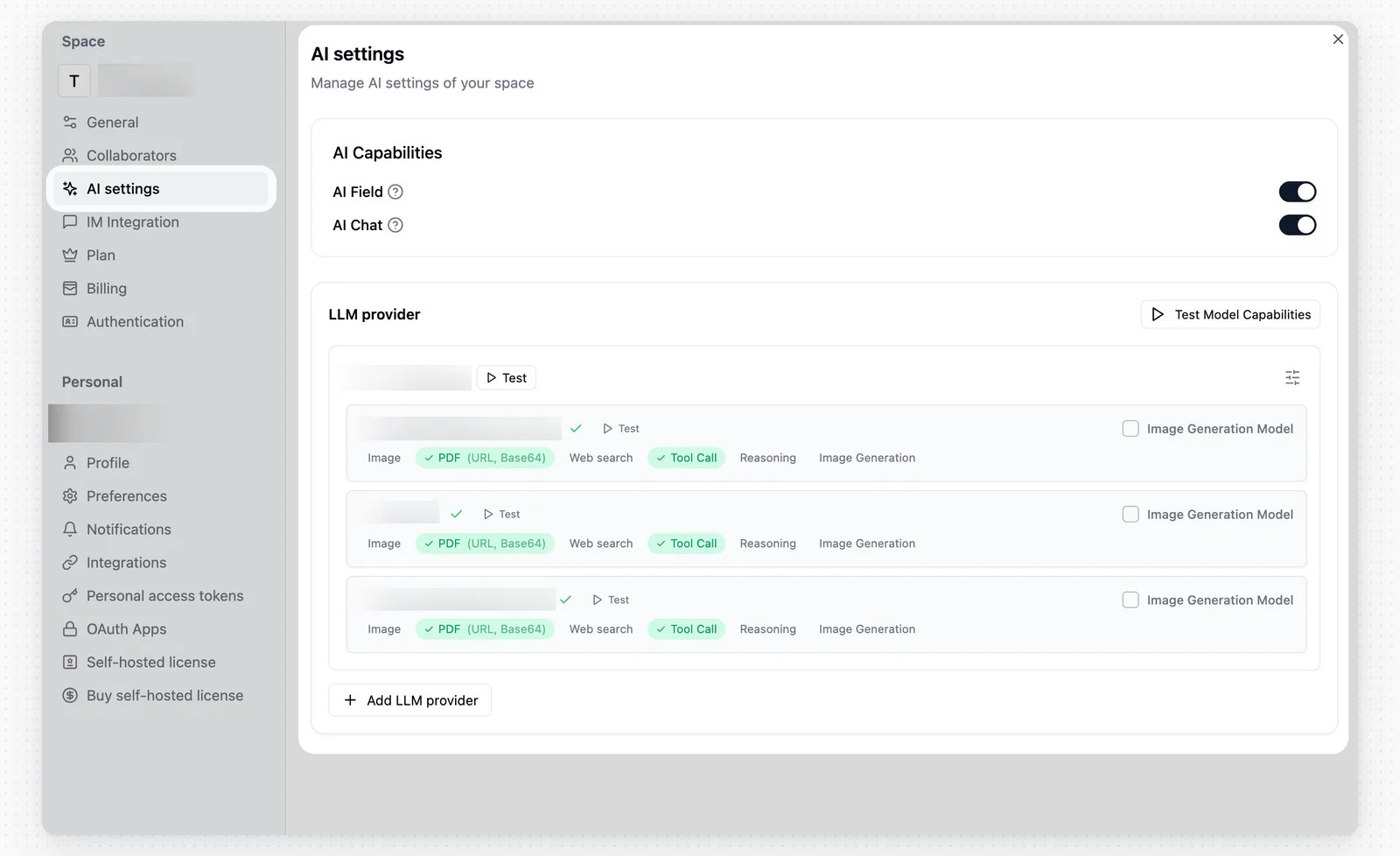
- Go to AI settings.
Setup Steps
Under AI Capabilities, turn on what you need:- AI Field
- AI Chat
Add LLM Provider
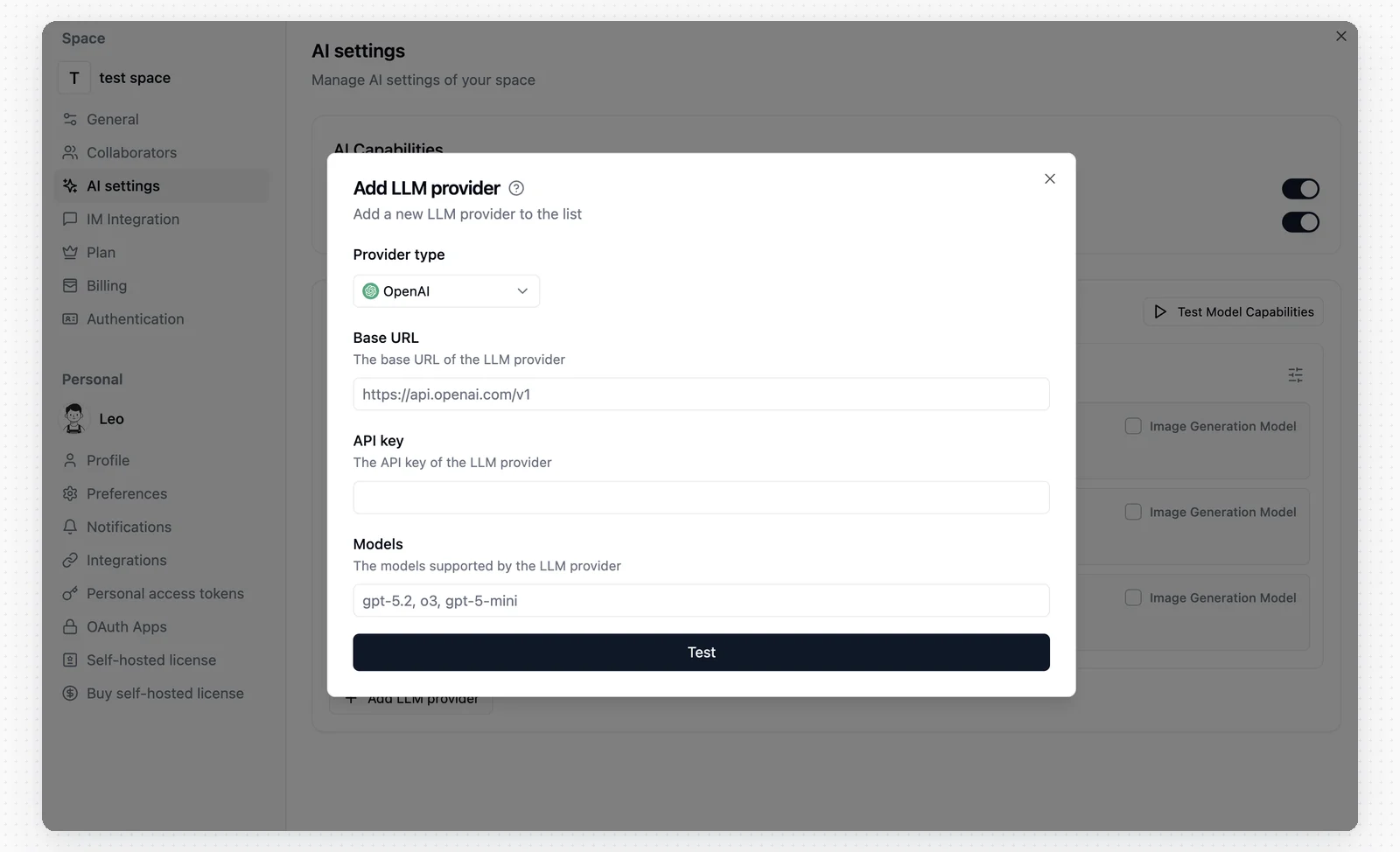
When you add a new LLM provider, choose OpenAI, Anthropic, or OpenAI Compatible as the provider type. Use OpenAI Compatible for services that expose an OpenAI-compatible API endpoint. If a task uses images, screenshots, or other visual input, choose a model with vision support. Models without vision support will fail on these multimodal tasks.
- Name: Used to distinguish different providers.
- Provider type: Select the provider type.
- Base URL: Enter the provider’s API endpoint.
- API Key: Enter the API key from the provider.
- Models: Enter the model names you want to connect. Separate multiple models with English commas.
Test Model Capabilities
There are currently three ways to test:- Click Test on the LLM provider row.
- Click Test on an individual model row.
- Click Test Model Capabilities in the top-right corner of the list to batch-test all configured models.
Configuration Tips
Base URL and Models
Common examples:Model names must match the provider documentation exactly and are case-sensitive. Separate multiple models with English commas.
- Model names are case-sensitive. Use the exact names from the provider documentation.
- Some providers require no spaces after commas, for example
gpt-5.5,o3. - For OpenAI Compatible providers, use the model naming format required by that provider. Some services use
provider/model-name.
FAQ
All model tests failed
All model tests failed
Check whether the Base URL is correct, whether it was mistakenly filled with the provider homepage URL, or whether it has an extra trailing
/. If you are using an OpenAI-compatible endpoint, also confirm that /v1 is not missing.I get a “Test failed” error
I get a “Test failed” error
Check whether the API Key is valid and whether the account still has credits or permission to call the model.
Connection timeout
Connection timeout
Check whether the Base URL is correct and whether your current environment can reach that address.
Model not found
Model not found
Make sure the Models value matches the provider documentation exactly, including case and separator format.
Testing fails when I use a Coding Plan key
Testing fails when I use a Coding Plan key
This kind of key may not support standard API calls, or the provider’s terms may not allow third-party service use. Check the provider’s Coding Plan terms first. To connect Teable, use a standard API Key created in the provider dashboard.
The image generation model test result looks wrong
The image generation model test result looks wrong
If the model is meant for image generation, check Image Generation Model first and then test again. Once checked, Teable tests text-to-image and image-to-image capabilities instead.