

Publish an Announcement
Click Publish announcement and fill in the form. Once there is a title or body, use Show preview to see the announcement as users will: for a banner or sidebar card it is a switch that keeps the preview on screen, and for a toast or modal it is a button that shows it once.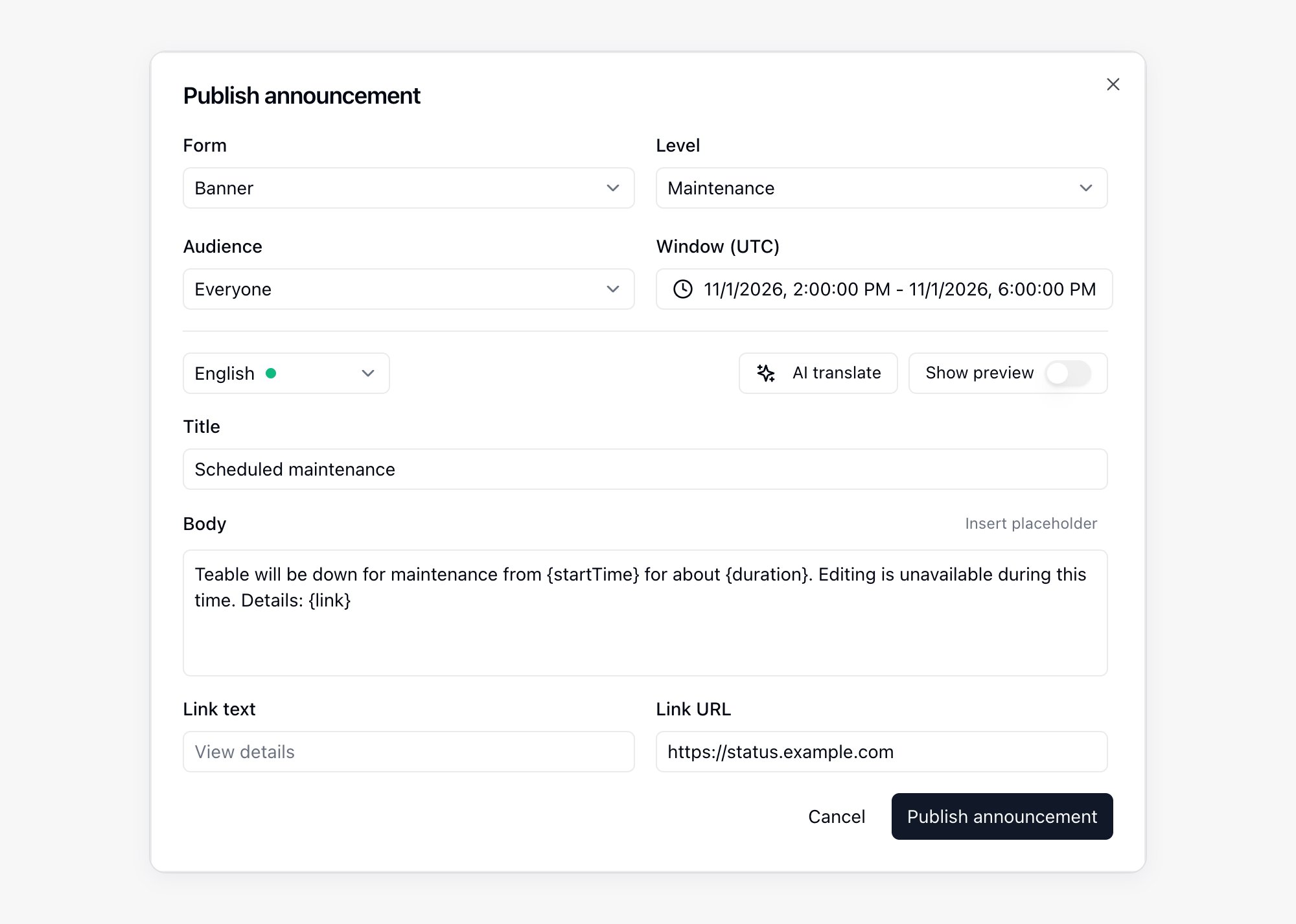
Choose the strongest form the message deserves. A banner and a sidebar card sit alongside the user’s work; a modal blocks it. Users can dismiss an announcement themselves, and when several are active at once, banners collapse behind a N more announcements toggle.
Target Specific Spaces or Users
For Specific spaces or Specific users, paste identifiers into the audience box (space IDs or names, or user IDs, names, or emails, separated by commas), then click Match. Matched entries become chips, and anything Teable could not resolve stays in the box under Not matched: so you can correct and retry. Space membership is evaluated when the announcement is delivered, so collaborators added later still receive a space-targeted announcement.Insert Live Values
Use Insert placeholder in the body to add values that Teable fills in at display time, so one message stays accurate for every reader:{link} is unavailable for the sidebar card, because the whole card is already the link.
Translate the Content
Write the announcement in one language, then use AI translate to fill the other shipped interface languages. Choose Fill blanks only to keep translations you already wrote, or Overwrite all to re-translate everything. Review each language tab afterwards: the translation is a draft, not a final proofread. Readers see the language that matches their interface, falling back to English.Manage Published Announcements
The list shows every announcement with its Status, Title, Form, Level, Audience, Window, and Created by. Open a row to inspect its full content.
Click Withdraw on an active announcement to stop delivering it immediately. An announcement that has already expired cannot be withdrawn, and its record stays as it was.