

Rename the access link
It takes effect immediately, with no DNS or certificate changes.- Open the app in the app editor and click Publish.
- Next to Access link, click the edit icon.
- Type the new name (lowercase letters, numbers and hyphens, starting and ending with a letter or number), then click Confirm.
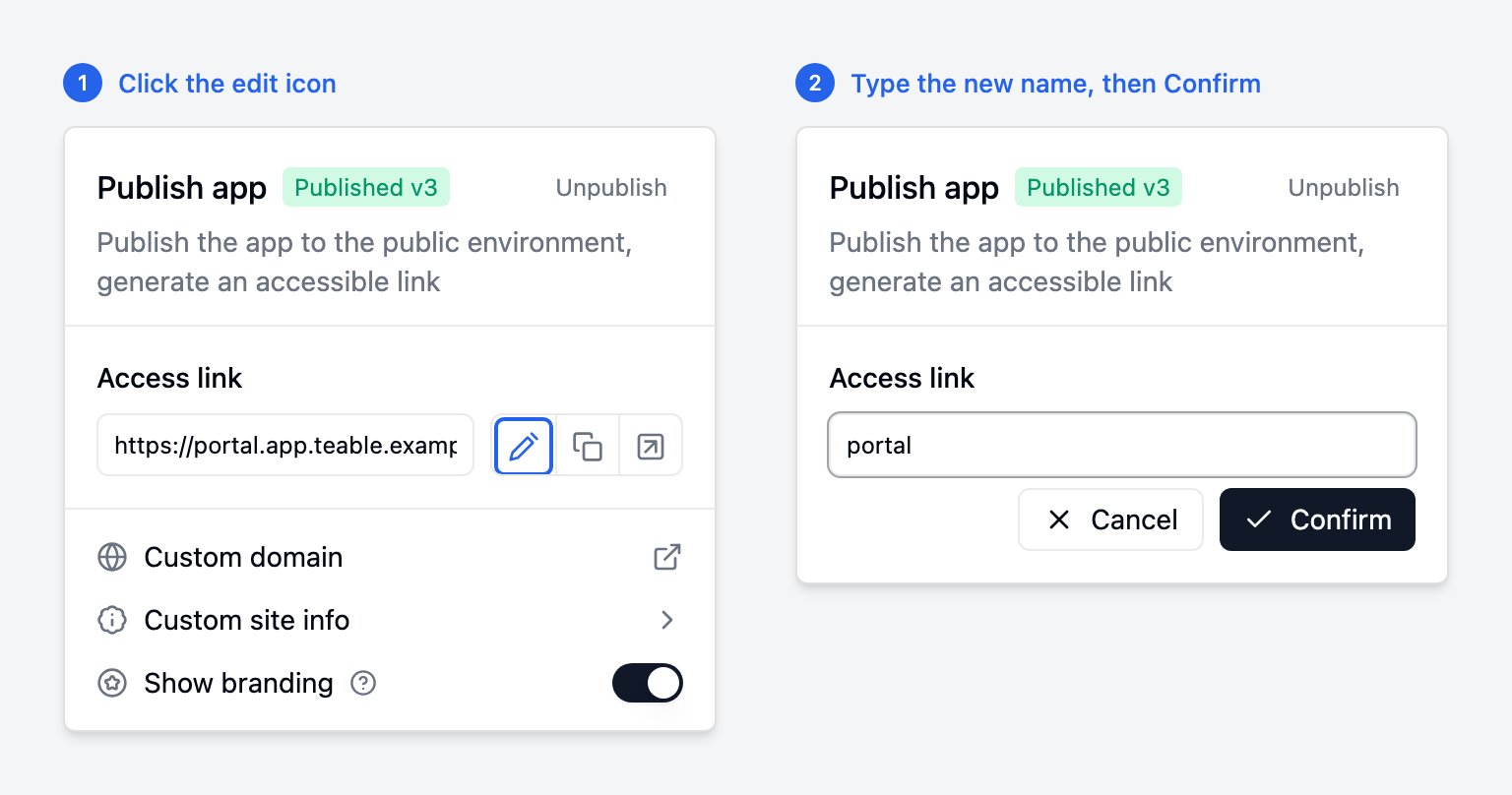
https://<new-name>.app.<your-domain>. If you
had renamed it before, the previous name stops working, so update any links
you have shared.
Serve an app on a separate domain
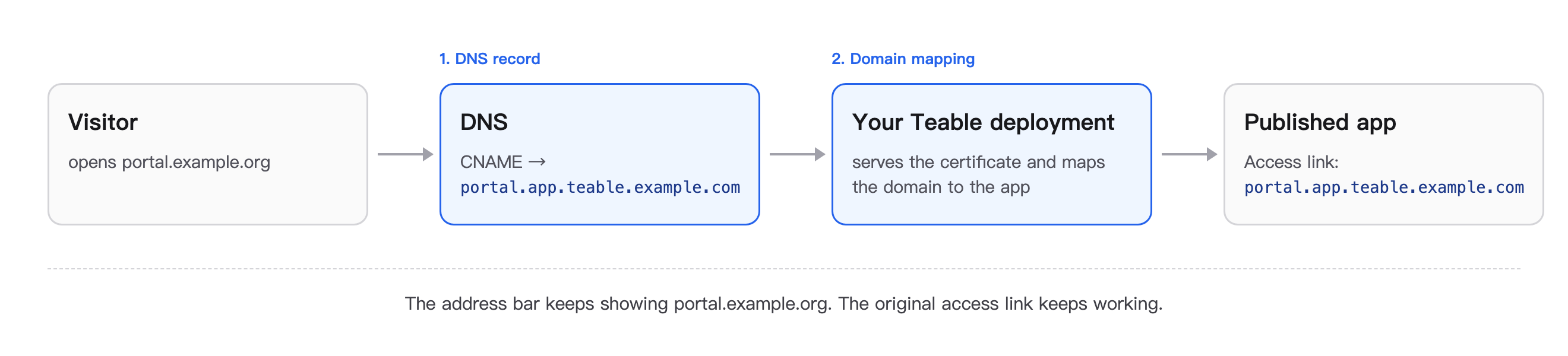
Use this when an app must live outside your Teable domain, for example a customer portal atportal.example.org. Visitors keep seeing your domain in
the address bar; nothing is redirected.
- Platform release v2026.11.5 or later (changelog). For sign-in to bring visitors back to this domain, also a Teable release dated 2026-11-05 or later.
- The app’s current access link, e.g.
portal.app.teable.example.com. - Access to the DNS settings of the separate domain.
- Access to the server (Docker) or the Helm values (Kubernetes) of your deployment.
Step 1: Point the domain at your deployment
Add one DNS record for the separate domain:
Check it before moving on:
dig +short portal.example.org should return your
access link or your server’s IP.
Step 2: Map the domain to the app
- Docker
- Kubernetes
Add the mapping to Apply it:Certificates are handled for you:
.env in your deployment directory. Separate several
mappings with commas, without spaces:.env
- If your own certificate (
TLS_CERT_FILE) already covers the domain, it is used. - Otherwise a Let’s Encrypt certificate is requested and renewed automatically. This needs the domain to resolve to the server and ports 80 and 443 to be reachable from the internet.
TLS_CERT_FILE instead.Step 3: Check it
Openhttps://portal.example.org. The app loads and the address bar stays on
portal.example.org. From a terminal:
Changing or removing a domain
- To move a domain to another app, map it to the other app’s access link and apply again.
- After renaming or unpublishing the app, update or remove its mapping right away: the freed access link can be taken by another app.
- To remove a domain, delete its mapping and apply again, then remove the DNS record.