

Available on all Cloud plans; Self-Hosted requires Business or higher.
- Connections: third-party accounts you authorize to Teable, such as Slack, Airtable, or Google Sheets.
- Secrets: strings you store yourself, such as an API key or an access token.
Manage Your Connections and Secrets
Click your avatar in the lower left, then open Settings → Integrations. The page has three sections: My connections, My secrets, and Third-party apps you authorized.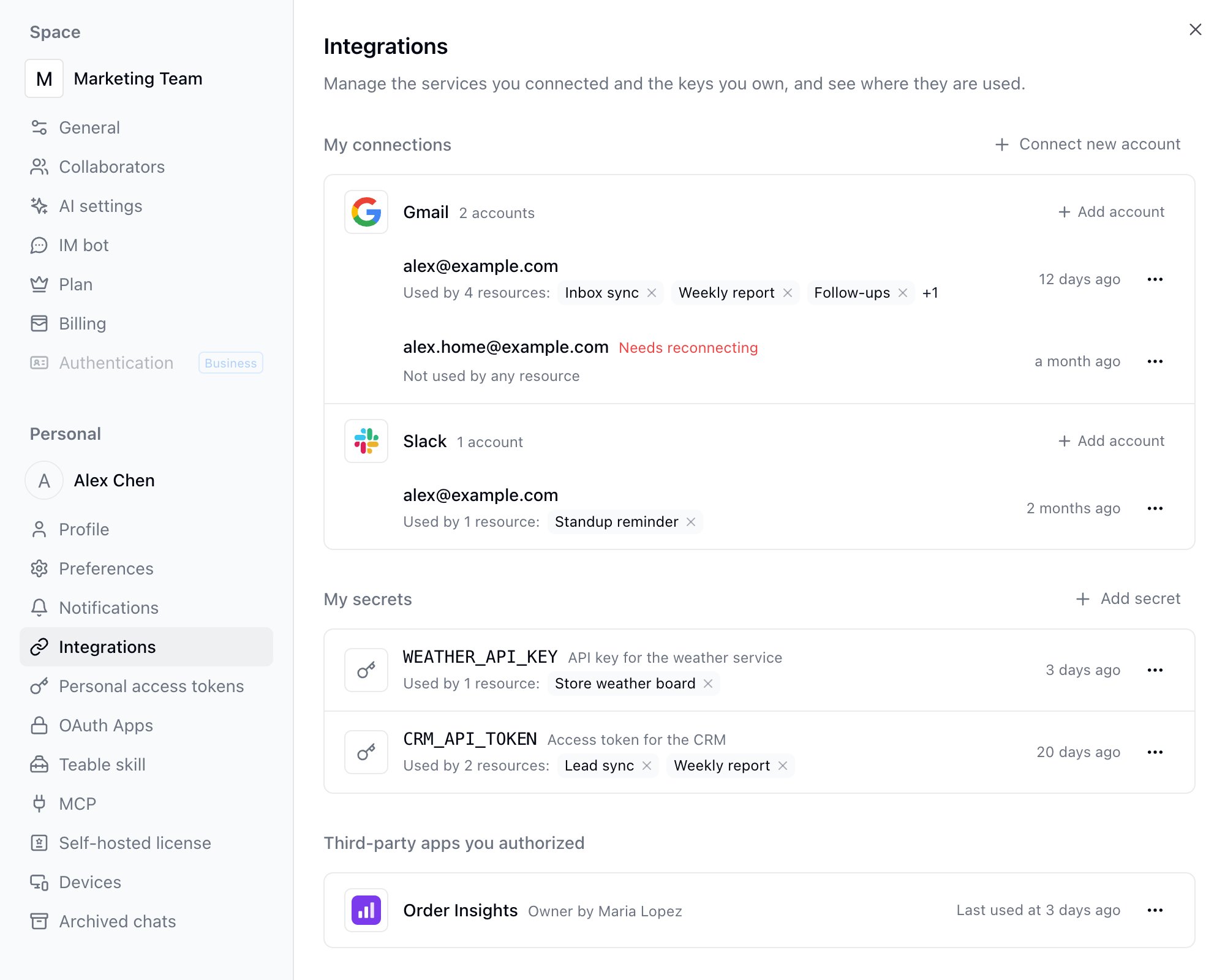
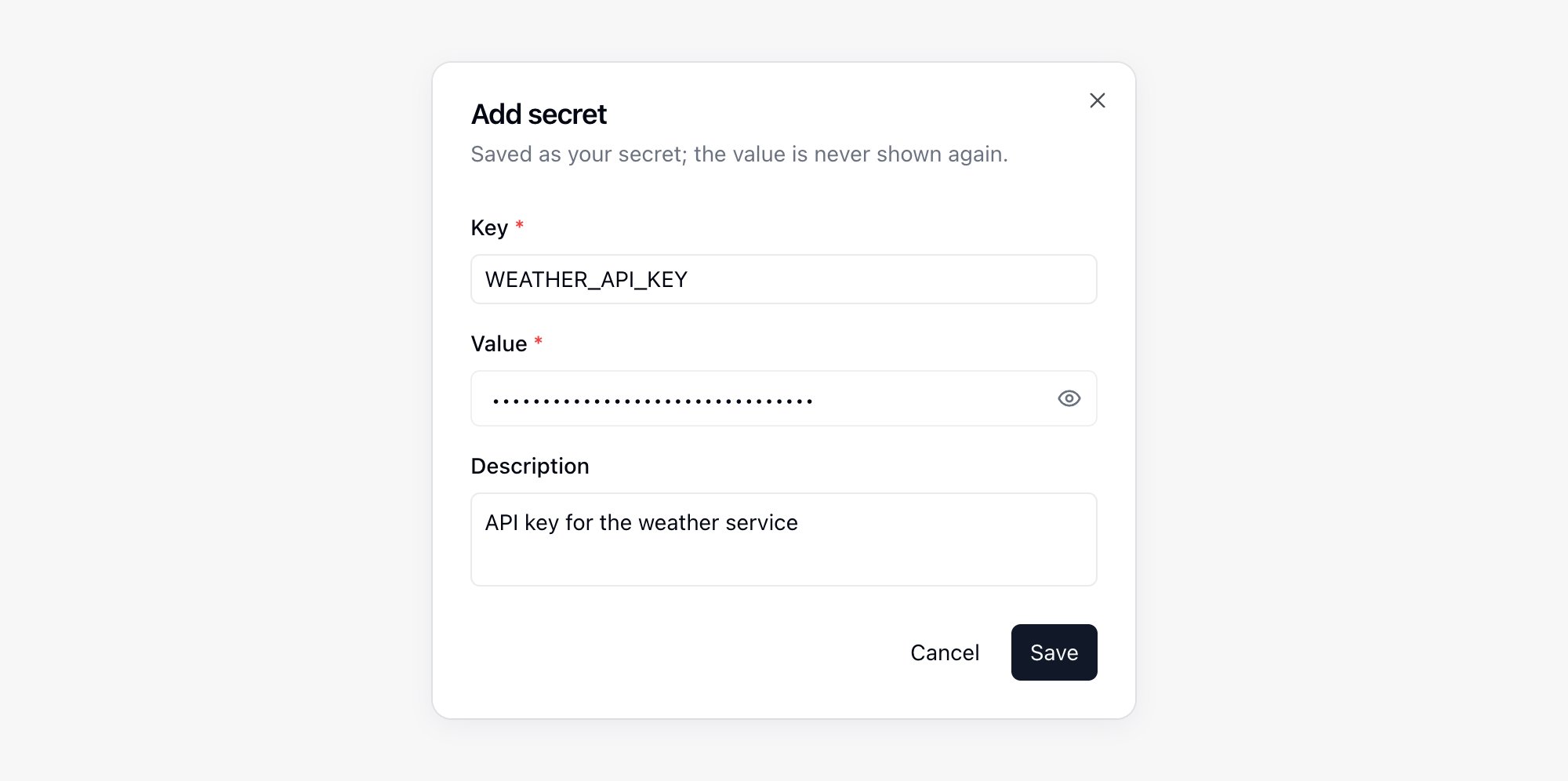
sk_test_. After you switch the app’s grant to this account, the app code does not need to change.
You can connect more than one account to the same service, such as a work and a personal Gmail address. My connections groups accounts by service and shows the account count next to each group. A service you have already connected no longer appears in the Connect new account list; to connect another account, click Add account on that service’s group. Each account is shown by its email or username on that service, and you pick it by that name when granting it to an app or automation. Authorizing the same account again updates the existing connection instead of adding a new row. If the service doesn’t return a recognizable name, click Rename in the account’s menu to give it a name you can tell apart.
When an authorization expires, the account shows Needs reconnecting. Click Reconnect in the account’s menu.
Under each credential, a line reads Used by N resources, followed by tags for up to three apps or automations; click a tag to open that resource in a new tab. Any others sit behind +N, which opens a Where it is used list showing when each grant was made. To stop a resource from using the credential, click the × (Remove grant) on its tag or in the list and confirm. The resource keeps a Not bound yet placeholder.
Grant a Credential to an App or Automation
Open the resource’s credential panel:- Apps: in the App Builder chat panel, open + → More → Credentials & config.
- Automations: open the workflow and click Credentials & config on the Edit workflow tab.
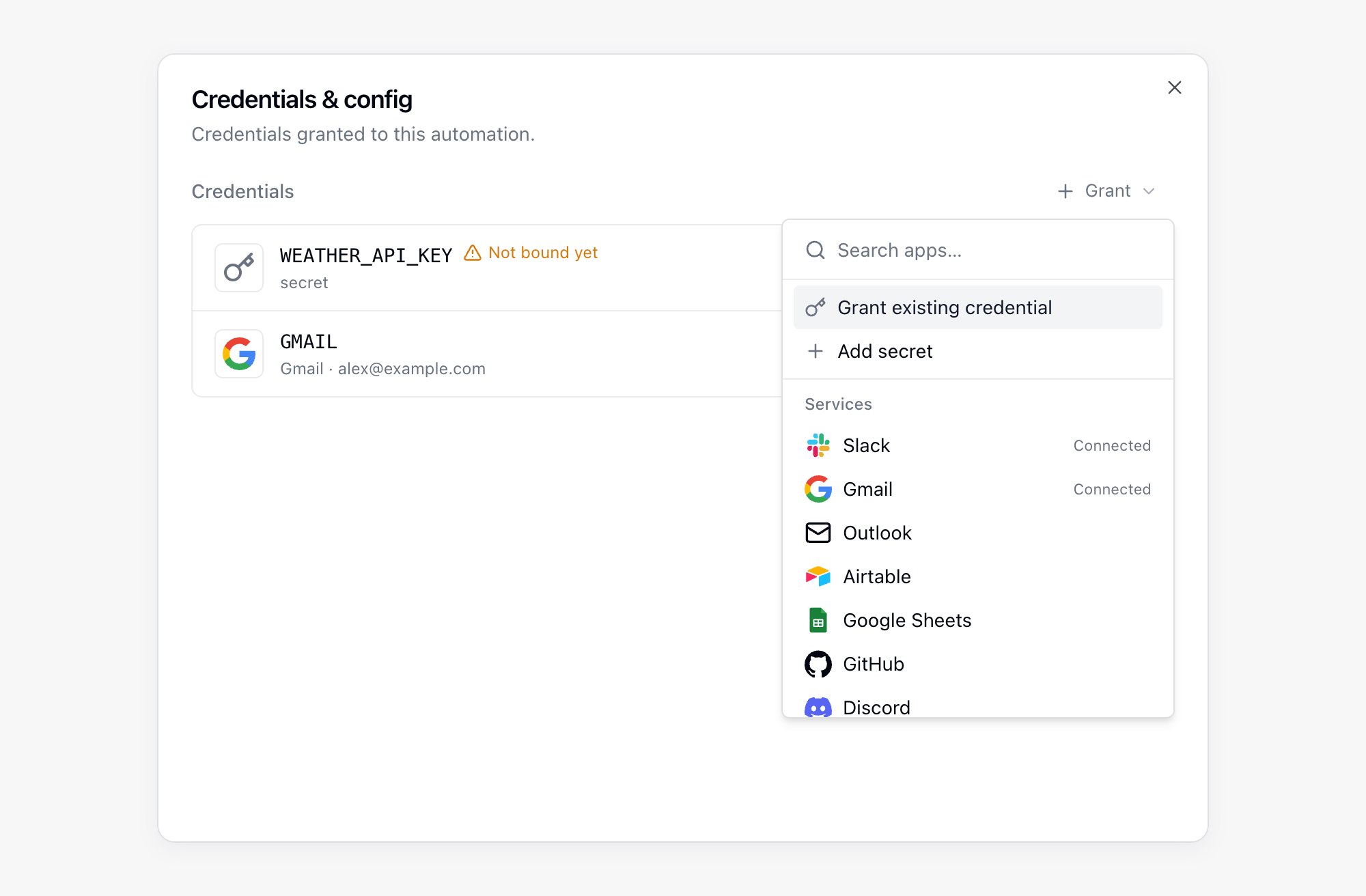
Editing a resource’s credential grants requires edit permission on that app or automation. You can only grant credentials you own.
Read a Credential in Code
Paste something that looks like a key into an automation input field and Teable stores it as your secret, leaving a reference in place, so the plaintext never lands in the workflow configuration. Click Undo in the notice if you would rather keep the text as typed.
Credits for Third-Party App Calls
Calling a third-party app through a connection consumes the space’s credits, whether the call comes from AI chat, an app, or an automation. These charges are listed under type Third-party apps in Credit usage summary on the billing page. Most apps cost very little per call. Apps that bill Teable per returned resource or per request, such as X, cost noticeably more for a single call. Failed calls are not charged, and neither is looking up available tools. Once the space runs out of credits, these calls are refused.Authorization Cards in AI Chat
When AI needs an external account, it pins a card headed Authorization required for this task to the conversation and waits for you before the turn goes on. Which card you get depends on who needs the credential. Connect card: appears when Cuppy itself has to read or write a service to finish the task, such as fetching mail from Gmail or writing to Notion. The card names the service; click Connect to run an OAuth flow or enter that service’s key. The turn resumes once the connection is made, and the connection is saved under My connections in Settings → Integrations. Services Teable integrates itself and services managed by Composio are both connected from this card, so there is no need to visit the settings page first. Skip withholds the connection, and Cuppy continues with the parts that do not depend on it. If connecting fails, the card shows the error: click Retry to try again, or Give up to end the request.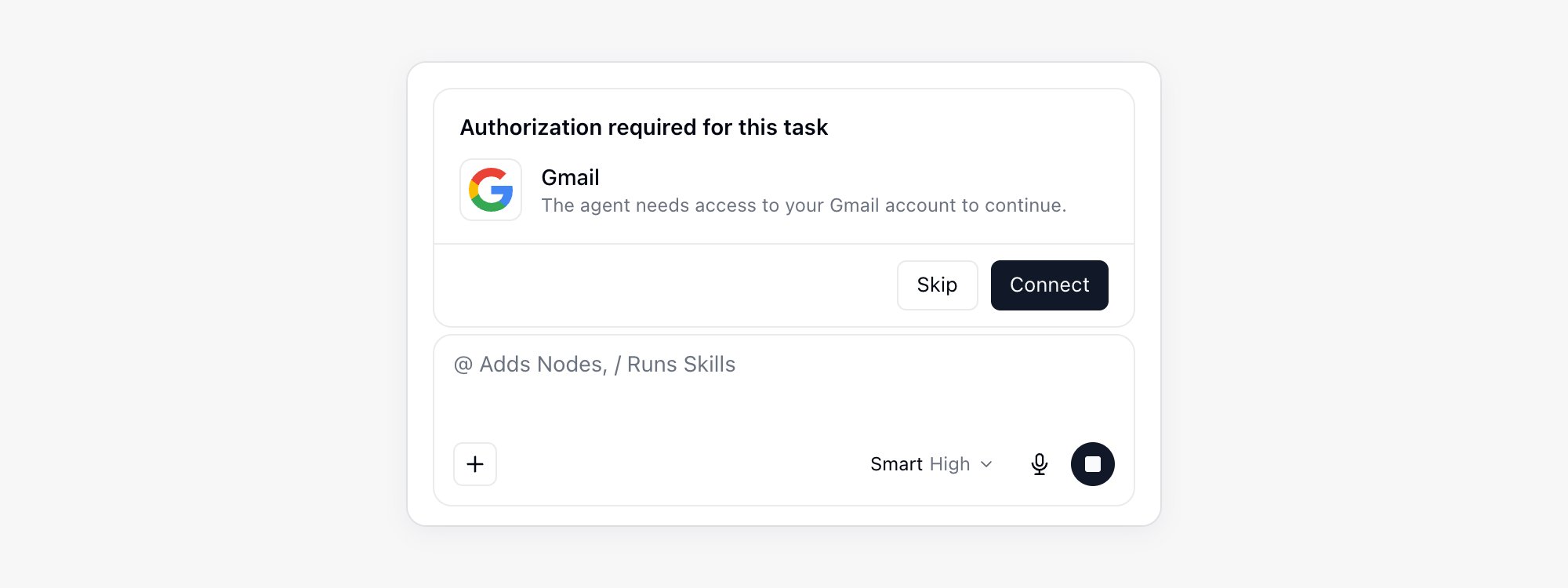
- Connect …: appears when you have no account for that service yet. It runs an OAuth flow, and the new connection is granted to the resource automatically. Services that connect with a key show Enter … key instead.
- A value field with Save & grant: appears when you have no secret for that alias yet. The value is saved as your secret and granted to the resource.
- Grant mine: grants a connection or secret you already have. If the alias is already taken by another credential, the button reads Add mine and adds yours under a new variable name; if you asked to use your own credential instead, it reads Replace with mine.
- Use …’s: appears when the alias already holds another member’s credential, to keep using theirs.
- Skip: withhold the credential. AI continues with the parts that do not depend on it.