

An artifact holds the data AI put into it when it was created, so it does not refresh on its own, and the page cannot read or change your tables. For a page that keeps reading live table data, or that collects input and stores state, create an app with App Builder.
View and Revise
Click the card in the chat to open the artifact viewer. From the viewer you can:- Fullscreen or Open in new page to give the artifact more room.
- Download the version you are viewing: an HTML page downloads as an
.htmlfile and a Markdown report as an.mdfile. - Open the version list to look at earlier versions.
- Delete the artifact. Deletion cannot be undone: its cards in the conversation turn into a deleted placeholder, and its share link stops working.
Share an Artifact
By default only the person who created an artifact can view it; other members of the same project cannot see it either. To let anyone else view it, turn on sharing.1
Turn on sharing
Click Share in the viewer and turn on Enable sharing. Others can then open the artifact through its link.
2
Choose who can view
Who can view defaults to Anyone with the link, which opens without signing in. Choose Space members so that only signed-in members of the space or of the project can open it.
3
Add a password (optional)
Under Advanced, turn on Password protection. Teable generates a password automatically, and viewers must enter it before the artifact loads. The password is shown only right after it is generated, so click Copy link and password then to copy both together. Later you can click Set Password to choose or change the password; after a change, viewers need the new one.
4
Send the link
Click the Copy link button next to the link. If the link has spread too far, turn off Enable sharing and the link stops working for others. Turning sharing back on restores the same link with its previous viewer and password settings, so to keep out people who already have the link, switch to Space members right after turning it back on, or turn on Password protection and change the password.
Find Artifacts Later
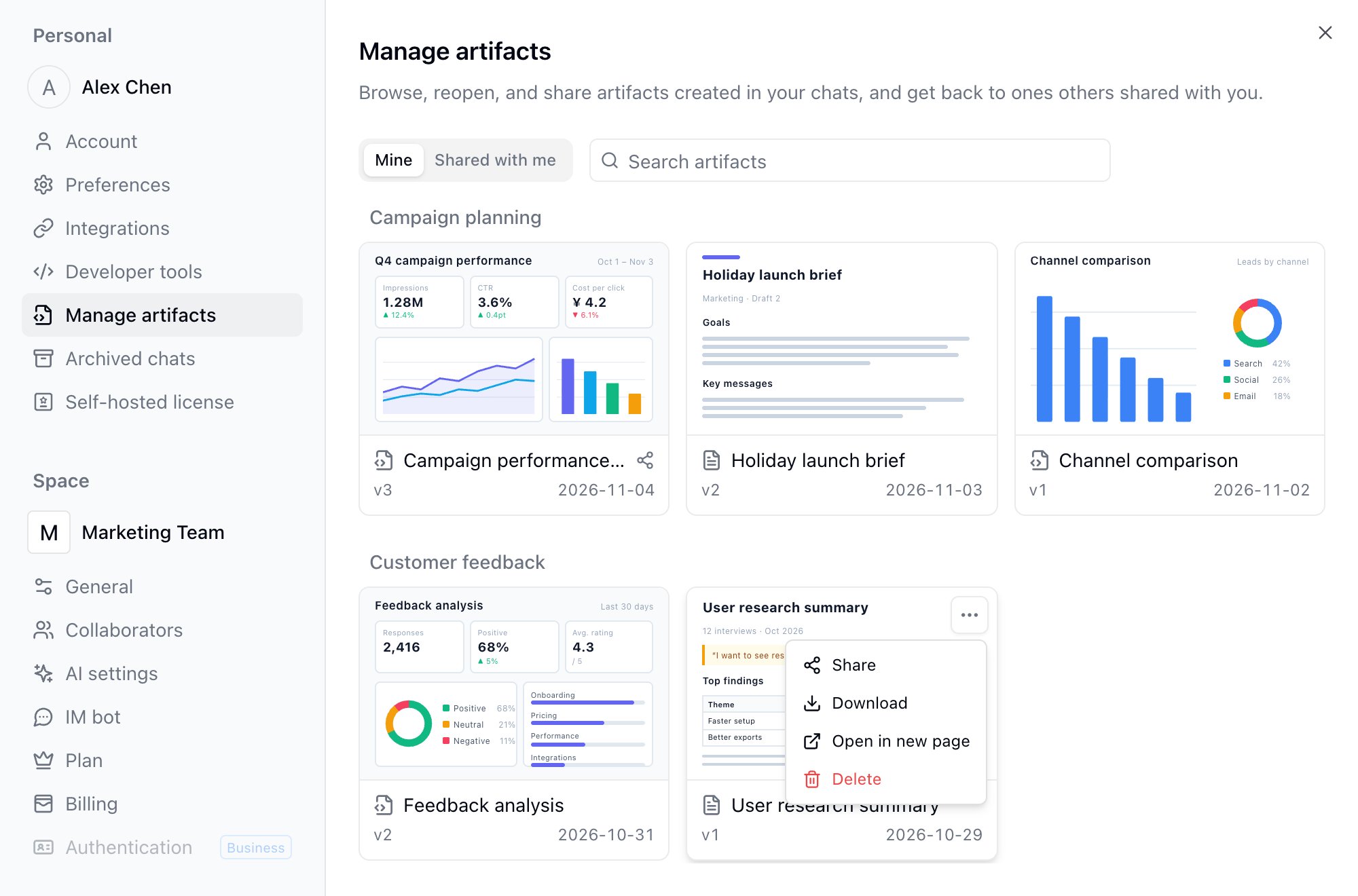
Open your avatar at the bottom left → Settings → Manage artifacts, or open it from a chat through + → More → Manage artifacts.- Mine: The artifacts you created, shown as cards grouped by project, each with a thumbnail of the page’s first screen at the top. You can search by name. A share icon next to the name marks artifacts with sharing on. Use a card’s … menu to Share, Download, Open in new page, or Delete it, or click the card to open the viewer.
- Shared with me: Artifacts that others shared and you opened while signed in, with who shared them and when you last opened them. Click one to reopen it in a new tab. Once sharing is turned off or the artifact is deleted, its entry no longer appears.
FAQ
Can my teammates open an artifact I created?
Can my teammates open an artifact I created?
Not by default, even if they are in the same project. Turn on Enable sharing in the viewer and send them the link, choosing Space members if the artifact should stay inside the space.
How do artifacts differ from apps built with App Builder?
How do artifacts differ from apps built with App Builder?
An artifact is a snapshot of the data at the time AI created it, suited to one-off reports, charts, and analysis results. An app reads and writes your tables live, can collect input and store state, and suits tools and pages you will keep using.
Do artifacts use credits?
Do artifacts use credits?
Creating and revising an artifact is part of an AI Chat conversation, so it counts against credits based on the conversation’s actual usage. Viewing, sharing, and downloading use no credits.