

Migrate from Airtable or another platform
Use Connect Everything in AI Chat to migrate Airtable, Baserow, NocoDB, SmartSuite, and other systems into Teable.
Excel files are limited to 5MB. If you need to import a larger dataset, save it as CSV first and then import it.
1
Choose an import method
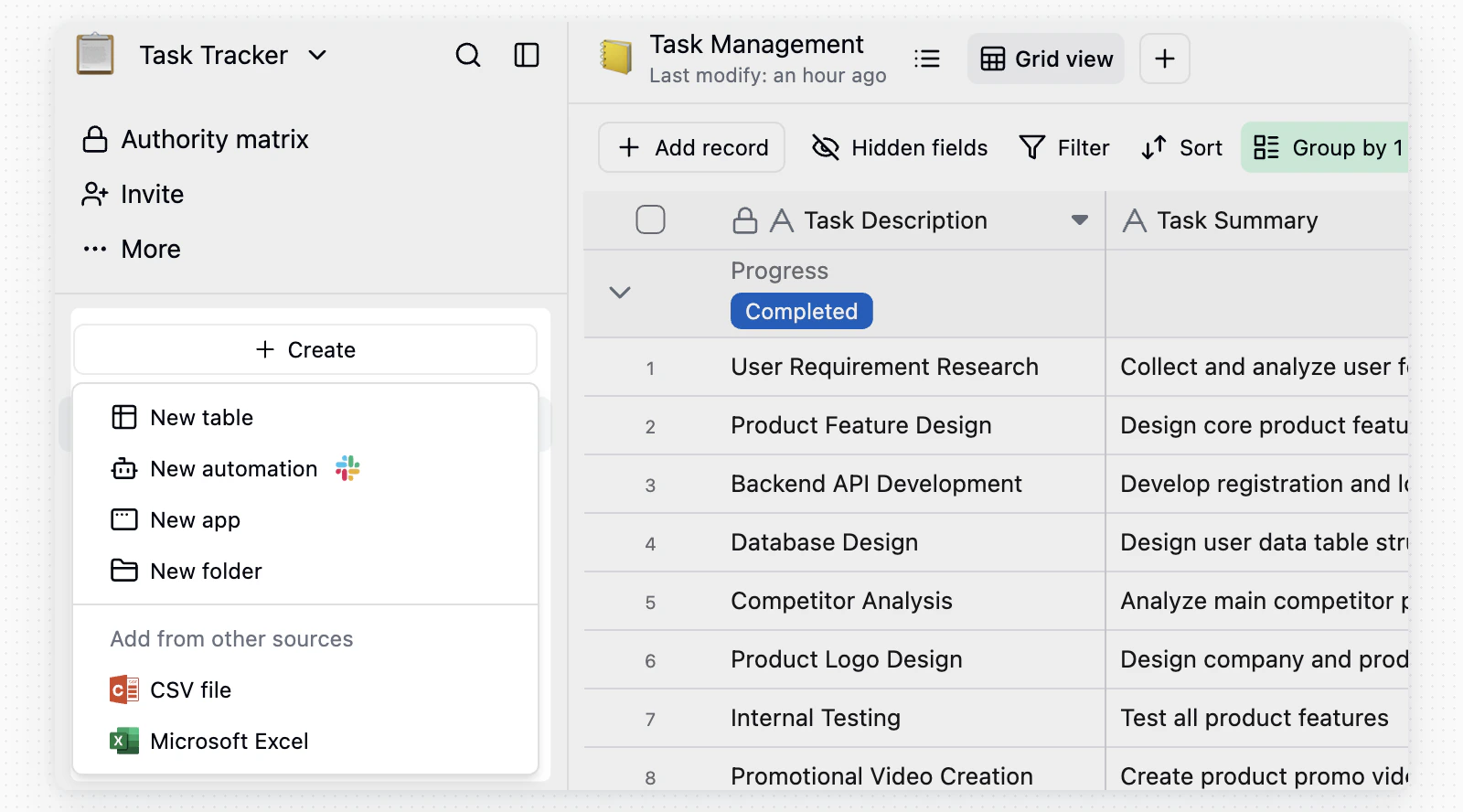
To create a new table, click
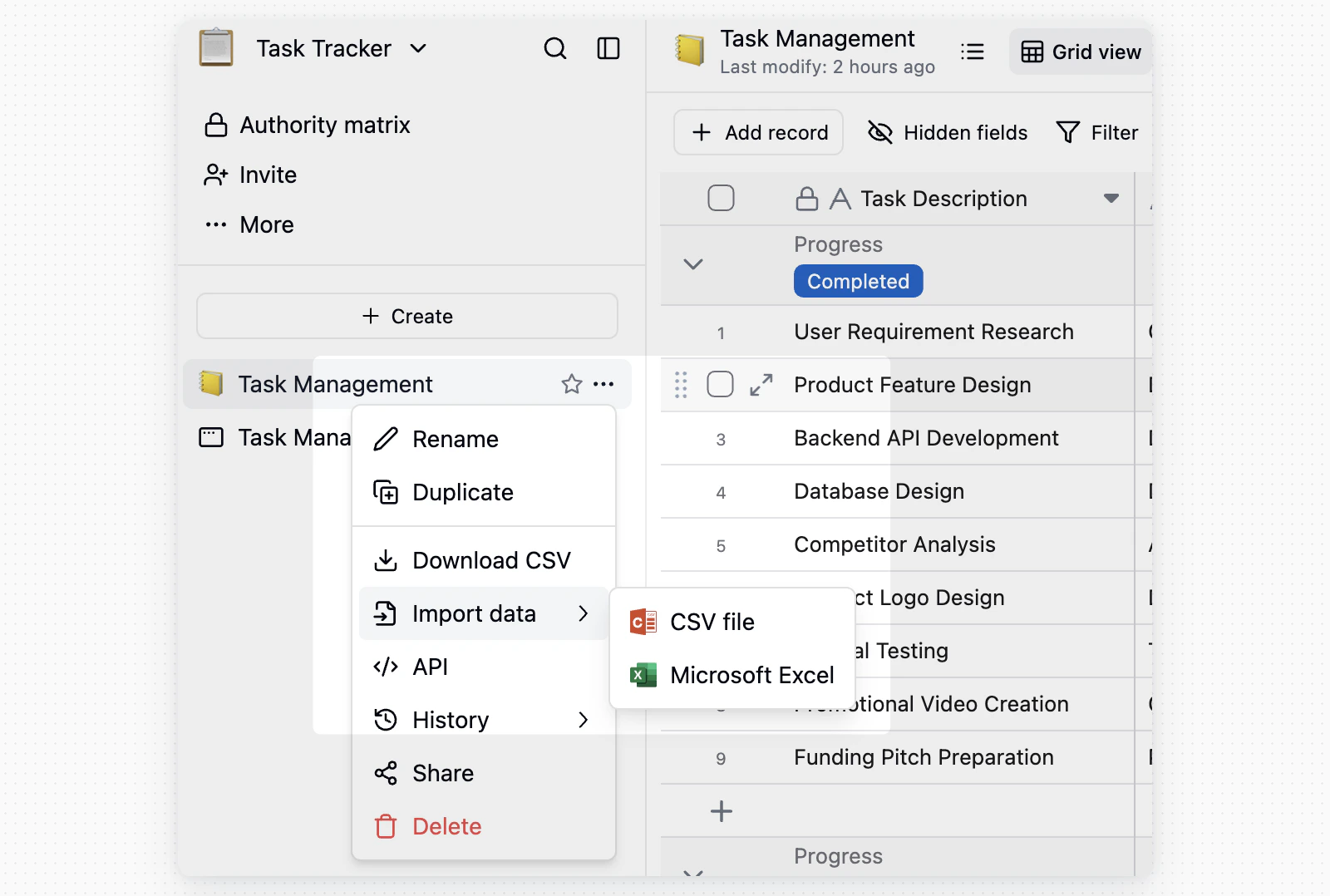
+ at the top of the left directory and choose CSV file or Excel file under Add from other sources. To append data to an existing table, choose Import data from the target table menu.2
Upload the file
Select the CSV or Excel file you want to import. Excel files must be 5MB or smaller.
3
Choose how to build the table
When you create a new table, Teable offers Import with AI or Import manually.
4
Check field settings
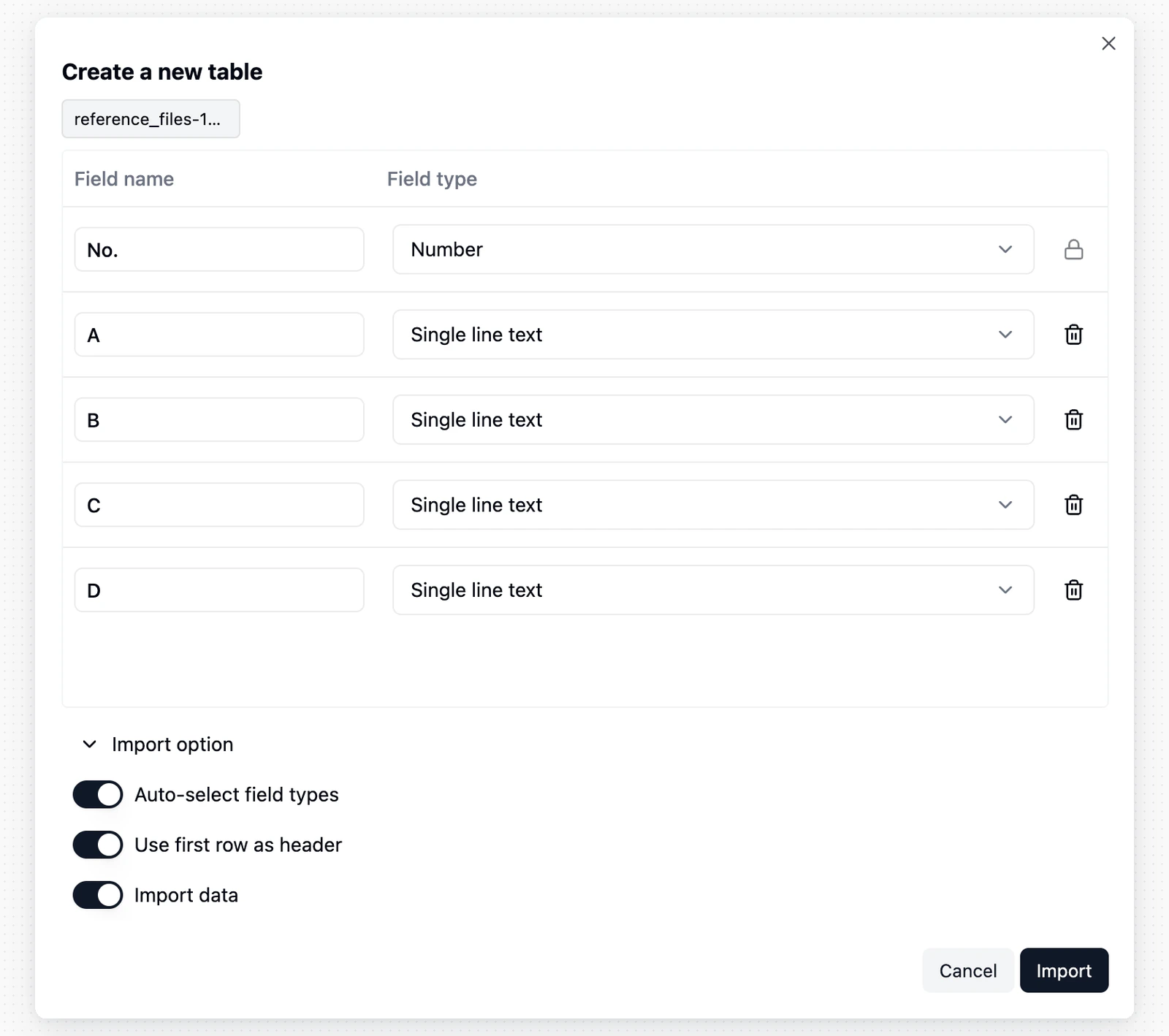
Review the preview after upload. When creating a new table, you can adjust field types. When appending to an existing table, confirm how file columns map to target fields.
5
Start the import
Click Import and keep the dialog open until the import finishes. It shows how many rows have been imported, and for a multi-sheet Excel file, which sheet is running.
Import Flow
Click+ at the top of the left directory, or + on the folder that should hold the new table, and select CSV file or Excel file according to your file type.
Import from Airtable
If Airtable integration is configured for your instance, you can use Airtable import in two ways:- To create a new Teable project, open the target space menu, click Import, then choose Import from Airtable.
- To import tables into the Teable project you are viewing, use the project resource menu:
- Open the target Teable project.
- Click
+at the top of the left directory. - Under Add from other sources, choose Airtable.
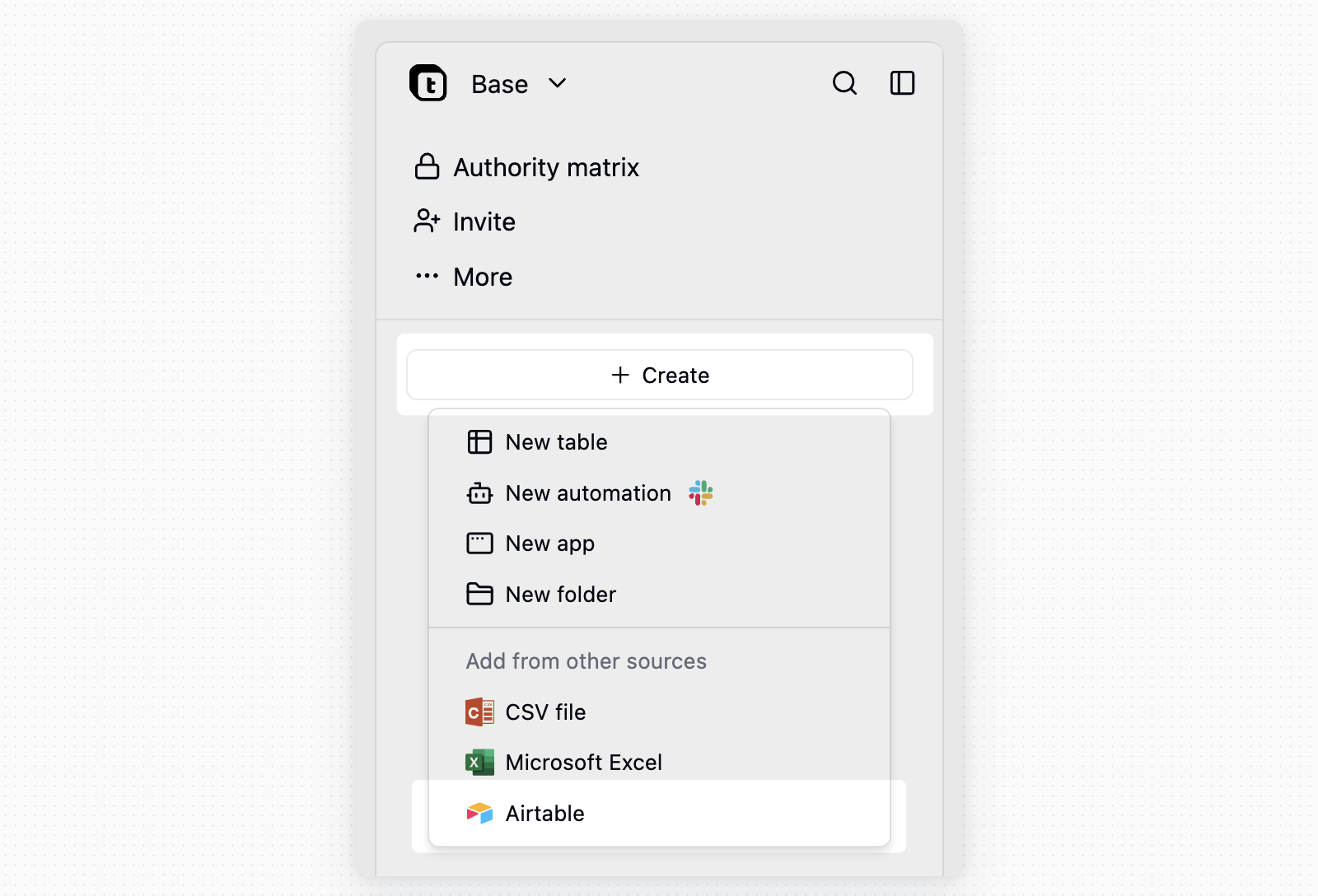
- Connect your Airtable account if needed, then choose the Airtable base to import.
- Choose whether to import records, download and import attachments, and import view filters, sorts, and grouping.
- Click Start import.
When Import view filters, sorts and grouping is enabled, Teable asks for a read-only Airtable shared-base link because the Airtable API does not expose view settings. In Airtable, open the base’s Share menu, use Share to web with full base access, paste that shared-base link into Teable, then turn the shared link off after the import completes.
Import from Google Sheets
Start from either entry point:- To create a new Teable project, open the target space menu, click Import, then choose Import from Google Sheets.
- To add tables to the project you are viewing, click
+at the top of the left directory and choose Google Sheets under Add from other sources.
1
Connect your Google account
The first time you import, click Connect Google account and finish authorizing in the popup. Teable remembers the connection for later imports.
2
Pick a spreadsheet
Click Select a spreadsheet from Google Drive and choose one file in Google’s file picker. Teable then reads its structure. Use Change to switch to a different spreadsheet.
3
Choose the tabs
Each tab is shown as a card with its row and column count. Select the tabs you want. Clear Import records if you only want the field structure without the data.
4
Start the import
Click Start import and keep the dialog open. It reports progress table by table and, when it finishes, how many records each table received. After a new-project import, use Open project to go straight to the result.
Teable can only read the spreadsheets you select in Google’s file picker, not your whole Drive. To import another file later, open the picker again and select it.
FAQ
Why did only part of a sheet import?
Why did only part of a sheet import?
The table reached its row limit. That sheet keeps the rows that fit and skips the rest, and the other sheets in the file still import. The result list in the dialog marks which sheet was cut. Import the remaining rows into another table, or raise the row limit for your plan or instance.
The column names are wrong after importing. What should I do?
The column names are wrong after importing. What should I do?
A column in the header row is probably missing its name, so Teable used a record as the header instead. Name every column in the header row, remove stray notes from the cells beside the table, then import again.
Why did the import fail?
Why did the import fail?
When a sheet fails, the result list in the dialog shows the reason for that sheet. Before the import starts, Teable also blocks the file when the format does not match the option you chose, when an Excel file is larger than 5MB, or when a field name in the preview is empty or duplicated. Fix the file or the field names, then import again.
Notes
- Header row detection: A CSV file uses the first row as the header. In an Excel file, Teable skips titles and blank rows above the table to find the header row, as long as the header sits on its own row and every column has a name. Check the column names in the preview before importing.
- Date format: Teable can recognize common date formats such as
YYYY-MM-DD. For unusual formats, standardize them before import, or import them as text and convert the field type later. - Google Sheets field types: Teable reads each column’s cell formats to choose a field type, so values formatted as dates or numbers in Google Sheets arrive as Date and Number fields. Leading blank rows and banners above the table are skipped when Teable looks for the header row. Check the field types after importing.
- Airtable select options: If Airtable select options have names that become identical after trimming spaces, Teable keeps the first option and maps matching record values to it. This prevents duplicate option names during import.