

Documentation Index

Fetch the complete documentation index at: https://help.teable.ai/llms.txt

Use this file to discover all available pages before exploring further.

The view toolbar controls how the current view displays and shares records. Filters, groups, sorts, visible fields, row height, and related settings affect the current view only. They do not delete records or change other views.
Filter, group, and sort settings are independent in each view. Changes in one view do not affect other views.

Toolbar Overview

ToolUse it forCommon scenarios
FilterShow only records that match conditionsOpen tasks, your own records, records in a date range
GroupGroup records by field valuesWorkload by owner, progress by status, records by date
SortReorder records by field valuesRecently updated records, task priority, sales ranking
SharePublish the current view as a linkShare a filtered, sorted, grouped, hidden-field, or layout-specific result
View CollaborationChoose whether view settings sync to everyone or only apply to youTemporary view changes, or a team view everyone uses

Filter

Filters show records that match specific conditions in the current view. They hide records that do not match. They do not delete records.
1

Open the filter panel

Click Filter in the view toolbar.
2

Add a condition

Choose a field, an operator, and a comparison value.
3

Choose how conditions combine

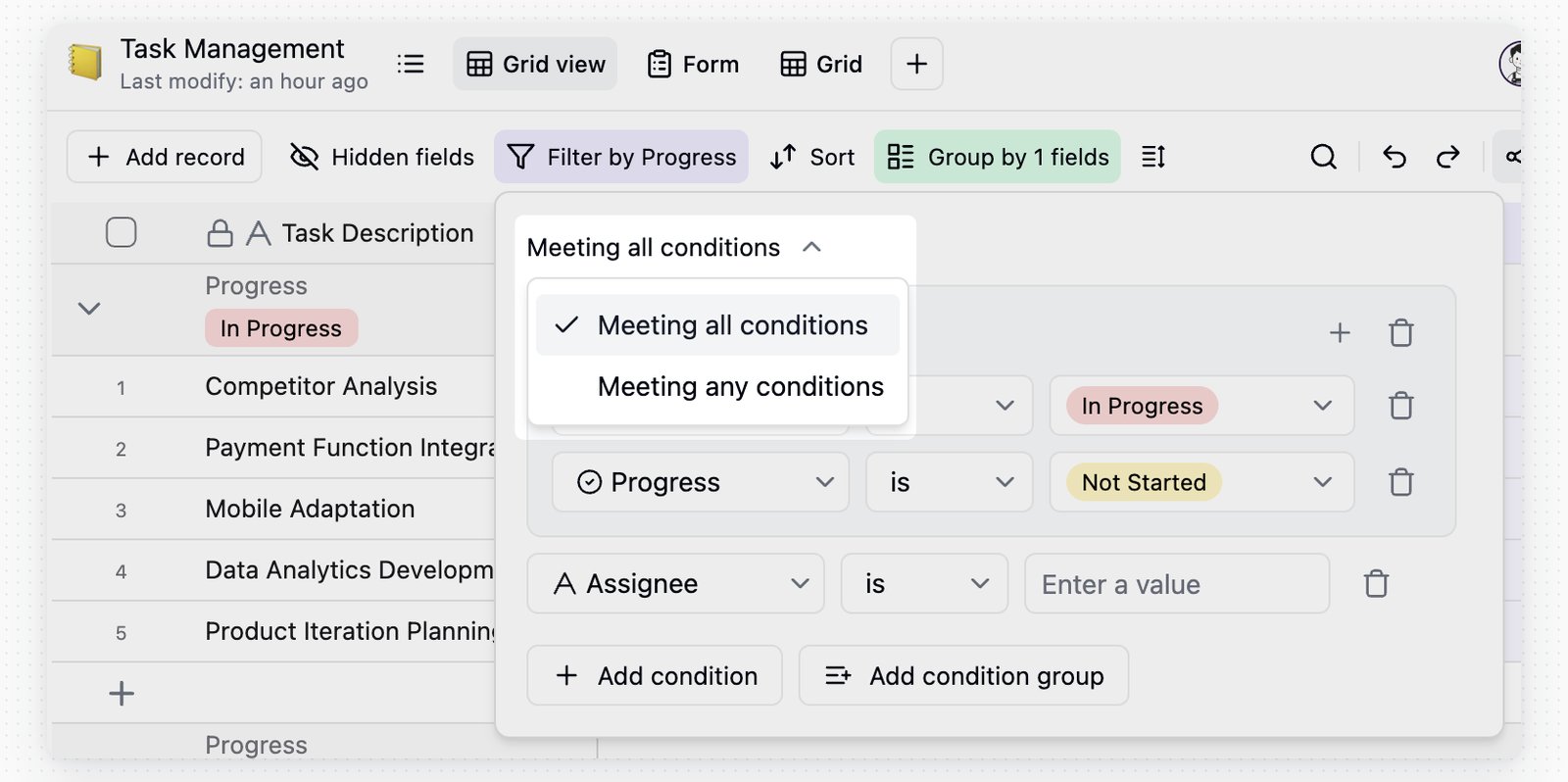
For multiple conditions, choose Meeting all conditions or Meeting any conditions.
RelationshipDescription
Meeting all conditionsA record appears only when every condition in that level is met
Meeting any conditionsA record appears when any condition in that level is met
View filter conditions

Condition Groups

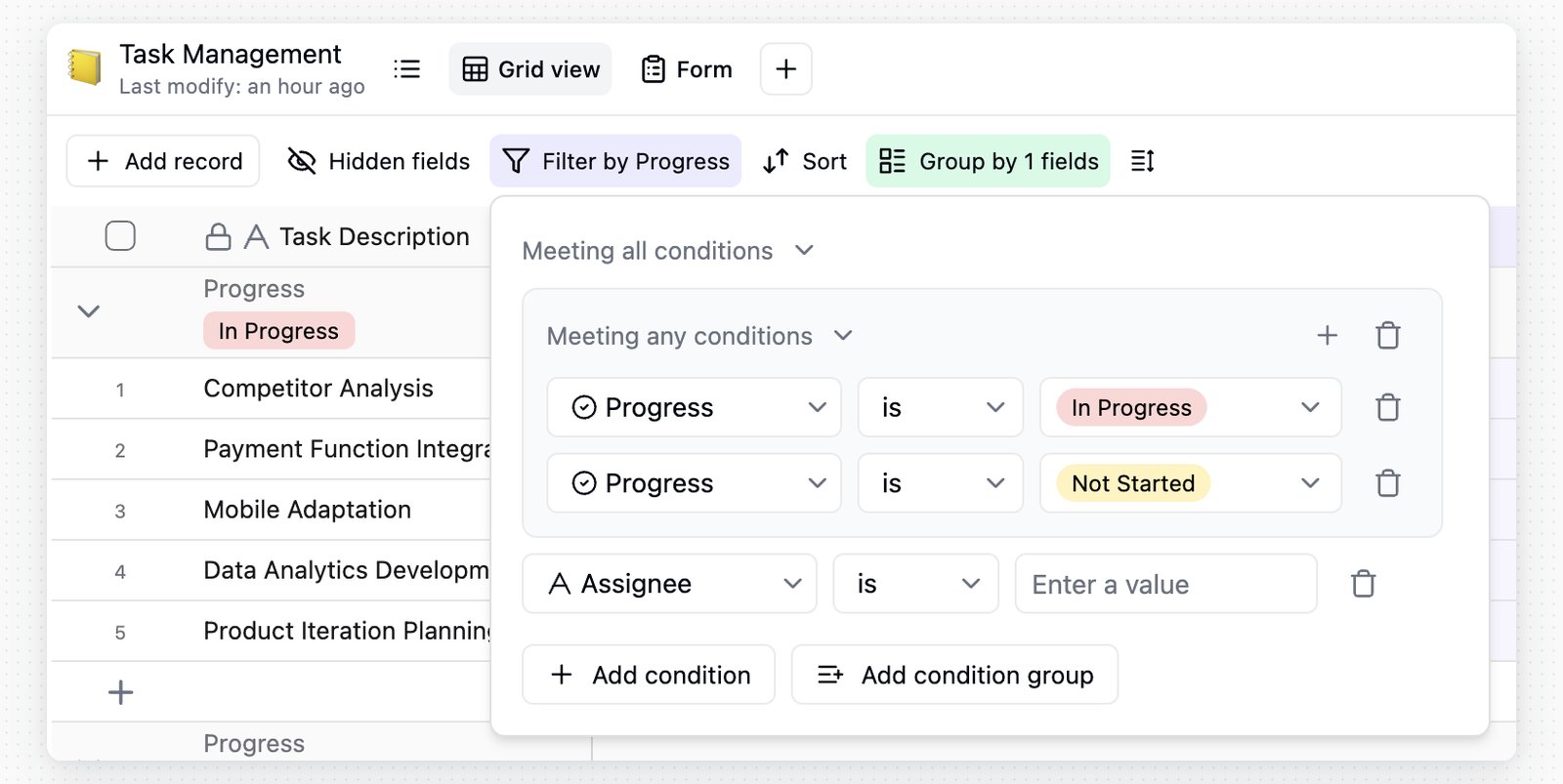
Use condition groups for more complex filter logic. For example, ā€œA and B, or C and Dā€ can be expressed as two groups.
  • Click Add condition group to create a group.
  • Groups can use Meeting all conditions or Meeting any conditions.
  • A group can contain nested groups.
  • Condition groups support up to 3 levels.
View filter condition groups

Common Filter Operators

Field typeCommon operatorsInput
Single Line Text, Long TextEquals, Does not equal, Contains, Does not contain, Is empty, Is not emptyText input
UserEquals, Does not equal, Contains any, Does not contain any, Is empty, Is not emptyUser list, current user
AttachmentIs empty, Is not emptyNo input
Multiple SelectContains any, Contains all, Exactly matches, Does not contain any, Is empty, Is not emptyOption list
Single SelectEquals, Does not equal, Contains any, Does not contain anyOption list
Date, Created Time, Last Modified TimeEquals, Does not equal, Within, Before, After, On or before, On or after, Is empty, Is not emptyPreset range or exact date
Number, Rating, Auto Number=, ≠, >, ≄, <, ≤, Is empty, Is not emptyNumber
LinkEquals, Does not equal, Contains, Does not contain, Contains any, Contains all, Exactly matches, Does not contain any, Is empty, Is not emptyLinked record selector
Created By, Last Modified ByEquals, Does not equalUser list, current user
Formula and Rollup operators depend on the result type.

Invalid Condition Warnings

If a field type changes, a field is deleted, or an older filter setup is no longer compatible, Teable ignores the invalid condition so the view can still open.
  • The Filter button in the toolbar shows a warning icon.
  • After you open the filter panel, the invalid condition shows a warning icon.
  • Hover over the icon to see the reason and fix the condition.

Group

Grouping records by field values helps you review distribution, summaries, and hierarchy.
1

Open the group panel

Click Group in the view toolbar.
2

Choose a field

Choose the field you want to group by.
3

Add more groups

Click Add another group when you need multiple grouping levels.
Field typeRecommended use
Single Select, Multiple SelectGroup by fixed options such as status, priority, or type
UserGroup by owner, collaborator, or submitter
DateGroup records by time period
Checkbox, Link, Number, RatingGroup by clear values or results
  • Grouping supports up to 3 levels.
  • You can collapse or expand groups. Records inside each group still follow the current sort order.
  • Each group shows a summary bar at the top so you can review its summary results.
  • Empty values are placed into separate uncategorized, unassigned, or empty groups depending on the field type.

Sort

Sorting reorders records by field values. It changes the display order in the current view and does not edit record content.
1

Open the sort panel

Click Sort in the view toolbar.
2

Choose a field

Choose the field you want to sort by.
3

Choose a direction

Choose ascending or descending. Add more sort conditions when you need multi-level sorting.
Multi-level sorting follows the order of the conditions. Teable sorts by the first condition first; if records have the same value, it then applies the next condition.
Field typeSort behavior
Text, AttachmentSort alphabetically or in reverse order. Attachments are sorted by filename
Number, Duration, RatingSort by value in ascending or descending order
Date, Created Time, Last Modified TimeSort from earliest to latest, or latest to earliest
CheckboxSort from unchecked to checked, or in the reverse order
Single Select, Multiple SelectSort by the option order in the field configuration, or in the reverse order
Formula and Rollup fields are sorted according to their result type. Use the Auto-sort records toggle in the sort menu.
StatusBehavior
OnRecords stay sorted by the current rules. When a field value changes, the record moves to its new position. You cannot manually drag records while auto-sort is on
OffRecords are sorted again only after you reapply sorting. You can manually drag records, and data updates do not move them automatically

Share View

Share view publishes the current view as a link. Visitors see the data and layout in that view. This is not the same as inviting them as base collaborators.
To share an entire base, a specific table, or a folder, use base sharing in Base.
Share optionBest for
Share tableGiving external people broader access to the current table
Share viewPublishing only the current view, such as a filtered, sorted, grouped, hidden-field, or layout-specific result
A view share link follows the current view configuration. If you later change filters, sorting, grouping, hidden fields, or layout, the shared page changes as well.
1

Open the view

Go to the view you want to share.
2

Open sharing

Click Share in the view toolbar.
3

Choose Share view

Switch to Share view.
4

Turn on public sharing

Turn on Share view to web.
5

Copy the link

Copy the generated link, or share the QR code.
If you do not have permission to share the view, the sharing switch is unavailable. After Share view to web is turned off, existing share links can no longer be opened.
Public links can be forwarded. Before enabling sharing, confirm that the current view does not include fields or records that should not be public.
Different view types show different advanced options.
OptionApplies toDescription
Allow viewers to copy data out of this viewGrid viewControls whether visitors can copy data from the shared grid view
Show all fields in expanded recordsGrid viewControls whether visitors can see hidden fields when opening record details
Restrict by passwordAll view sharesAdds a password to the share link. Visitors must enter the correct password before opening it
Require login to submitForm viewRequires visitors to log in before submitting the form
Share views can be embedded in other webpages. Click Embed config to preview the embed, copy iframe code, hide the toolbar, and choose a theme.
<iframe
  src="https://app.teable.ai/share/[share-id]/view?hideToolBar=true&embed=true"
  width="100%"
  height="533"
  style="border: 0">
</iframe>
Embed optionDescription
Hide toolbarAdds hideToolBar=true to the link and hides filter, sort, search, and other toolbar controls. This does not apply to Form view
ThemeSupports system, light, and dark themes

View Collaboration

View collaboration controls whether view settings are shared with everyone or kept as your own personal adjustments. It affects filters, sorts, groups, visible fields, row height, and other view settings. It does not affect record data.
ModeUse caseSetting behavior
Collaboration modeThe team needs to use the same view setupView settings are synced to everyone using this view
Personal modeYou want a temporary view setup, or you want to view data in your own wayFilters, sorts, groups, visible fields, and row height apply only to you
Click Personal in the toolbar to switch between collaboration mode and personal mode. If the view is not locked and you have permission to update the view, turning off personal mode gives you two choices.
OptionResult
Exit and syncSync your personal-mode view settings to everyone
Confirm exitDiscard your personal-mode view settings and leave personal mode
If the view is locked, or you do not have permission to edit the view, you can still use personal mode for your own temporary adjustments, but you cannot sync those changes to others.

Notes

  • Changing filters, groups, sorts, visible fields, or row height affects everyone using the current view, unless you are in personal mode.
  • Share view publishes the current view result, not full base permissions. For ongoing collaboration, use member permissions or base sharing.
  • In either mode, edits to cell values are still synced to everyone.
Last modified on May 26, 2026